Loading
Set Up and Maintain Your Salesforce Organization
Table of Contents
Select Filters

          No results
          No results
          Here are some search tips

          Check the spelling of your keywords.
          Use more general search terms.
          Select fewer filters to broaden your search.

          Search all of Salesforce Help
          Enable Partitioned Domains

          Enable Partitioned Domains

          To maximize the availability of your orgs, enable and deploy partitioned domains for your My Domain in your existing Developer Edition org, demo org, patch org, sandbox, scratch org, or Trailhead Playground. Partitioned domains allow Salesforce to gradually roll out service delivery changes by org type. When a domain is partitioned, it includes a word related to the org type, which also makes it easier to identify an org by a URL.

          Required Editions

          Available in: both Salesforce Classic and Lightning Experience
          Available in: Group, Essentials, Professional, Enterprise, Performance, Unlimited, and Developer Editions
          User Permissions Needed
          To edit My Domain settings: Customize Application

          Partitioned Domains are available in Developer Edition orgs, demo orgs, patch orgs, scratch orgs, and Trailhead Playgrounds with enhanced domains. Sandboxes with enhanced domains are always partitioned. Only the sandbox partition is available in Government Cloud—Defense orgs.

          Qualifying new orgs get partitioned domains by default, and you can’t disable this feature in those orgs.

          Warning
          Warning Before you deploy partitioned domains, update your allowlists to ensure that your users can connect to the partitioned domains.

          Partitioned domains change URLs formats across your org. To review the high-level steps and the recommended practices for a My Domain change, plus how to reduce the impact on your users and customers, see Plan for a My Domain Change.

          1. From Setup, in the Quick Find box, enter My Domain, and then select My Domain.
          2. In the My Domain Details section, click Edit.
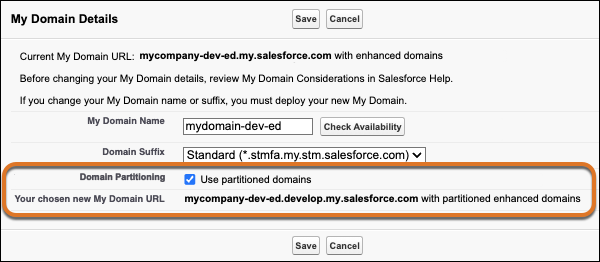
          3. Select Use partitioned domains.

            You can preview your new My Domain login URL at the bottom of the screen.

            The edit My Domain details screen with an orange box around the domain partitioning and new URL sections.

            This option isn’t available in sandboxes. Sandboxes with enhanced domains are always partitioned and use the “sandbox” partition.

            Otherwise, if you don’t see the Use partitioned domains option, your org doesn’t qualify for this feature.

          4. Save your changes.
            When you save your changes, Salesforce provisions the URLs for your My Domain with partitioned enhanced domains. The provisioning process usually finishes in a few minutes, but it can take up to 24 hours. You receive an email when your My Domain with partitioned enhanced domains is ready to be deployed and tested.

          When you receive the email that your domain is ready to be deployed, deploy your new My Domain, update your org, and test the changes. After you complete testing, help your users of the non-production org get started. Provide links to pages that they use frequently and encourage them to update their bookmarks the first time that they’re redirected.

           
          Loading
          Salesforce Help | Article
