Deploy My Domain Changes
After you change your My Domain and Salesforce provisions those changes, deploy your org’s new My Domain. Only after you deploy your new My Domain can you test your new URLs. And your users can’t use the new My Domain URLs until you deploy the updated My Domain.
Required Editions
| Available in: both Salesforce Classic and Lightning Experience |
| Available in: Group, Essentials, Professional, Enterprise, Performance, Unlimited, and Developer Editions |
| User Permissions Needed | |
|---|---|
| To edit My Domain settings: | Customize Application |
| To define a My Domain name: | Customize Application AND Modify All Data |

Follow these guidelines when you deploy a My Domain change.
- Whenever you deploy a My Domain change, the URLs that Salesforce hosts for your org change. To review the high-level steps, the recommended practices, and how to reduce the impact on your users and customers, see Plan for a My Domain Change.
- Test My Domain changes in a sandbox before you update production. You can’t test in production. After you deploy a My Domain change, it immediately applies to all users and third-parties that access your org.
- In case you must troubleshoot any issues, we recommend that you deploy your new My Domain when your org receives minimal traffic, such as during the weekend.
- When you deploy a My Domain change, active user sessions can be terminated. Similarly, any connection to Salesforce can be reset when you deploy the My Domain change. If a feature that connects to Salesforce stops working, the user can reauthenticate. For example, in Salesforce CLI, use force:org:open to log in again.
- Before you deploy a My Domain change, including enabling or disabling enhanced domains, consider the impact on any existing My Domain URL redirections. Salesforce only redirects your last set of previous My Domain URLs. For more information, see Understand Redirections for Previous My Domain Host Names.
-
Return to the My Domain Setup page. From Setup, in the Quick Find box, enter
My Domain, and then select My
Domain.
If your domain is provisioned and ready to deploy, the My Domain Setup page shows Step 3: Deploy Your New Domain.
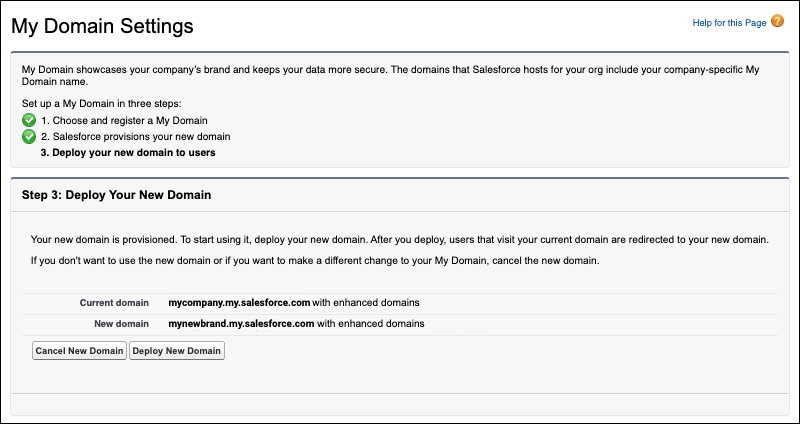
The current domain and new domain fields show the My Domain login URL. However, Salesforce serves multiple domains for your Salesforce org. For example, if you enabled enhanced domains, the My Domain login URL doesn’t change in production, but site, Visualforce, content, and many other URLs change. For more information on the URLs that Salesforce serves for your org and the potential impact, see My Domain URL Formats.
As part of the provisioning process for your new domain, Salesforce performs a cursory check to ensure that you have network access to the new domains. If you don’t have the required access, the My Domain page lists the URLs you can’t access. Before you can deploy your new domain, resolve these network access issues. The access issues can be temporary, such as connectivity issues stemming from a stale DNS cache. Or they can require updates to your allowlists or network configuration. To deploy your My Domain, revisit the My Domain Setup page after the access issues are resolved.
If the My Domain Setup page shows Step 2: Provisioning in Progress, Salesforce is still provisioning your new domain. The provisioning process usually finishes in a few minutes, but it can take up to 24 hours. You receive an email when the process finishes. If you continue to see the Provisioning in Progress page 24 hours after submitting your My Domain name, you can click Stop Provisioning to stop the process. After you stop the process, wait 15 minutes, and then try registering your My Domain name again. Or you can contact Salesforce Customer Support.
-
Optionally, if you renamed your My Domain, update your My Domain settings, such as
adding authentication services. For more information, see Configure My Domain Settings.
 Note My Domain settings apply to your org’s deployed and provisioned domains.
 -
To roll out the new My Domain to your org, click Deploy New
Domain, and click OK.
When you deploy your My Domain, it’s activated immediately. You can now set login policies. See Set the My Domain Login Policy.
Before you test the deployed My Domain, update all URL references in your org.
- To cancel your requested My Domain changes, click Cancel New Domain.
Each time that you deploy a change to your My Domain, Salesforce redirects requests from your previous My Domain URLs to your current My Domain. If you don’t want those requests to be redirected, see Disable or Remove Your Previous My Domain.
Next steps:
- Review the changes to your org’s URLs in My Domain URL Formats.
- Update your org.
- Test the changes.
