You are here:
Getting Started
Learn how to use sales, service, and marketing features, even if you’re new to Salesforce or customer relationship management. Find and organize your imported data by searching, navigating tabs, and organizing your data. Easily keep information current with intuitive work spaces.
Required Editions
| Available in: Lightning Experience |
| Available in: Free, Starter and Pro Suite Editions. |
Home App
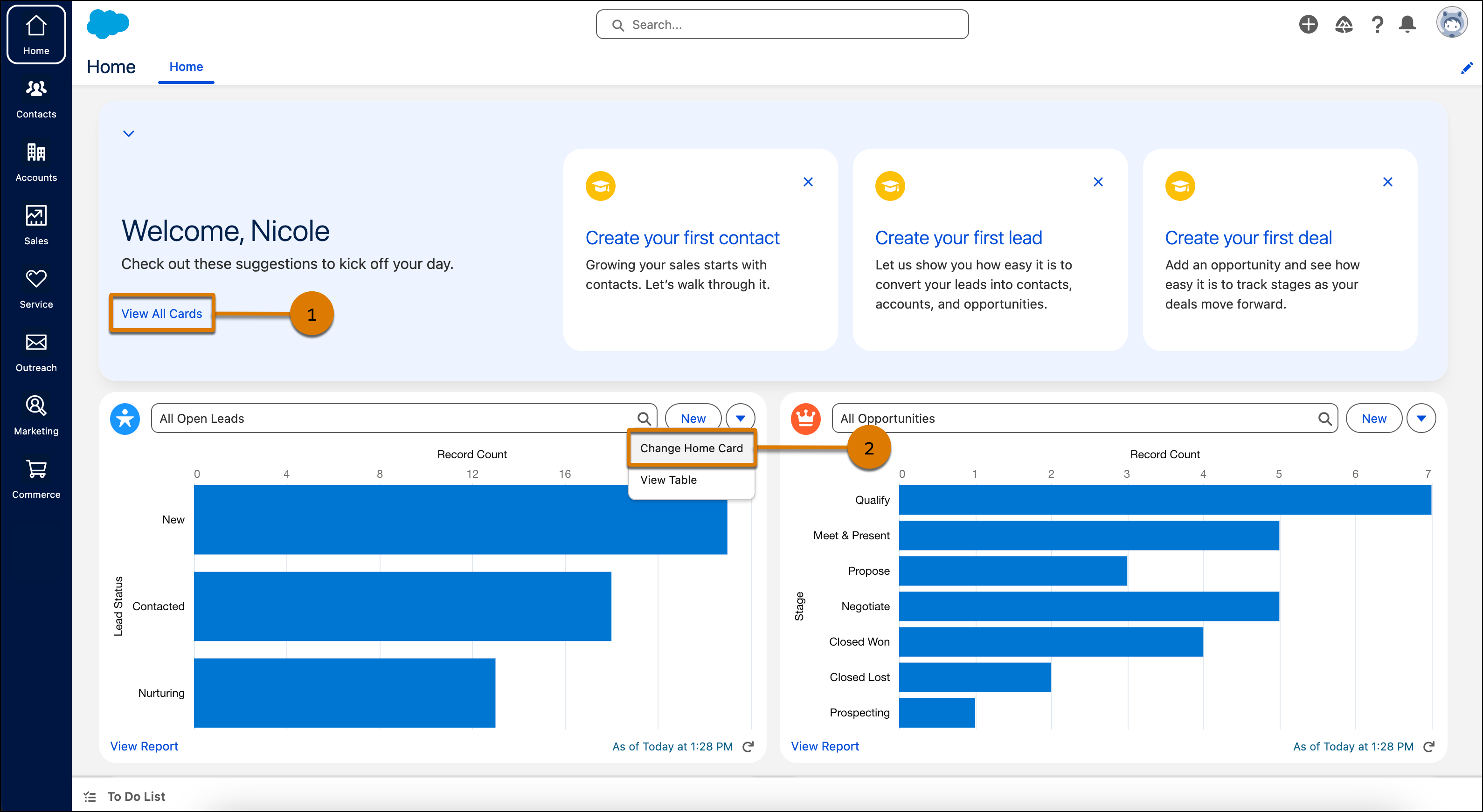
Start working right away directly from the Home app. Activity suggestions are recommended to you based on your business needs and processes. These suggestions make it easy to accomplish work such as importing contacts and automating tasks. Click View All Cards to explore more actions to help you get started (1).
Stay informed about business data that’s relevant to your company by personalizing what
appears on the Home app. Keep up with recent activity and quickly access the most important
things to you. Click  on the top right corner of a card and select Change Home
Card (2). page.
on the top right corner of a card and select Change Home
Card (2). page.
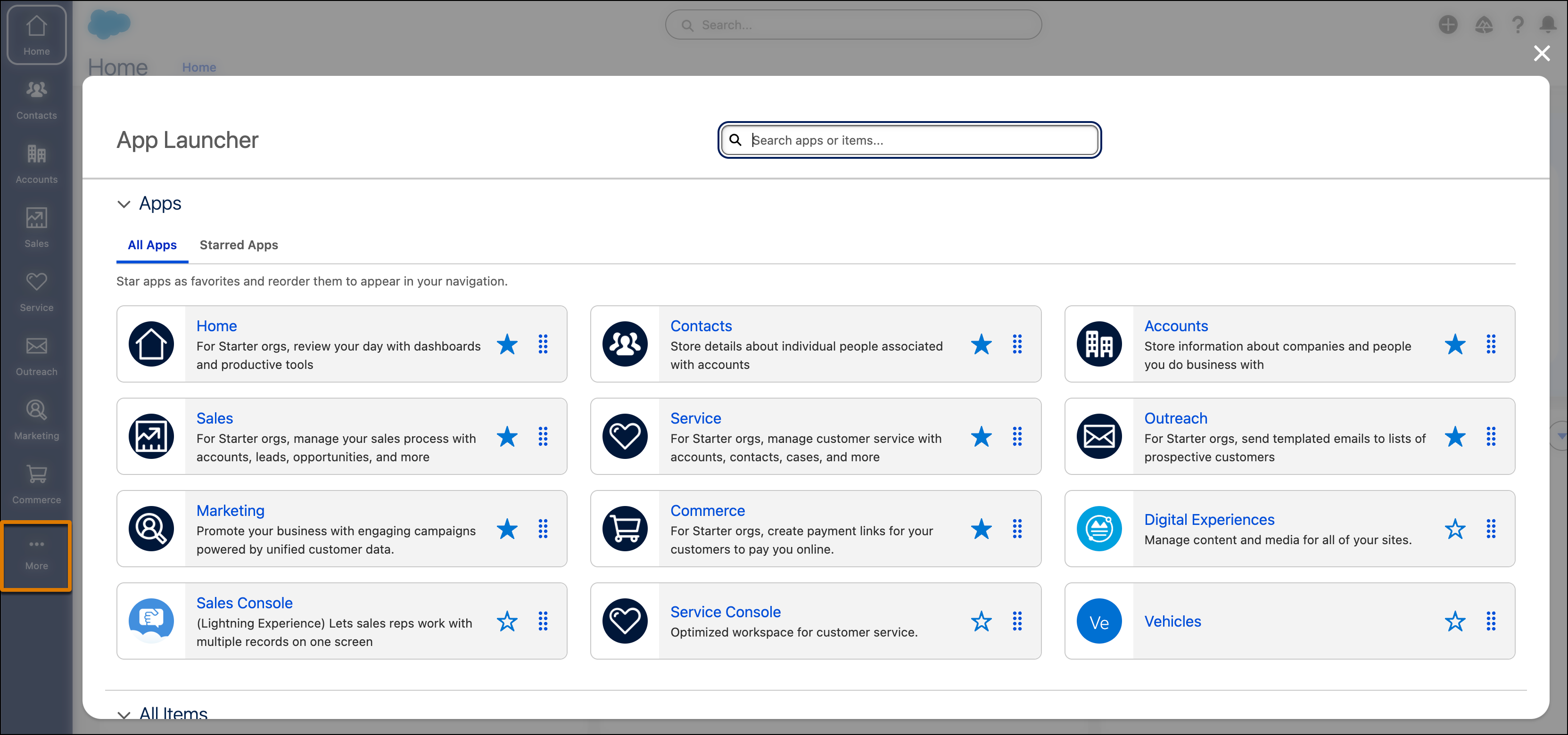
In Pro Suite, you can select which apps appear on the vertical navigation bar in the App Launcher. To open the App Launcher, click More and star the apps that you want in your navigation bar as favorites. You can order them the way you want directly in the navigation bar or in the App Launcher by dragging the app to the location you want.
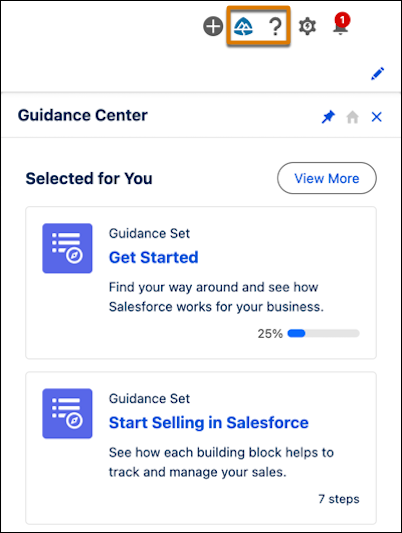
More of a learn-as-you-go type of person? Check out the Guidance Center for hands-on tutorials and setup shortcuts.
Search for Information
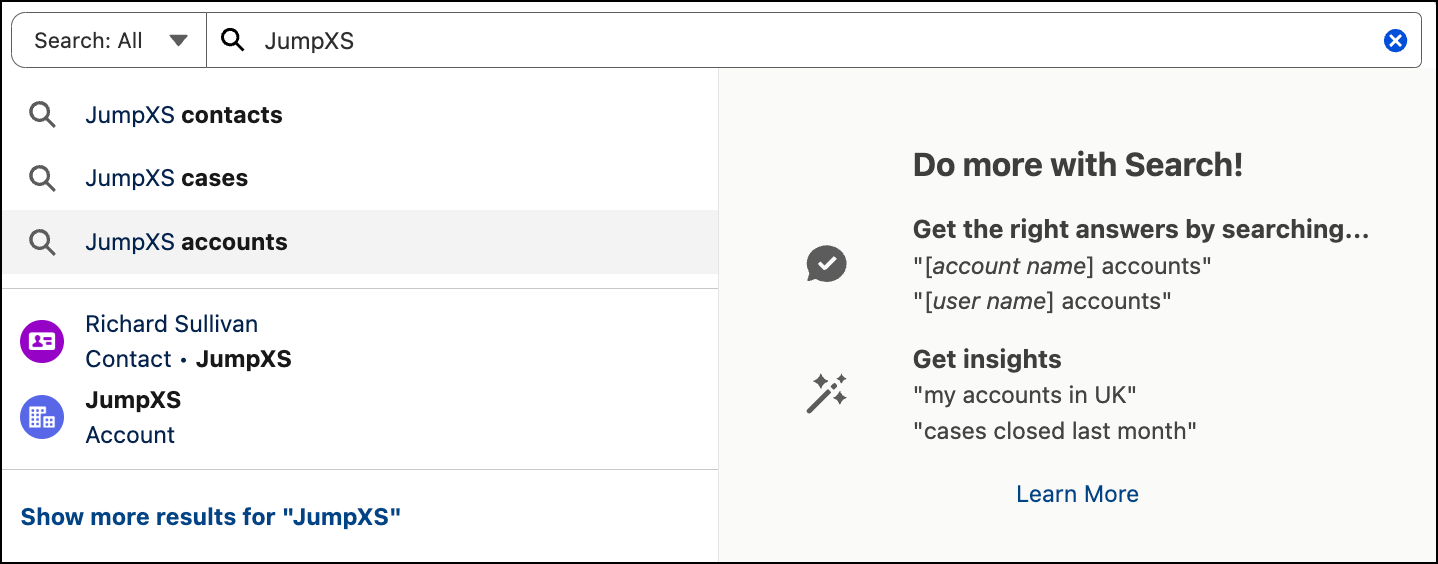
In Salesforce, we call individual pieces of data, records. Groups of related records are called objects. Think of an object as a table and a record as a row within that table. Find a specific record, such as a contact or account, using the search bar.
- See instantly suggested records and previews when you start typing.
- Enter a term, and search generates a recommended result.
- Use common words and phrases in the search bar, like my open cases, and get relevant information.
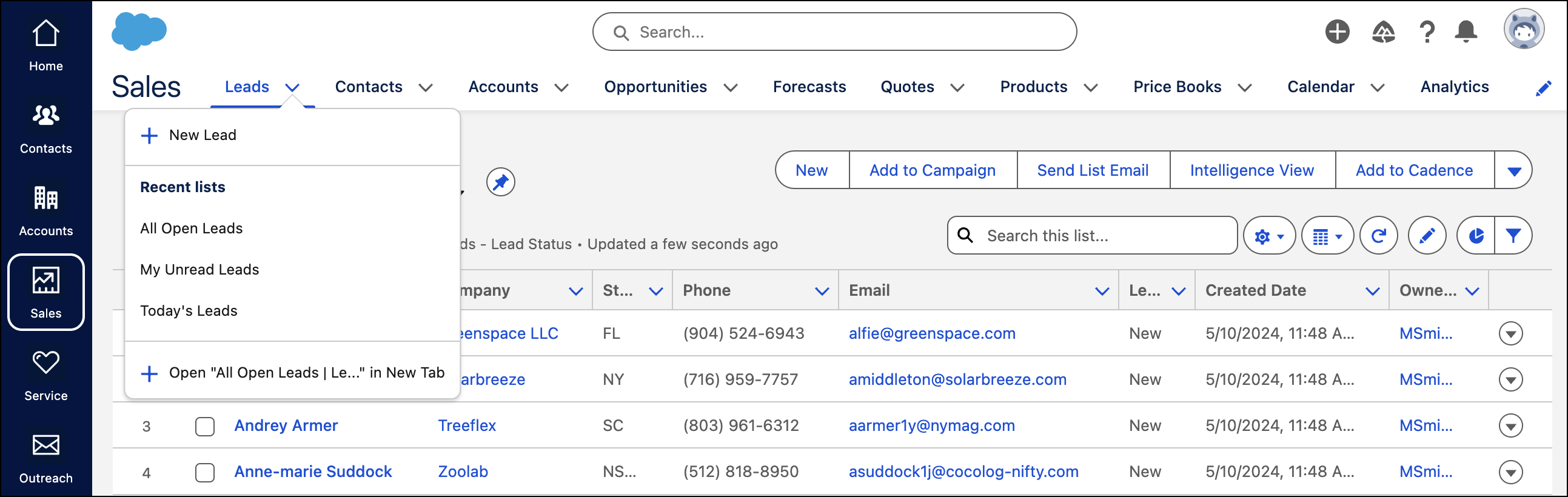
Use the vertical navigation bar to get to apps like Sales, Service, and Marketing. You can then browse tabs for objects and features using the horizontal navigation bar.
Know Where to Go
Here’s a list of tabs and subtabs. Know where to go in your new workspace to complete common tasks.
| Use This Tab To... | ...Get This Work Done |
|---|---|
| Accounts | Find out where your contacts work. Improve reporting and how you track customer relationships across multiple touch points. |
| Analytics | Access all your reports and dashboards in one place. Manage and analyze data to find out how your business is doing. |
| Calendar | Schedule meetings and events. |
| Contacts | Track people and business owners you work with. Capture customer details and nurture relationships. |
| Home | Explore and grow your business with quick links to key features and an overview of your business’s health. |
| Marketing | Campaigns | Organize and execute marketing efforts from a central hub. A campaign includes an audience, content, and scheduling details. You can create one email or a series of emails. |
| Marketing | Content | Manage marketing assets and content with Salesforce CMS. You can organize images and files or create emails to use with campaigns. |
| Marketing | Flows | Power automated or scheduled emails. Flow Builder combines assets to make sure the right person gets the right message at the right time. |
| Marketing | Segments | Organize targeted audiences. A segment represents a collection of people who meet certain criteria based on rules that you define. Right before you send an email, the latest matching recipients are identified and added to the segment. |
| Outreach | Email Templates | Create templates to save time when emailing contacts. Available for customers without Starter Marketing functionality. In some accounts, this tab is shown instead of the Marketing tab. |
| Outreach | List Emails | Send personalized messages to multiple recipients using merge fields and email templates. Available for customers without Starter Marketing functionality. In some accounts, this tab is shown instead of the Marketing tab. |
| Sales | Leads | Manage prospective customers who are interested but haven't been vetted yet. When a prospect qualifies, the lead is converted into a contact, account, and opportunity. |
| Sales | Opportunities | Track qualified deal stages and activities so everyone can collaborate and close deals faster. Opportunities are deals in progress with prospective customers. |
| Service | Cases | Manage customer support inquiries. Cases record customer questions, feedback, and issues from emails. |
| Service | Knowledge | Solve issues faster. Find or create articles with answers to service procedures, troubleshooting, and FAQs. |
| Service | Quick Text | Save time and standardize company messaging. Create greetings, closings, and frequently asked questions, and insert the predefined messages into tasks and events. |
Create List Views
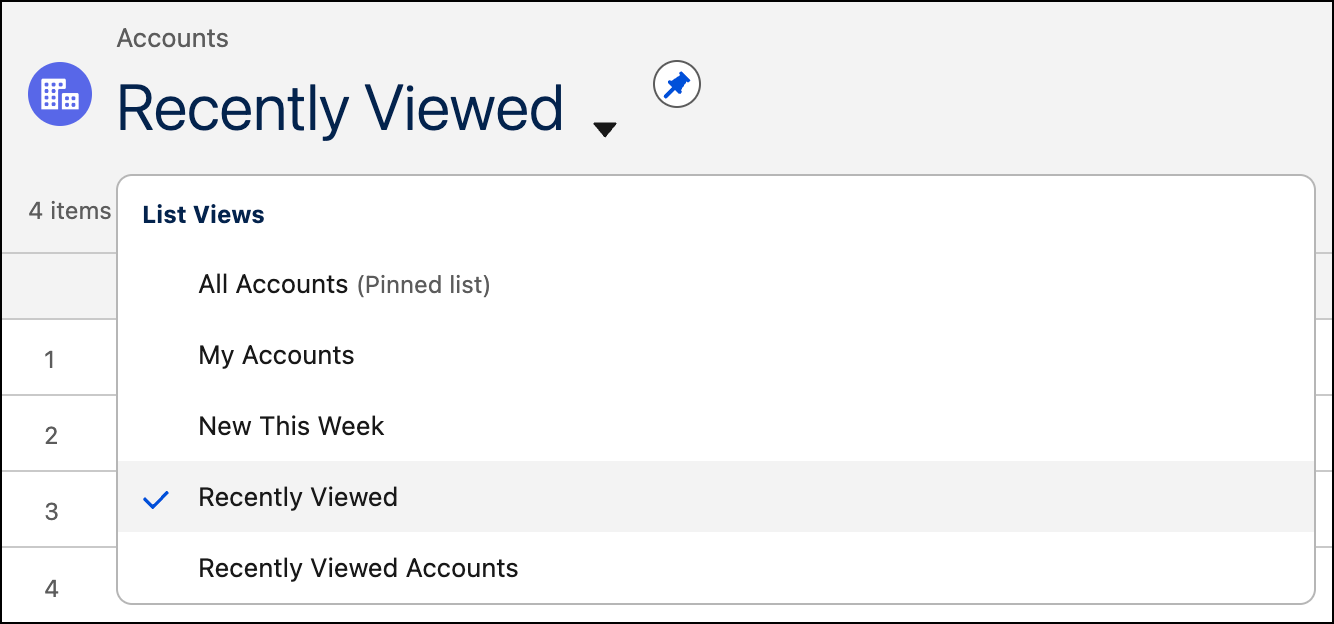
On a tab, use list views to sort and filter records and quickly find the information you’re looking for. List views are lists of your records for a specific object, along with actions to take. For example, on most tabs, use the Import button to bulk import your data. For more on data import, see Setup Best Practices.
In most cases, your list view defaults to Recently Viewed, but Salesforce comes with multiple list views built for you.
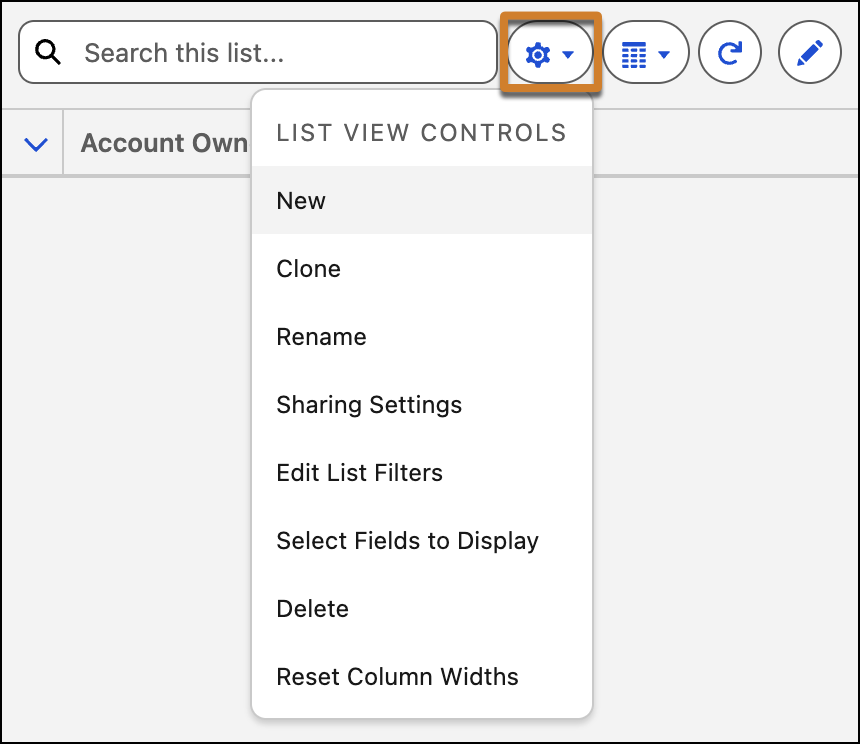
Create your own list view and customize which fields and records to include.
Organize Your Information
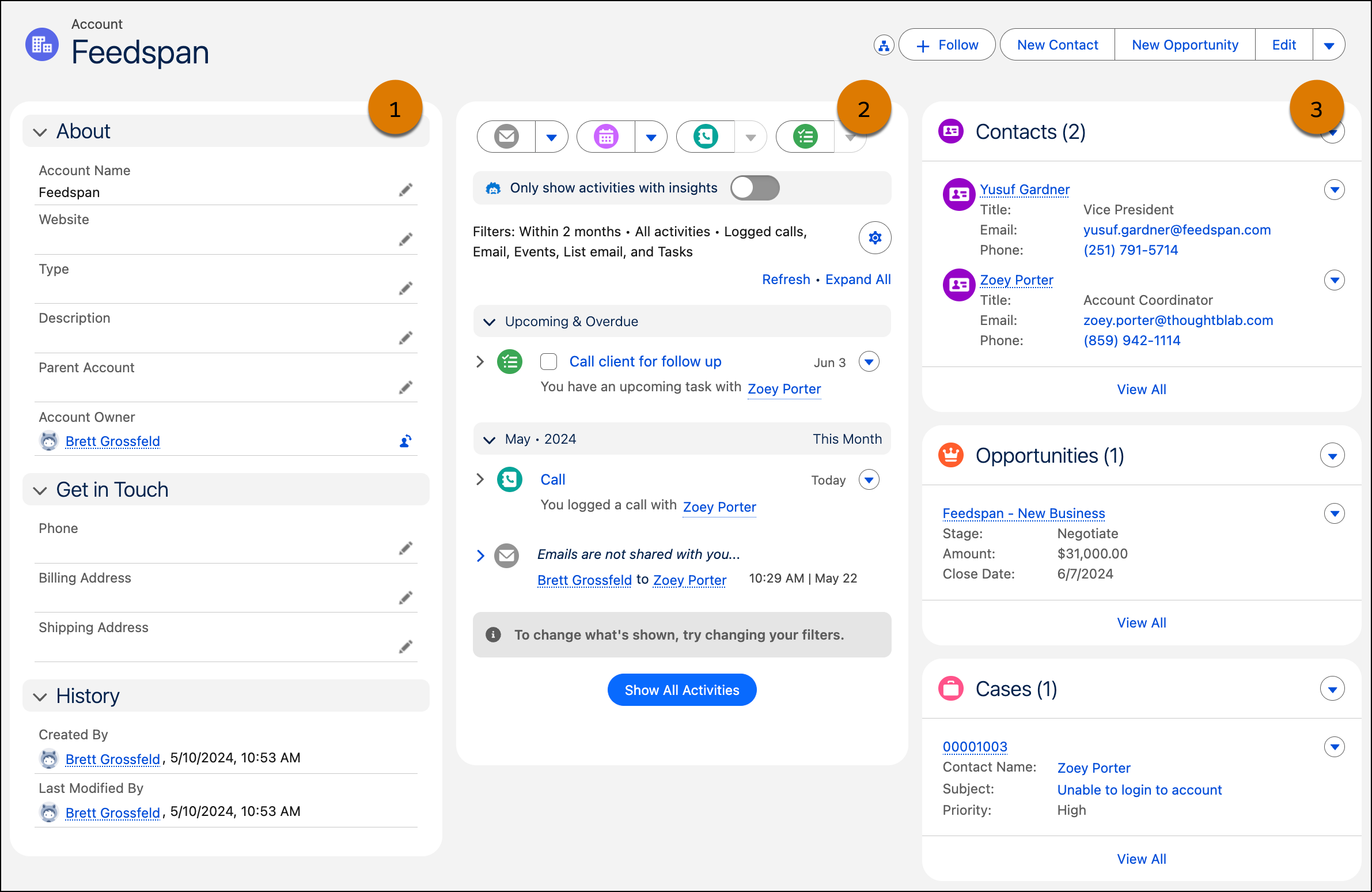
Keeping records up to date and full of useful information boosts productivity and collaboration with your team. The optimized layout shows the information you use the most and the actions you’re most likely to take.
Accounts, contacts, opportunities, leads, and cases have a similar layout.
- Details about the record, such as names, contact information, and record history (1).
- Common actions for the record, such as changing status, logging a call, and adding a task. Action buttons such as edit are also available (2).
- Related records, information, and Salesforce recommendations (3).
Other record pages, such as campaigns, knowledge, calendars, reports, and dashboards, look a little different. But they still capture important details and related records.