
You are here:
Setup Best Practices
Get your Salesforce org ready for your team, even if you’re new to Salesforce or customer relationship management (Customer Responsibility Matrix). Import contacts, connect email accounts, manage sales paths, and invite new users.
Required Editions
| Available in: Lightning Experience |
| Available in: Starter and Pro Suite Editions. |
Salesforce admins access the most frequently used tools for setting up Salesforce Starter and
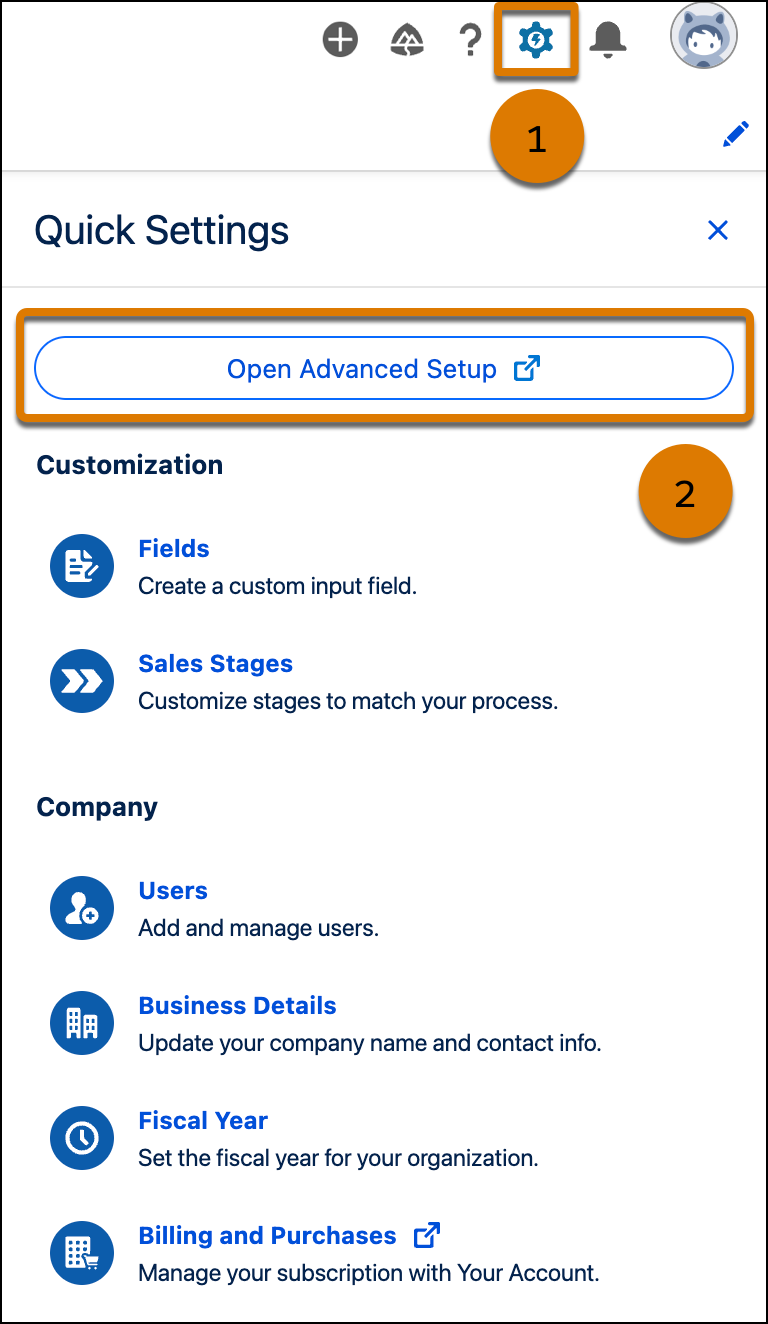
Pro Suite from the Quick Settings panel. To view the panel, click
 in the global header (1). For other setup tasks that aren't listed within Quick
Settings, select Open Advanced Setup (2). Admins are users with the
System Administrator profile, which grants special permissions to set up the workspace,
customize settings, invite other users, and other administrative duties.
in the global header (1). For other setup tasks that aren't listed within Quick
Settings, select Open Advanced Setup (2). Admins are users with the
System Administrator profile, which grants special permissions to set up the workspace,
customize settings, invite other users, and other administrative duties.

Import Your Data and Keep It Synchronized
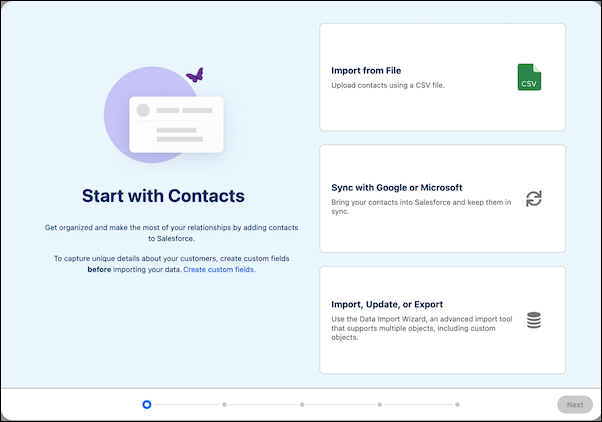
Working with customers is easier when you have all your data in one place where everyone can collaborate. With Salesforce Starter and Pro Suite, you can easily import your data by clicking the Import button on most pages.

Seamlessly bring your data into Salesforce from a CSV file or use the Data Import Wizard if you want to import custom objects. Use Einstein Activity Capture to import and automatically sync your contacts, email, calendar, and event data.
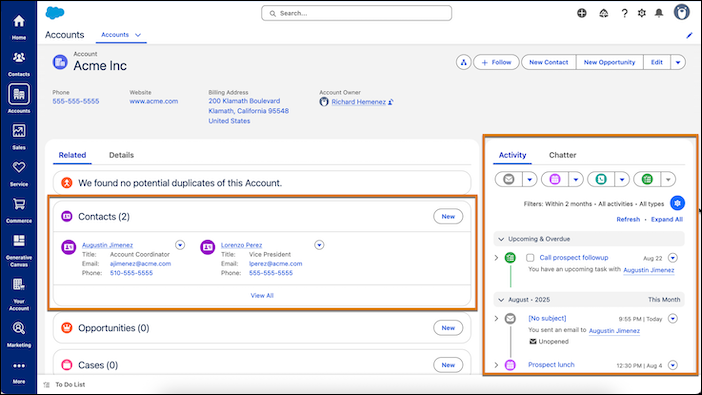
Einstein Activity Capture works with Google and Microsoft email and calendar. By automatically capturing contacts, email, calendar, and events, critical customer interactions are consistently updated and reflected in your Salesforce records—no manual logging required.
For example, Einstein Activity Capture analyzes your activities to create contacts. It matches email addresses between your connected email account and Salesforce. If there's no match, it creates a contact. It can also identify and suggest new contacts based on your email activity, such as detecting a new email with a domain name that matches an existing account.
In Starter and Pro Suite, Einstein Activity Capture comes automatically turned on and configured. Pro Suite users can update the settings using the Einstein Activity Capture Settings page.
When you initially import your data with Einstein Activity Capture, your selection–Google or Microsoft–is applied for every user. Einstein Activity Capture adds email data from the past 30 days.
Integrate with Email
Connect your email accounts so that you can easily manage customer communications. On a contact record, select the Email tab and, if prompted when drafting an email, connect your Google or Microsoft account. If you’re not prompted to set up the connection, you’re connected.
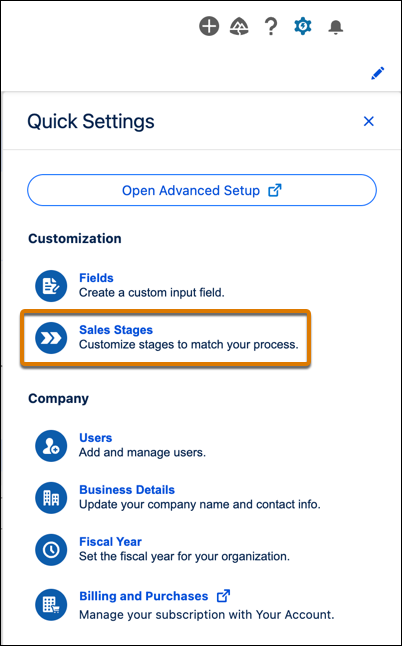
Customize your sales funnel stages for leads and opportunities to fit your sales processes. Salesforce Starter and Pro Suite come with default status names, but you can rename, reorder, and delete ones you don’t need.
Free Suite automatically uses a Salesforce domain for outgoing emails, but Starter and Pro Suite offer the flexibility to use your own company domain instead. To enable this, verify domain ownership or configure a DKIM key.
To use a Salesforce domain to send emails in Starter and Pro, turn on domain substitution. To confirm domain substitution is turned on, go to the Deliverability page in Setup, and make sure Substitute unverified email sending domains is checked off.
In paid orgs, emails sent without verification or substitution will fail to deliver.
Integrate with Video Calls
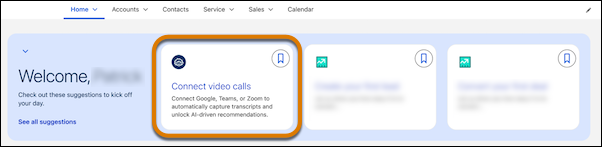
Bring your sales conversations directly into your CRM by connecting your video call provider. By linking Zoom, Google Meet, or Microsoft Teams, you can centralize data from sales calls, automatically capture transcripts, and unlock AI-driven insights for every meeting. To get started, go to the Home App, select Connect video calls (tap See all suggestions if it’s hidden), and follow the prompts to link your account.
- User Permissions in Salesforce Suites
Take the guesswork out of user management with standard permission set groups in Salesforce Suites. Learn what permissions are granted automatically to users with the System Administrator profile so you can handle setup tasks with confidence. - User Management in Salesforce Suites
Assign and manage user access easily with a simple user management window and standard permission set groups. Review how permission set group recalculation statuses can help you make sure that users have the latest permissions. - Set Up Marketing in Starter and Pro Suite
Before users can start working with campaigns and send emails in Starter and Pro Suite, you must enable Marketing and complete additional setup tasks required to meet email privacy regulations and give users access to the Marketing app. - Set Up Landing Pages and Forms in Starter and Pro Suite
Get users ready to build engaging web pages and forms. - Set Up Commerce in Starter and Pro Suite
Prepare your Salesforce org for Commerce, enable Pay Now, and create a direct-to-consumer (D2C) online store. - Set Up Agentforce and Generative AI for Salesforce Suites
Before you can use AI to surface insights or save time on labor-intensive tasks, you must turn on Agentforce and generative AI. From there, customers with an existing Salesforce org must add the AI Summary tool to your record pages.
