
You are here:
Collect More Information on the Experience Builder Self-Registration Page
When users register, you often want to ask them for more than just basic information. If you're using the Experience Builder self-registration page, you can easily add fields to collect additional information.

Note For even more control over the user information that you collect, disable the standard
self-registration component and create a custom Apex controller.
- From Setup, in the Quick Find box, enter Object Manager, and then select Object Manager.
- From the Object Manager, in the Quick Find box, enter User, and then select User.
- Select Field Sets.
- Click New. Enter a name for field set.
- For Where is this used?, enter registration field set.
- Save the field set.
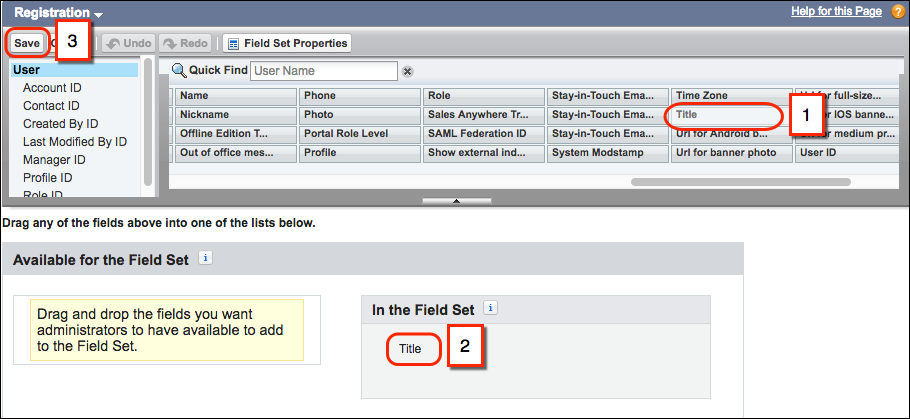
- In the Field Set Properties, drag fields into the In the Field Set box and save the
changes. This example shows the Title field (1) being dragged into the field set box (2)
and saved (3).
- . From Setup, in the Quick Find box, enter All Sites, and then select All Sites,
- Next to your site, click Builder.You're directed to Experience Builder.
- In Experience Builder, select Home, and then select Login | Register.
- Select
 , and then select Self Registration.
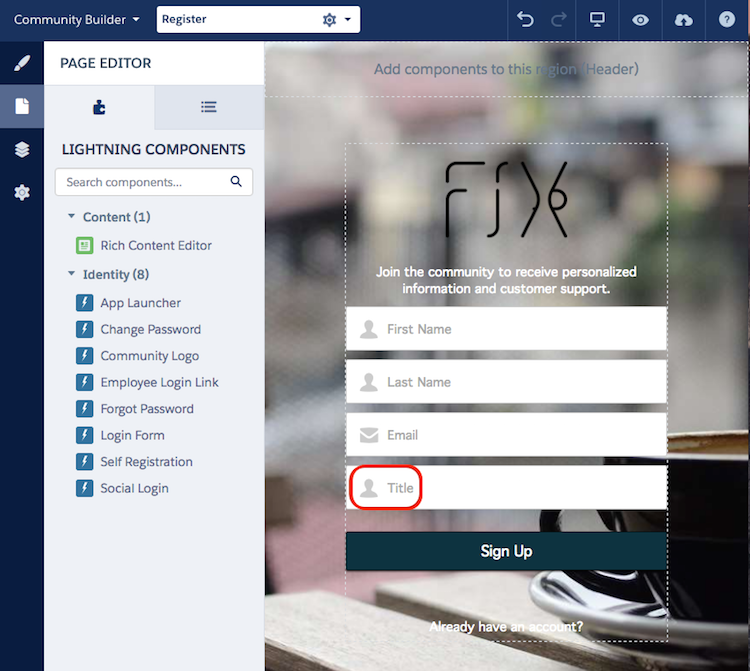
 - On the right, scroll to Extra Fields Field Set Name, and enter the name of the field
set you created.The page reloads and displays the fields you added to the field set. In this example, it displays the Title field.
- To save your changes, click Publish.
Did this article solve your issue?
Let us know so we can improve!
