
You are here:
Embedded Login in Action
Let’s see what website visitors experience when you add login capabilities to a web page with Embedded Login.

Embedded Login relies on third-party cookies, which are blocked or restricted in most browsers. And Embedded Login works only on Google Chrome and only as long as third-party cookies are allowed there by default.
Imagine that you’re the owner of Fix Coffee and you design a website for your customers to buy your products.
When visitors try to make a purchase on your Fix website, they see a Log In button at the top of the page.

When visitors click the Log In button, Embedded Login displays a login form. Your visitors can log in using a username and password, or they can sign in with their social account credentials. You can even configure Embedded Login to use the discoverable login page type or any other custom login page type already configured for your site.
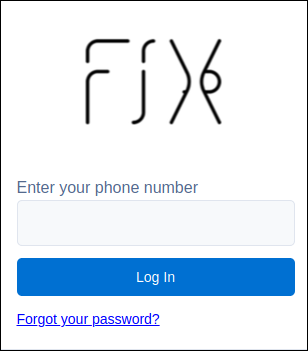
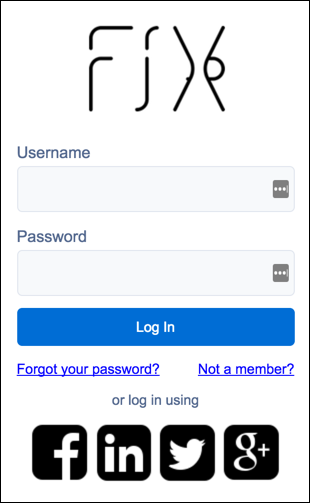
You can use a modal, popup, or inline login form. For a modal or popup, users click the Log In button to see the login form. If the form is inline, users see the form when they navigate to the page.
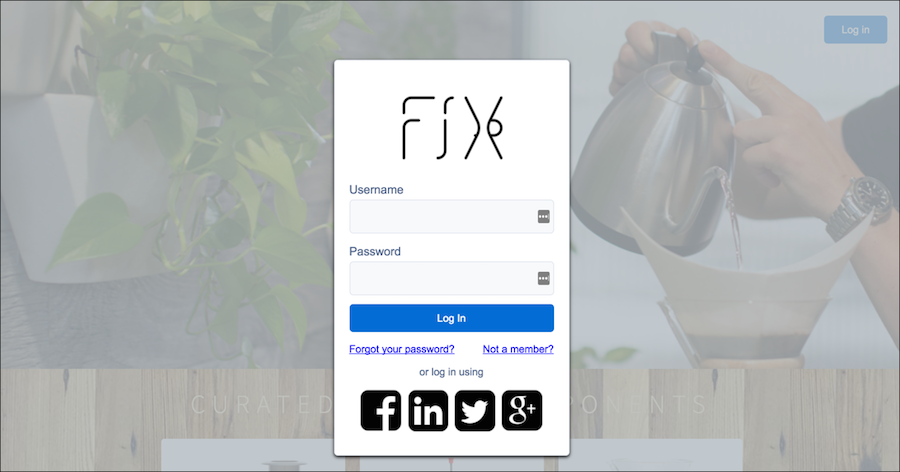
Here’s what the web page looks like when the login form is in modal mode. The login form appears in the foreground at the center of the page.
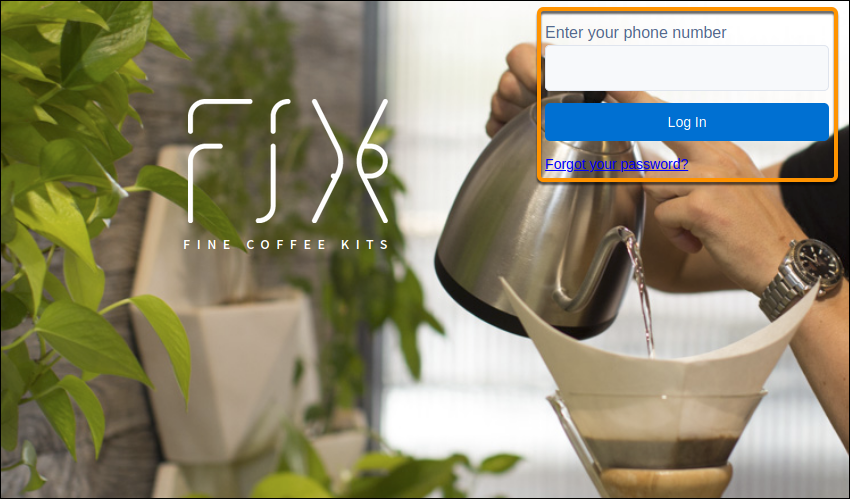
Here’s what the login form looks like in inline mode. The form appears when the user navigates to the web page. This form is just a sample—you can control how the login form looks.
After your users log in, you control what happens. In our example, we wrote an onLogin function to display the user’s avatar and email
address after a successful login.

You can also control what your website users see when they log out. In our example, the
onLogout function returns to the initial state,
which displays the Log In button.
