
Create a Custom Identity Verification Page
You can use passwordless login to let users register and deregister a variety of verification methods, such as via email, SMS, time-based one-time password (TOTP), physical U2F security key, or Salesforce Authenticator. Users can then log in with a verification method. Create your own verification page, and customize the verification process with Apex.
Required Editions
| Available in: Enterprise, Performance, Unlimited, and Developer Editions |
By default, when implementing passwordless login, Salesforce performs the identity verification process for you. It sends the verification code, displays the Verify page where the user enters the code, and confirms the user’s identity. Salesforce provides this default Verify page.
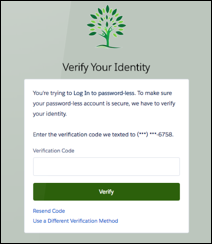
You can use Visualforce to create your own Verify page and have full control of the layout. You can also control the identity verification process in the Apex controller. This example of a custom Verify page uses different fonts, colors, and layout. Instead of a separate Verify page, users receive their verification code and enter it directly on the Login page for a smooth passwordless login experience.
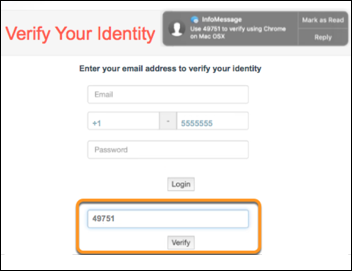
- Create your Visualforce page. For more information on customizing the content and layout, see Visualforce in Salesforce Help.
- From Setup, in the Quick Find box, enter Visualforce Pages, and then select Visualforce Pages.
- Click the Visualforce page that you created for identity verification.
- Click Edit.
- To implement your own verification process, use Apex methods under the
System.UserManagementclass. The methods come in pairs—one method to send the verification code, and one method to verify that the verification code is correct. Which methods you use depend on when you require identity verification.- To sign up new users, use
initSelfRegistrationandverifySelfRegistration. - To log in users, use
initPasswordlessLoginandverifyPasswordlessLogin. - To register a user’s verification method, use
initRegisterVerificationMethodandverifyRegisterVerificationMethod.
- To sign up new users, use
Example Implementation for Customizing the Verification Process
This code example customizes the Verify page for registering a verification method. When
the user enters a verification code on the Visualforce page, it invokes registerUser(). The method gets the User ID of the user
who’s registering the verification method and the user’s phone number. It also gets the
user’s registration status to check whether the phone number is already verified. If the
user is registered with a different phone number, the number is updated.
public void registerUser() {
        try {
            exceptionText='';
            String userId = UserInfo.getUserId();
            User u = [Select MobilePhone, Id from User Where Id=:userId];
             currPhone = u.MobilePhone;
             mobilePhone = getFormattedSms(mobilePhone);
           if (mobilePhone != null && mobilePhone != '') {
           u.MobilePhone = mobilePhone;
           update u;
            // We're updating the email and phone number before verifying. Roll back
           //  the change in the verify API if it is unsuccessful.
            exceptionText = System.
            UserManagement.initRegisterVerificationMethod(Auth.VerificationMethod.SMS);
            if(exceptionText!= null && exceptionText!=''){
                isInit = false;
                showInitException = true;
            } else {
                 isInit = false;
                 isVerify = true;
            }
            } else {
                showInitException = true;
            }
        } catch (Exception e) {
            exceptionText = e.getMessage();
            isInit = false;
            showInitException = true;
        }
    }

public void verifyUser() {
    // Take the user’s input for the code sent to their phone number
    exceptionText = System.UserManagement.
        verifyRegisterVerificationMethod(code, Auth.VerificationMethod.SMS);
    if(exceptionText != null && exceptionText !=''){
    showInitException = true;
    } else {
            //Success
    }
}