You are here:
Passwordless Login with Passkeys
Set up a fast, easy, and phishing-resistant login process for your employees. With passwordless login via passkeys, internal users log in by using a built-in authenticator (such as Touch ID or Windows Hello) or a security key.
Required Editions
| Available in: all editions |
What Is a Passkey?
A passkey is a set of credentials that enable login with biometric methods, such as built-in authenticators, and security keys, such as U2F keys. Any time a user logs in using these methods, they're using a passkey. Behind the scenes, passkeys use public-key cryptography to securely authenticate users. Passkeys are based on the Fast IDentity Online (FIDO) standard. To learn more about how passkeys work, see the FIDO documentation.
Benefits of Passkeys
- Improved Security—Passkeys have several security benefits, including resistance to phishing. To learn more about security for passkeys, see the FIDO documentation.
- Convenience—Passkeys are more convenient for you and your users. With passkeys, users no longer have to keep track of long, complicated passwords. They can log in using a method that's easily available to them, like Touch ID on their device. Most of the time, it's faster to use a passkey than it is to type in a password. If you enable passkeys, you can expect fewer password resets and fewer login issues, saving time and resources for your company.
Passkey Login Experience
The passkey login experience is slightly different depending on the login method.
Here's how it works with a built-in authenticator.
- (1) A user goes to the Salesforce login page and clicks on their saved username.
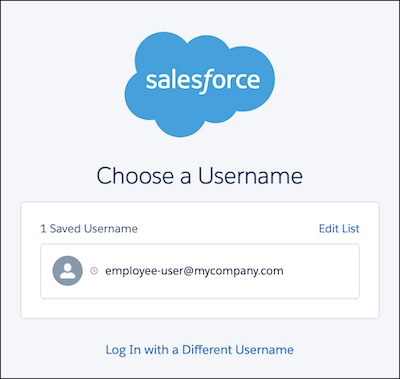
- (2) The user's browser prompts them to use their built-in authenticator. For example, they're prompted to use their fingerprint to complete Touch ID.
- (3) After using the built-in authenticator, the user is logged in to Salesforce.
Here's the login experience for security keys.
- (1) A user goes to the Salesforce login page and clicks on their saved username.
- (2) The user's browser prompts them to use their security key.
- The security key can be a small physical device, such as a YubiKey, that the user keeps with them.
- The user can also use another device, like their mobile phone, as a security key. With this method, the user uses their other device to scan a QR code, which prompts them to complete authentication. For example, they use their mobile phone to scan a QR code, and then complete authentication by using Face ID on their mobile phone.
- (3) After using the security key, the user is logged in to Salesforce.
Passkey Requirements and Considerations
- Passkeys inherently use multiple factors to verify a user's identity, so they satisfy the Salesforce multi-factor authentication (MFA) requirement. When a user logs in with a built-in authenticator or security key, they aren't prompted to provide another factor for authentication. For more information about passkeys and MFA, see the FIDO documentation.
- A Salesforce admin must enable passwordless login with passkeys.
- To log in with a passkey, a user must have a registered Troubleshoot Passkey Issues or Security Keys (Passkeys) for MFA.
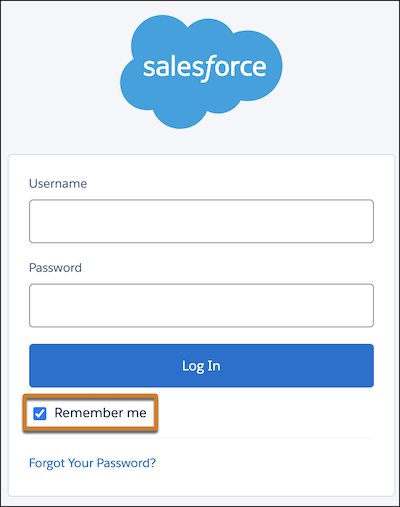
- The user's username must be saved. Salesforce saves usernames if a user previously
logged in and selected the "Remember me" checkbox on the login page.
- Passwordless login with passkeys isn't supported for Experience Cloud sites.
- When you enable passwordless login with passkeys, it's enabled for all internal users, as long as they meet the requirements of having a saved username and a registered built-in authenticator or security key. You can't disable it for specific users.
- Enable Passwordless Login with Passkeys
Set up passwordless login with passkeys so that your employees can log in by using a registered built-in authenticator or security key.
