You are here:
Enable Passwordless Login with Passkeys
Set up passwordless login with passkeys so that your employees can log in by using a registered built-in authenticator or security key.
Required Editions
| Available in: both Salesforce Classic and Lightning Experience |
| Available in: all editions |
| User Permissions Needed | |
|---|---|
| To enable passwordless login with passkeys: | Customize Application AND Manage Users |
- Enable built-in authenticators or security keys as verification methods in your org.
- Depending on your org settings, users aren't always prompted to register these methods after you make them available. To make sure that users register built-in authenticators or security keys, direct them to these articles.
-
Enable passwordless login with passkeys.
- From Setup, use the Quick Find box to find and select Identity Verification.
- Under General, select Allow passwordless login with passkeys.
- Save the change.
-
Direct users to save their username by logging in and selecting "Remember me" on the
login page.
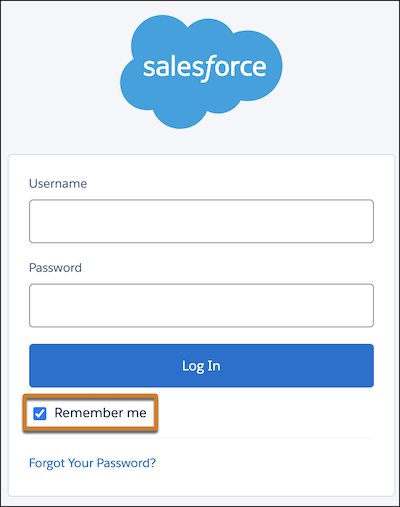
Now, if a user with a registered built-in authenticator or security key clicks on their saved username, they're prompted to log in with their passkey.
You can track passkey usage in your org's Login History and Identity Verification History.
Did this article solve your issue?
Let us know so we can improve!
