
Configure SSO from Salesforce to Google Apps
Let your users log in to Google Apps using single sign-on (SSO) with Salesforce configured as the identity provider.
Required Editions
| Available in: Lightning Experience and Salesforce Classic |
| Available in: Enterprise, Performance, Unlimited, and Developer Editions |
Configuring Salesforce as an identity provider for Google Apps involves these high-level steps.
Get a SAML IdP Certificate
Get a certificate, either self-signed or issued by a certificate authority, to use to set up service providers.
Download the Metadata Document
- From Setup, enter Identity in the Quick Find box, and then select Identity Provider.
- Click Download Metadata.
On the same page under SAML Metadata Discovery Endpoints, make note of the Salesforce
Identity, for example, https://MyDomainName.my.salesforce.com/.well-known/samlidp.xml.
Configure a SAML Provider in Google Apps
- Sign in as an administrator to the Google Apps account using https://admin.google.com.
- Navigate to the Google Apps page for configuring single sign-on.
- For the sign-in page URL, enter https://MyDomainName.my.salesforce.com/idp/endpoint/HttpRedirect.
- For the sign-out page URL, enter https://MyDomainName.my.salesforce.com/.
- For the change password URL, enter https://MyDomainName.my.salesforce.com/_ui/system/security/ChangePassword.
- For the verification certificate, upload the SAML IdP certificate you obtained earlier.
- Select Use a domain specific issuer.
- Click Save changes.
Create and Configure a Connected App on Salesforce
- Define a connected app.
- In Lightning Experience, from Setup, enter App in the Quick Find box, and select App Manager. Click New Connected App.
- In Salesforce Classic, from Setup, enter Apps in the Quick Find box, and select Apps. Under Connected Apps, click New.
- Configure the connected app.
Under Basic Information:
- Name the app (for example, Gmail).
- Enter your own email address.
Under Web App Settings:
- Select Enable SAML.
- For Entity Id, enter https://google.com.
- For ACS URL, enter the URL for your Google App account.
- For Subject Type, set the method attribute by which a username in Google Apps maps to a unique Salesforce user identity. For example, to use federated authentication, select Federation ID. For more information, see Best Practices for Implementing Single Sign-On.
- Click Save.
 Note It can take a few minutes for Salesforce to create the connected app.
 - From Setup, enter Apps, in the Quick Find box. If you’re using
Lightning Experience, select Manage Connected Apps. If you’re using
Salesforce Classic, under Manage Apps, select Connected
Apps.
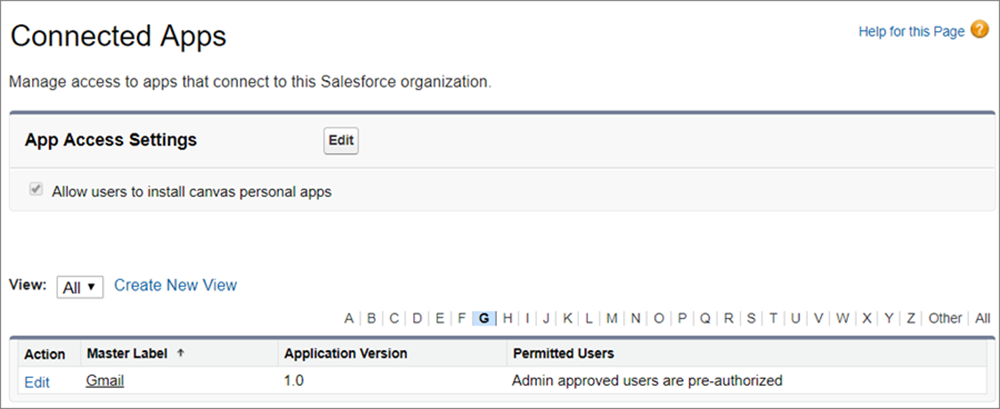
- Click Gmail.
- Under SAML Login Information, copy the IdP-initiated login URL.
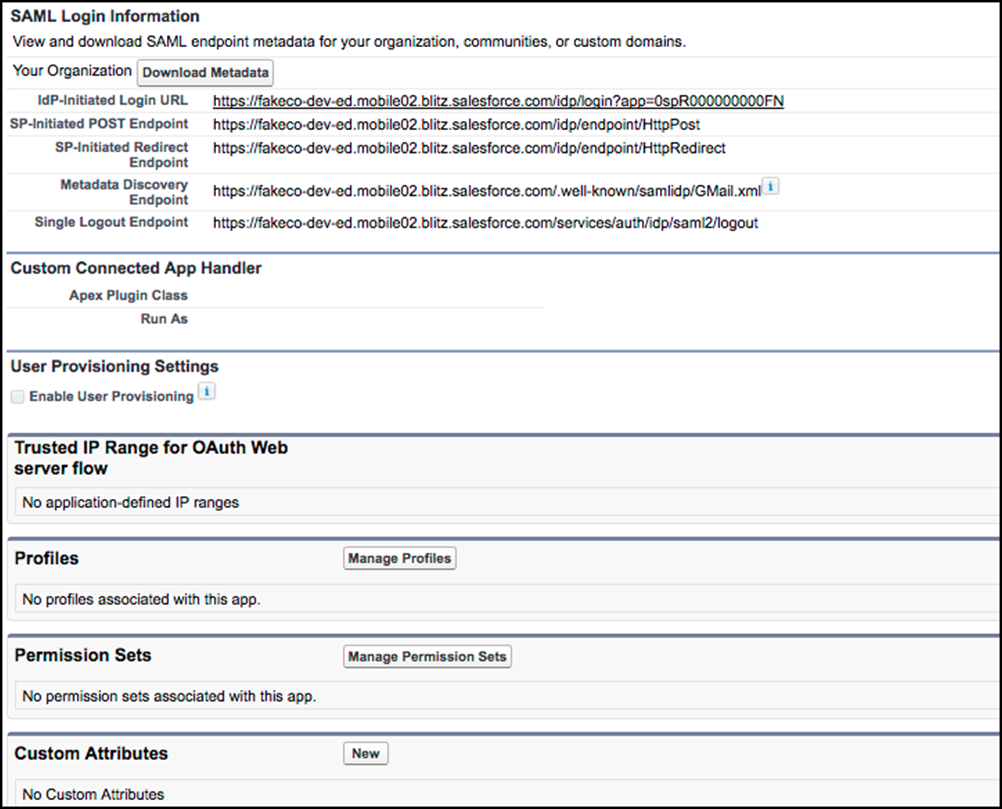
- Click Edit Policies.
- For Start URL under Basic Information, paste the IdP-initiated login URL, plus this
RelayState string:
&RelayState=https%3A%2F%2Fmail.google.com%2Fa%2FyourGoogleAppDomainName.
Replace yourGoogleAppDomainName with your Google domain, as shown in this example.
https://identitydemo.my.salesforce.com/idp/login?app=0sp30000000000k &RelayState=https%3A%2F%2Fmail.google.com%2Fa%2Fidentitydemo.com - Click Save.
- Under Profiles or Permission Sets, add the profiles or permission sets of users who can access this app.
Test the Connected App
Verify that your Salesforce org can use SSO to access the connected app.
- Log out of Google Apps and Salesforce.
- Try to access a Google App page, such as http://mail.google.com/a/respond.info/.
- You’re redirected to a Salesforce sign-on page. After you log in, you are at the specified Google App page.
An alternate test is to add the Google App to a web tab in your Salesforce org.
- Log in to Salesforce.
- From Setup, enter Tabs in the Quick Find box, and select Tabs.
- Under Web Tabs, click New.
- Choose a tab layout, and click Next.
- Enter a label for the tab. Use the default name, which is the same as the label.
- To display the Tab Style Selector, click the Tab Style lookup icon. Select an icon. Keep all other defaults.
- Click Next.
- For Button or Link URL, enter a Google App page, such as
mail.google.com/a/respond.info/ for Gmail, and click
Next.Note Enter an absolute URL that starts with https://.
- Click Next and then click Save.
- To test the configuration, click the new tab at the top of your page. You’re automatically logged in to the Google App page.
