
Configure SSO from Salesforce to Tableau Online
Your users can log in directly to Tableau Online from your Salesforce org by integrating Tableau Online as a service provider.
Required Editions
| Available in: Lightning Experience and Salesforce Classic |
| Available in: Enterprise, Performance, Unlimited, and Developer Editions |
| User Permissions Needed | |
|---|---|
| Define and modify identity providers and service providers: | Customize Application |
Follow these high-level steps to configure SSO from your org to Tableau Online.
- Sign in to your Tableau Online site as a site administrator.
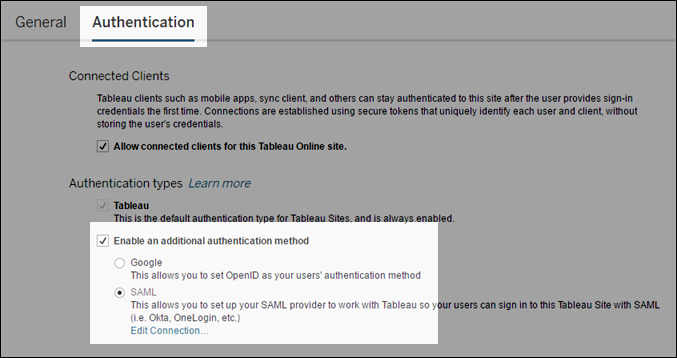
- From Settings, select the Authentication tab, and then Enable an additional authentication method.
- For the additional authentication method, select SAML.
-
Click Edit connection.
-
Under Export metadata from Tableau Online, copy these URLs to a text editor. You use
these URLs when configuring your connected app.
- Tableau Online entity ID
- Assertion Consumer Service (ACS)
Create a Connected App for Tableau Online
- In Salesforce, create a connected app. See Integrate Service Providers as Connected Apps with SAML 2.0.
-
Configure the connected app’s Web App Settings:
- For Start URL, enter the Tableau Online URL. For example, https://us-west-2b.online.tableau.com/#/site/your-site/home.
- Select Enable SAML.
- For Entity ID, enter the Enter Tableau Online entity ID that you copied from Tableau Online. For example, https://sso.online.tableau.com/public/sp/metadata?alias=xxx.
- For ACS URL, enter the ACS URL that you copied from Tableau Online. For example, https://sso.online.tableau.com/public/sp/SSO/4f5ed53f-d0a0-4218-ac1b-b8675309d494a.
- For Subject Type, select Username.
- Leave the default values for Name ID Format and Issuer.
- For IdP Certificate, select the certificate that you generated when you configured your org as the identity provider.
- For Signing Algorithm for SAML Messages, select SHA256 to secure SAML messages sent from your Salesforce org.
- Click Save.
Manage Access to the Tableau Online Connected App
To allow users to sign in to Tableau Online from your org, manage access to you
connected app by assigning the appropriate profiles or permission sets. Also make sure
to download the metadata file and save it where you can access if for the next step. See
Manage Other Access Settings for a Connected
App.
Enter Salesforce Metadata in Tableau Online
- Sign in to your Tableau Online site as a site administrator.
- From Settings, select the Authentication tab, and then Enable an additional authentication method.
- For the additional authentication method, select SAML.
- Click Edit connection.
- Under Import metadata file into Tableau Online, click Browse to navigate to the metadata file that you downloaded in the previous step.
- Click Apply to upload and save the metadata to Tableau Online.
- Under Embedding Options, select Authenticate using an inline frame (less secure; not supported by all IdPs).
- Under Default Authentication Type for Embedded Views, select SAML.
- To add test users to Tableau Online from your org, select Add users for salesforce.com (SAML) authentication. The username in your org must match the username in Tableau Online.
Test the SSO Configuration
Open the App Launcher to locate the Tableau Online connected app. If SSO is
configured correctly, Salesforce creates an application session.

Note If the Tableau Online connected app doesn’t display in the App Launcher, make sure
that you configured the Tableau Online logo and icon for the connected app in its
basic settings. Also make sure that the
connected app is visible in the App Launcher.
Did this article solve your issue?
Let us know so we can improve!
