
You are here:
Monitor Apps with Reports
After you set up connected apps for your Identity users, you can run reports to monitor the usage of connected apps throughout your org.
Salesforce maintains Identity event logs that you can use to create reports and dashboards to provide information about single sign-on and connected app usage.
Follow these steps to set up a report about Identity users. After that, you can create variations of the same report type, or create a dashboard for the report. For more information, see Build a Dashboard.
- From Setup, enter Report Types in the Quick Find box, then select Report Types.
- Click New Custom Report Type.
-
Enter the following values.
- Primary Object: Users
- Report Type Label: A unique label, such as Identity Users
- Report Type Name: This field automatically uses the label; change it if you want a different name.
- Description: Give it a useful description.
- Store in Category: Pick a category for this report, such as Administrative Reports.
- Deployment Status: Keep as In Development until you’re ready to deploy this report for other users to see.
- Click Next.
- Select Click to relate to another object.
-
Select Identity Event Logs
(Users).
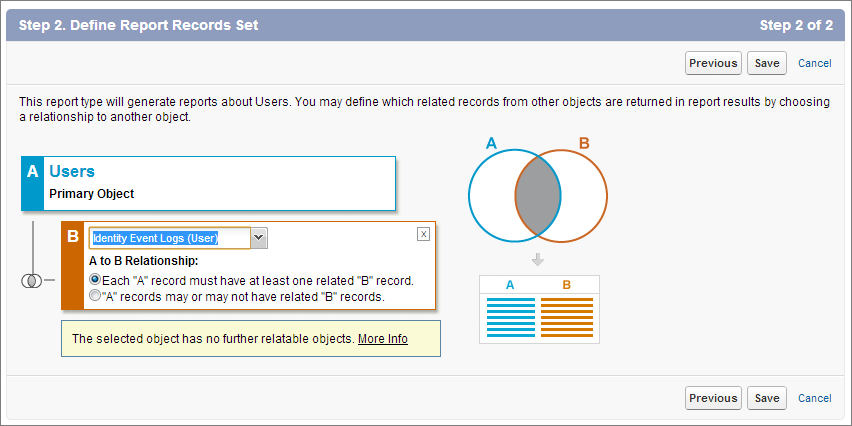
- Click Save.
-
Create a report based on the Identity Users report type.
- From App Launcher, search for Reports.
- Click New Report.
-
For Report Types, select Identity
Users.
 Note A new report opens for editing. If you don’t get any results, click All Time.
 - Under Columns, select fields to get Identity information, such as Username, User ID, Identity Used, App: Connected App Name, Timestamp, User Type, and SSO Type. SSO Type uses these codes: 0 = SAML, 1 = OpenID Connect.
- Click Save and name the report.
- Click Save, or click Save and Run Report to see the results immediately.
- Create a dashboard based on your report.

Example Here’s a dashboard based on a few identity-related reports.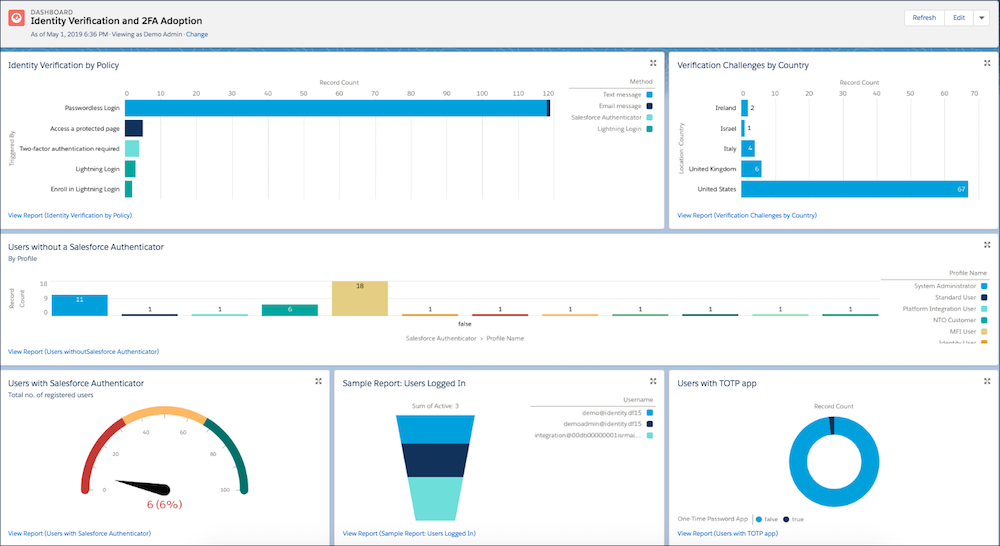
Did this article solve your issue?
Let us know so we can improve!
