You are here:
Get Lightning Experience Adoption Insights with the Lightning Usage App
After moving users to Lightning Experience, make sure that they’re committed to working in the new interface. The Lightning Usage App lets you monitor adoption metrics, such as daily active users and the most visited pages in Lightning Experience. You can also track the number of your active licenses. These insights help you understand your users’ needs so that you can focus on the issues that really matter.
To access the Lightning Usage App, from the App Launcher ( ), find and open Lightning Usage. From the app, click a tab in
the ACTIVITY or USAGE section on the left side of the page to view the associated data
(1).
), find and open Lightning Usage. From the app, click a tab in
the ACTIVITY or USAGE section on the left side of the page to view the associated data
(1).
You can also open the Salesforce Optimizer from the link at the top of any page in the Lightning Usage App to find ways to optimize your Salesforce implementation (2).
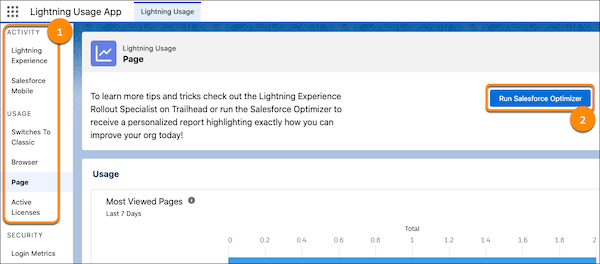
The metrics available in the Lightning Usage App include:
- Daily and monthly active users in Lightning Experience and the Salesforce mobile app
- Daily and monthly switches to Salesforce Classic by total number of switches and the number of unique users that switched
- Profiles and users that switched to Salesforce Classic the most
- Types of browsers used to access Lightning Experience and the Salesforce mobile app
- Slowest desktop record pages
- Pages viewed most often in Lightning Experience
- Number of active user, feature, and permission set licenses
You can’t export data in the Lightning Usage App to reports from the UI. Use the Lightning Usage App API to export this data.
