You are here:
Monitor Salesforce Logins with the Lightning Usage App
Use the Login Metrics tab in the Lightning Usage App to monitor logins in your org. See how many users are logging in with your org’s various identity services, including multi-factor authentication (MFA) and single sign-on (SSO).

Salesforce enforces MFA requirements in the summer of 2026. See these articles for more information and detailed rollout timelines.
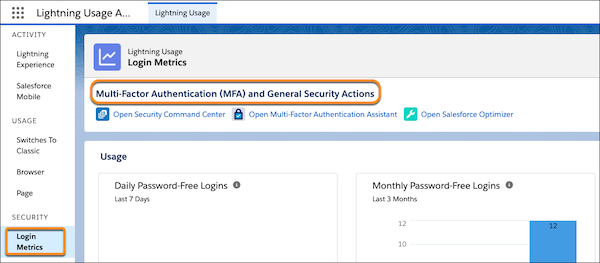
To access the Lightning Usage App, from the App Launcher ( ), find and open Lightning
Usage. From the app, click Login Metrics under SECURITY
on the left side of the page to view the associated data. The Login Metrics page shows login
data for password-free, single sign-on (SSO), and username and password login methods, with
and without MFA, for the last 7 days and the last 3 months. For more MFA and security
resources, click any of the links below Multi-Factor Authentication (MFA) and General Security
Actions.
), find and open Lightning
Usage. From the app, click Login Metrics under SECURITY
on the left side of the page to view the associated data. The Login Metrics page shows login
data for password-free, single sign-on (SSO), and username and password login methods, with
and without MFA, for the last 7 days and the last 3 months. For more MFA and security
resources, click any of the links below Multi-Factor Authentication (MFA) and General Security
Actions.
-
Password-free logins track certificate-based logins, Lightning logins, and passwordless logins.
-
Single sign-on logins track Salesforce and third-party logins done via federated SSO, including the SAML and OpenID Connect open standards.
-
Delegated Authentication logins are tracked under the Username and Password login metric.
-
Logins with MFA track direct logins to Salesforce only.