When an internal user accesses an Experience Cloud site, multi-factor authentication
(MFA) is always required. Salesforce doesn't require MFA for external users to access Experience
Cloud sites, but you can choose to enable it. Both internal and external users can see prompts
to set up a passkey when they log in to an Experience Cloud site, but the prompts are slightly
different.
Required Editions
Available in: both Salesforce Classic and Lightning Experience
Available in: Enterprise, Performance, Unlimited, and
Developer Editions
User Permissions
Needed
To view user licenses:
View Setup and Configuration
Internal Users
Internal users access your Salesforce org directly, but
can also access Experience Cloud sites. Internal users have one of these licenses.
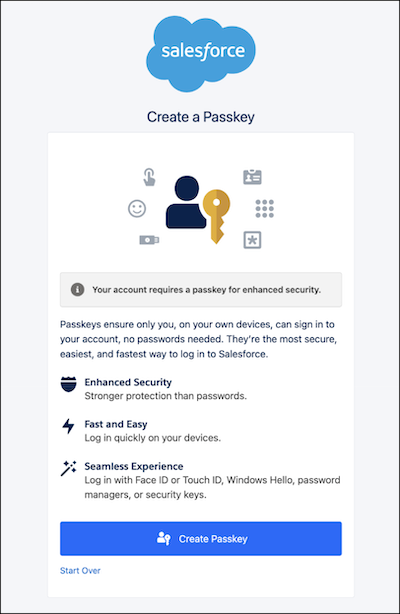
If an internal user logs in to an Experience Cloud site, Salesforce requires MFA. If the
user doesn't have a registered MFA method, they see a prompt to create a
passkey.
Note Salesforce requires users with privileged permissions to use a passkey for
phishing-resistant MFA. Non-privileged users can choose to either set up a passkey or
register another verification method. See Recognize Passkey Creation Prompt Behavior.
External Users
External users, such as customers and partners, access Salesforce only via Experience Cloud
sites. They don't access your Salesforce org directly. External users have one of these
licenses.
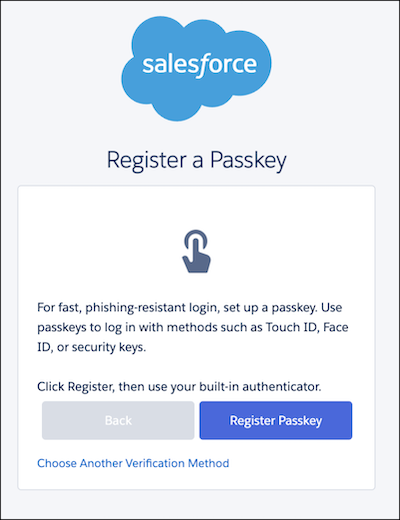
While Salesforce doesn't require MFA for external users, you can choose to require MFA by
assigning the “Multi-Factor Authentication for User Interface Logins" user permission. If an
external user has this permission, they can see a prompt to register a passkey. If they
don't want to register a passkey, they can click Choose Another Verification
Method.
Currently, external Experience Cloud can't disconnect passkeys from their user account by
themselves. To disconnect an external user's passkey, use the UserManagement.deregisterVerificationMethod(userId,
method) Apex method. This method disconnects only one passkey at a time.
For example, if a user has 3 passkeys, this method disconnects only one passkey. To
disconnect the rest, use the same method until all passkeys are disconnected.
Identify a User's License Type
To identify whether a user is internal or external, review the user’s license.
From Setup, in the Quick Find box, find and select Users.
Click the user’s name, and then review the user’s license.
We use three kinds of cookies on our websites: required, functional, and advertising. You can choose whether functional and advertising cookies apply. Click on the different cookie categories to find out more about each category and to change the default settings.
Privacy Statement
Required Cookies
Always Active
Required cookies are necessary for basic website functionality. Some examples include: session cookies needed to transmit the website, authentication cookies, and security cookies.
Functional Cookies
Functional cookies enhance functions, performance, and services on the website. Some examples include: cookies used to analyze site traffic, cookies used for market research, and cookies used to display advertising that is not directed to a particular individual.
Advertising Cookies
Advertising cookies track activity across websites in order to understand a viewer’s interests, and direct them specific marketing. Some examples include: cookies used for remarketing, or interest-based advertising.