
You are here:
Working with Omniscripts
Use the Omniscript Builder to create and manage guided, interactive processes. Retrieve, update, and add data to a variety of sources with elements for Data Mappers, Integration Procedures, REST APIs, and Apex. Or allow users to add or modify data with input fields. Drag Omnscript elements to the canvas and edit properties without changing tabs. Omniscript activation is instant.
This diagram shows the high-level workflow for Omniscripts in the new designer and the designer on a managed package:
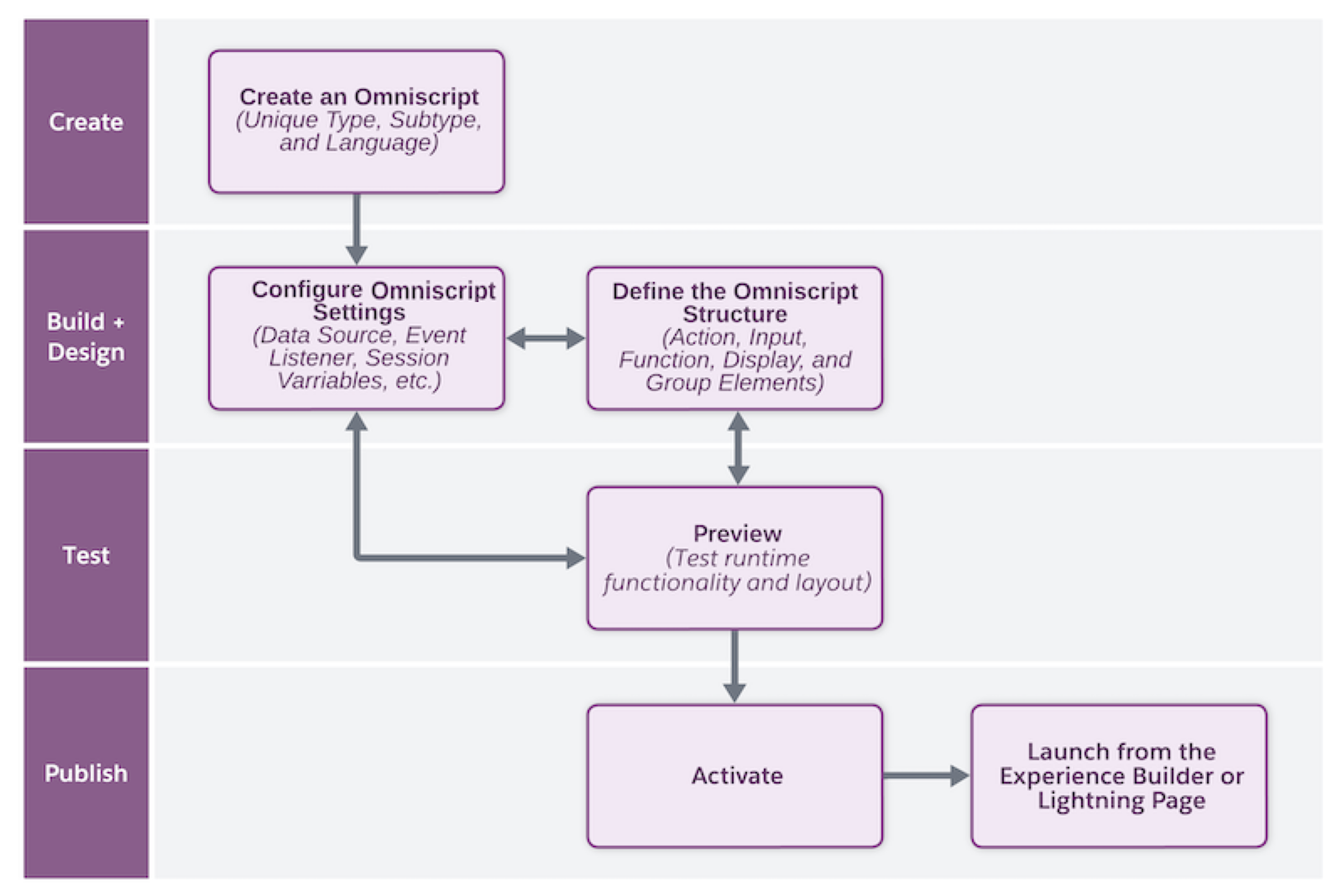
- Create the Omniscript with a unique combination of Type, Subtype, and Language.
- Configure optional settings for your Omniscript, such as making your Omniscript reusable. Create the logic based on your requirements by building a hierarchical structure of action elements and steps in the Omniscript.
- Verify the Omniscript's appearance and functionality by previewing the Omniscript. Test your Omniscript by adding test data, viewing the data JSON, and debugging action requests and response data.
-
After you confirm that the Omniscript is ready, activate it. Make an active Omniscript
available for
launch:
- In the new designer, launch the Omniscript as a URL.
- In the designer for a managed package, launch the Omniscript as a standalone Lightning web component on a Lightning web page, as an embedded link in another LWC or as a URL.
- Export and Import Omniscripts
Export or import Omniscripts to use them in another org, such as when you create them in a sandbox or to use sample data packs that Salesforce provides. When exporting or importing data packs for Omniscripts, if you encounter Apex limit errors such as heap or CPU limits, reduce the size of the data pack by unselecting dependencies during the export process. Additionally, break the data pack into multiple smaller data packs. As a best practice, we recommend including no more than 10 elements in each data pack.
Did this article solve your issue?
Let us know so we can improve!
