
You are here:
Build an Omniscript with Elements
For guided workflows, Omniscripts use basic tasks: Get, save, modify, and display data from Salesforce objects and other data sources. They can also allow users to add, change, or remove data and can take actions, such as getting a DocuSign signature, sending an email, or opening a web page.
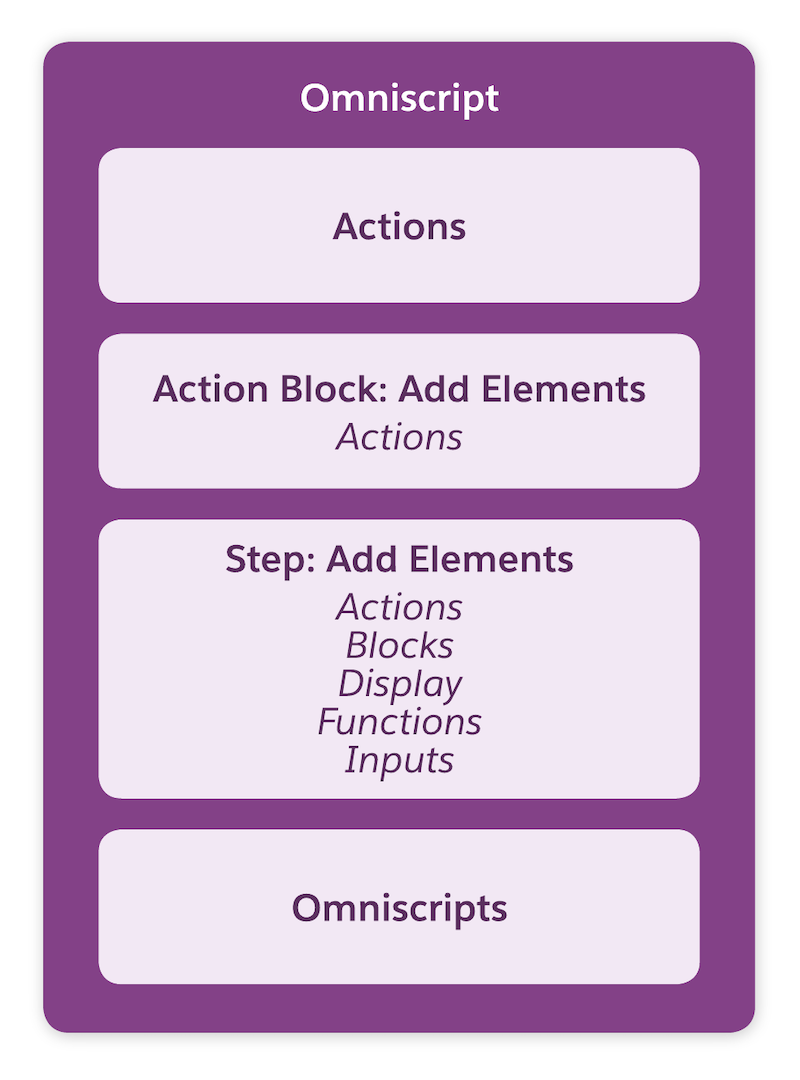
You can add some elements to the Omniscript canvas, as shown in this diagram. Action, Step, Omniscript, and Action Block elements can go directly into an Omniscript. To add any other element, you must first add a Step or Action Block element. For an Action Block, you can add only four action elements. Some actions can’t be added to action blocks: DocuSign Signature, Navigate, PDF, Set Errors, and Set Values. With a Step, you can add any element except an Omniscript.
This Omniscript example guides users to update the primary contact for an account. It uses elements for all the basic tasks and shows where the elements are added. First, an Integration Procedure element pulls the data from an Integration Procedure that uses a Data Mapper Extract to retrieve data from the Account object.
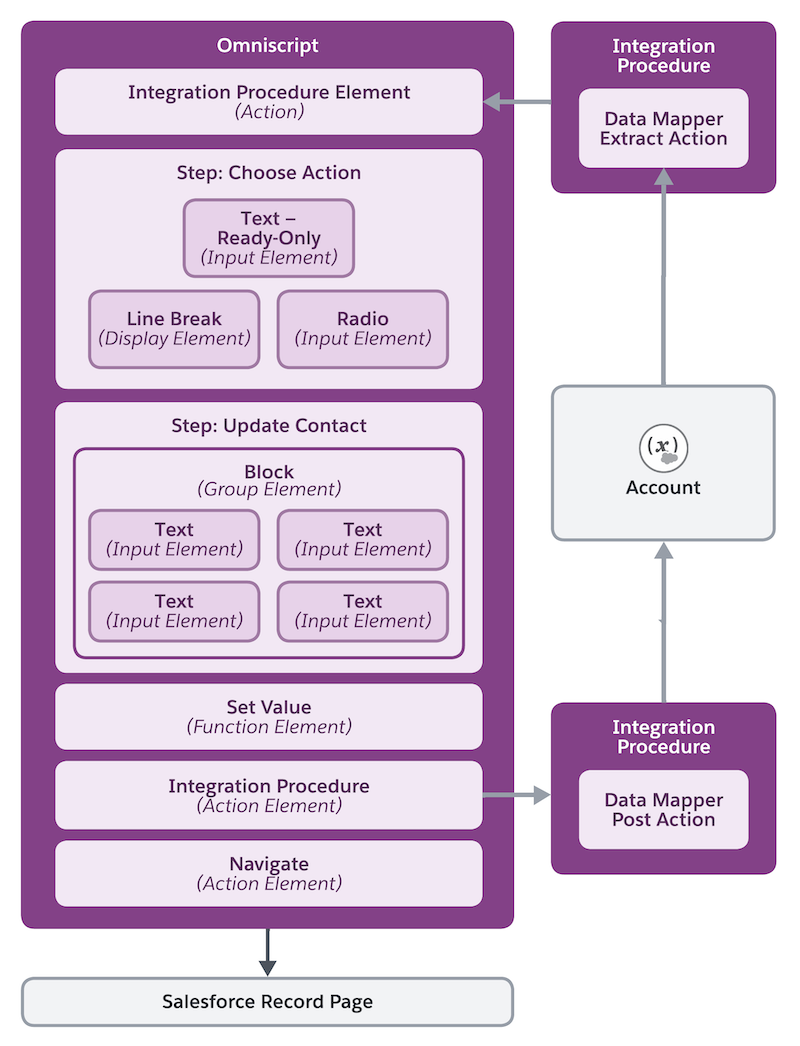
In the first step, read-only text elements show the name, email, and phone number of the current main contact. This information comes from the Integration Procedure element. Then, users select from a radio list to add or update the primary contact. In the second step, users enter or change the contact information. After a user clicks next, an action element sets the values from the user input to JSON. Then, an Integration Procedure element with a Data Mapper Post saves the updated contact data to the Account object. Finally, a Navigate element opens the Account record page so the user can see the applied changes.
- Load Data into Omniscript Elements
You’ll likely need to pull data into an Omniscript to prefill elements, create selectable options, dynamically display elements, or test your Omniscript. You can use data from Salesforce objects or external and internal sources. Omniscripts use several ways to get this data: Omnistudio Data Mappers, Integration Procedures, REST APIs, or Apex. Users can also add or change data in an Omniscript. - Use and Modify Data in Omniscripts
After an Omniscript retrieves data, it can then work with and transform, rename, or convert the data. You can use a Data Mapper Transform element, an Integration Procedure element, or a formula element. For example, if you have user input and data from an external source, you might need to combine data, remove duplicates, and put the data into a consistent format. - Create and Update Data from Omniscripts
After you’ve gotten new or changed data from other sources or users, you’ll likely need to update records in Salesforce or other data sources. As with getting data, Omniscripts can create or update records with various methods: Omnistudio Data Mappers, REST APIs, or Apex. You can also write data to a fillable PDF. - Take Actions with Omniscripts
Besides getting, modifying, and writing data, Omniscripts can take other types of actions. Omniscripts can send messages to users or systems. Users can also provide input to the Omniscript or go to another page or site from an Omniscript. Users can also use DocuSign to sign documents electronically. You can automate decisions in Omniscripts with the Business Rules Engine. You can also extend Omniscript elements for custom behaviors. - Omniscript Best Practices
Enhance the performance and usability of Omniscripts by following the recommended Omniscript best practices.
