
You are here:
Configure a Data Mapper Turbo Extract
To configure a Data Mapper Turbo Extract, specify the object type, filters, fields to extract, and options.
- From the App Launcher, find and select Data Mappers.
- Select the Data Mapper Turbo Extract that you want to configure.
- Search and select an extraction object.
- Enter an extraction object path.
-
Add required filters that determine the data to be read. To filter for null values,
use the
$Vlocity.NULLvariable.The most basic filter is
Id = Id, which sets the ID of the object to an input parameter ID. TheINCLUDESandEXCLUDESoperators apply only to multiselect picklist fields. See Querying Multi-Select Picklists in Salesforce Help.Turbo Extract has an additional operator option
IN. TheINoperator lets you match values to items in an array. For example, if the filter isLastName IN Names, and the JSON input is{"Names": ["Miller", "Torres"]}, it retrieves all records with Miller or Torres in their LastName fields.Data Mapper Turbo Extract doesn't support multiple input fields with single quotation marks in the field values. Use a Data Mapper Extract instead. For instance, adding one input called FirstName with the value T’an, and another input called LastName with the value C’os, isn’t supported on a Data Mapper Turbo Extract.
-
To configure additional filters, click the down arrow:
AND Add another filter and specify that both filters must be true OR Add another filter and specify that either filter can be true. LIMIT Specify the maximum number of records returned. Valid values are 1 through 50000; the default is 50000. OFFSET To implement paging logic, add a filter to specify where record retrieval starts. Choose OFFSET from the dropdown list and specify the name of a node in the input payload where the caller maintains a dynamic offset (for example,
offsetValue).Use OFFSET with LIMIT to specify the first record to appear on a page in a multi-page retrieval. The offset must be an integer. For example, if the LIMIT is 5, the offsets for successive pages are 0, 5, 10, and so on.
 Note Salesforce imposes a 2000-record limit on queries that use OFFSET. Allowed OFFSET values are from 0 to 2000. See Workaround for offset 2000 limit on SOQL query.
ORDER BY Sort the results by the specified field. To sort by multiple fields, specify a comma-separated list of field names in order of precedence, for example
LastName,FirstNameYou can optionally specify ASC for ascending sort or DESC for descending sort. You can optionally specify NULLS FIRST or NULLS LAST to place blank values at the beginning or end. For example, you can sort Accounts by the number of employees, listing the companies of unknown size first and the largest employers last. Specify the ORDER BY value
NumberOfEmployees ASC NULLS FIRST.DELETE Remove a filter. -
To retrieve data from a parent of the primary object, select related objects. For
example,
Contact.Account. For information about the notation, see Relationship Notation versus Multiple Extract Steps.After you select a relationship with another object, its fields appear in Available Fields. Clicking these fields reveals second-level relationships, enabling navigation through five levels. To go back a level, simply click the list and select the previous level.
- In Field Mapping, search for the available fields. This option isn’t available if you’re using the designer on a managed package.
- Select the fields that you want to extract, and move them from Available to Selected Fields. The Id field is always included in Selected Fields.
-
Click Options, and configure additional settings:
- Specify the number of minutes that the cached value is retained in the org cache or session cache, if data caching is enabled. The minimum value is 5 minutes.
-
To enable data caching, choose a cache type from the Salesforce Platform
Cache Type picklist. See Improving Data Mapper Performance with Caching.
None - Disables data caching for this Data Mapper.
Session Cache - Data related to users and their login sessions.
Org Cache - All other types of data.
- To check the user's access permissions for the fields before executing the Data Mapper, select Check field level security before execution. Selecting this option disables the Org Cache, but not the Session Cache.
- To include null values in the Data Mapper response, select Include null values in the response.
- Save your changes.
- To observe the effects of caching when testing the Data Mapper Turbo Extract, deselect Ignore Cache. See Improving Data Mapper Performance with Caching.
Related Object Fields in Omnistudio Data Mapper Turbo Extracts
Although a Data Mapper Turbo Extract retrieves from a single object type, you can select specific fields in related objects.
For more information about relationship names and other relevant topics, see Relationship Queries in Salesforce Help. Data Mappers support only child-to-parent relationship queries.
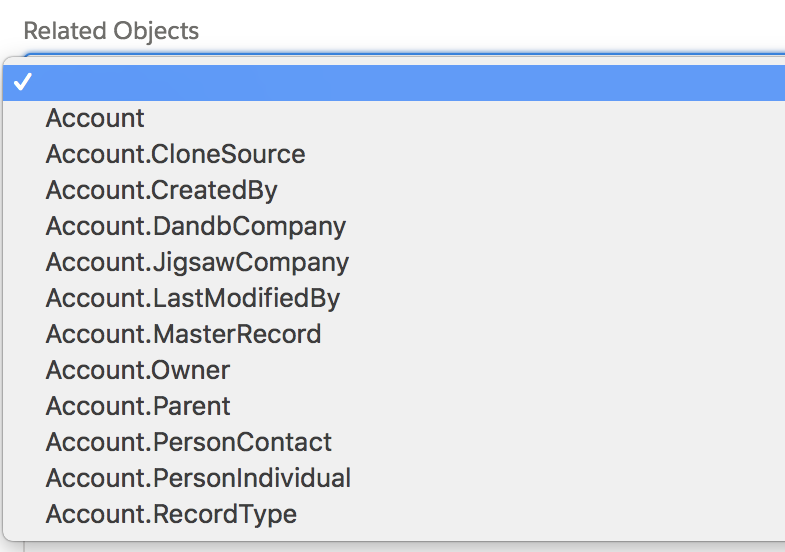
When you click the Related Objects dropdown list, relationships to other objects appear, for example:
If you select one of those relationships and click the list again, second-level relationships to other objects appear, for example:
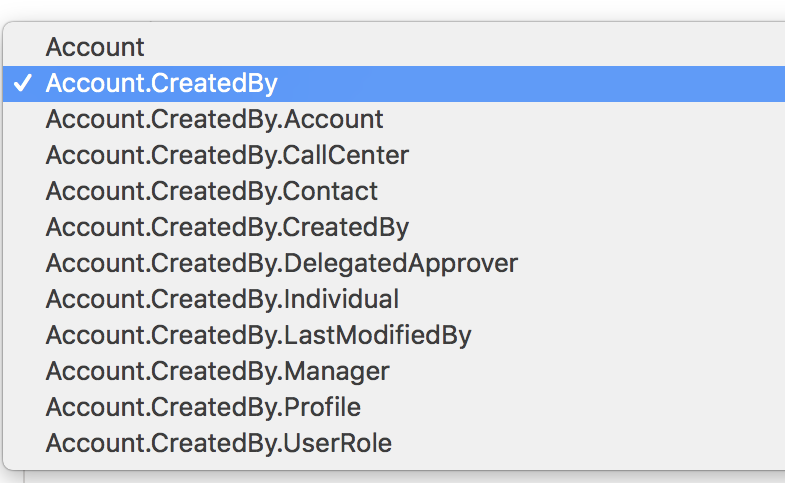
You can traverse up to five relationship levels.
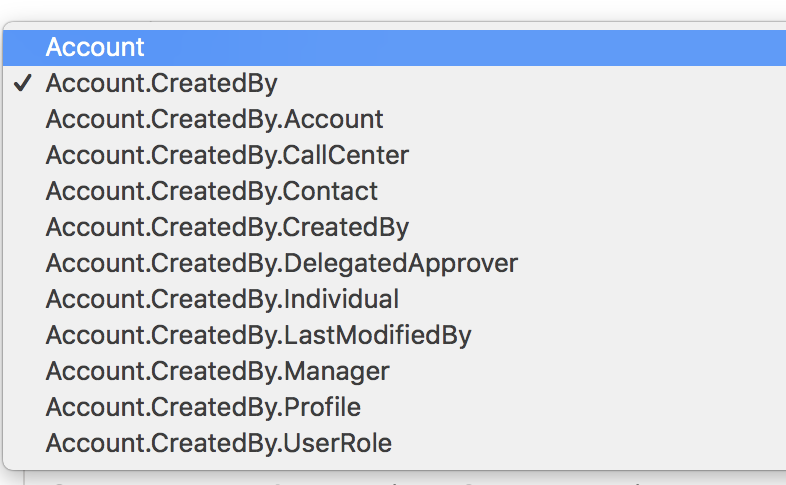
To back up a level, click the list and select the previous level, for example:
After you’ve selected a relationship with another object, fields in that object appear in the left field-selection list. You can enter a search value and move the fields to the right list as you would the base object fields.
