
You are here:
Configure an Edit Block in Omniscripts
Edit Blocks enable a user to add and edit multiple entries in a single array. For example, you can use an Edit Block to list and edit an Account's list of Contacts. Edit Blocks are repeatable blocks by default. Prefilling repeatable blocks with data is possible using an array format.
Setting Display Modes and Templates
Enable Omniscripts to display different Edit Block user interfaces by using Modes.

Edit Block Modes
Select the mode of the Edit Block to change its display and functionality.
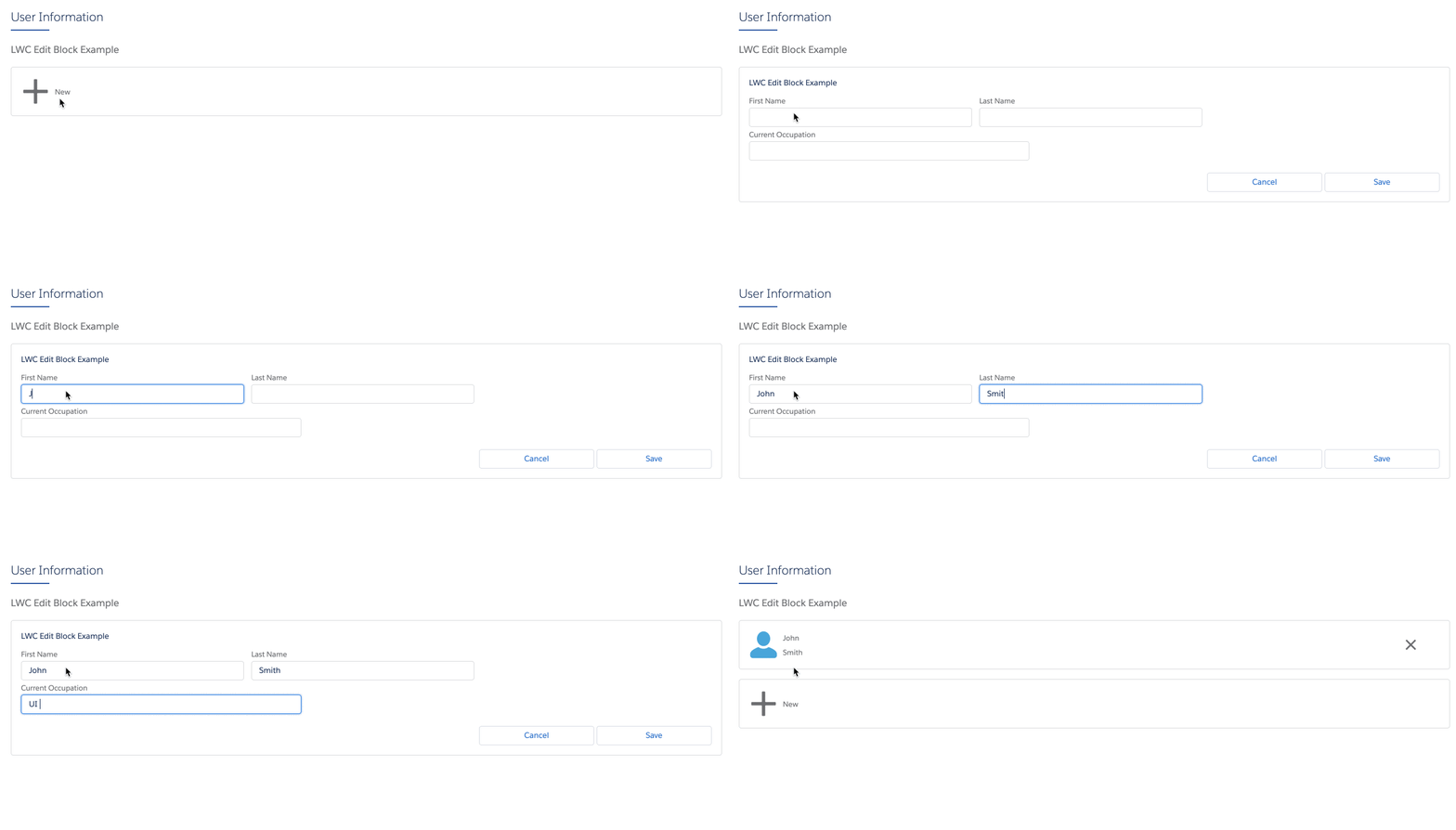
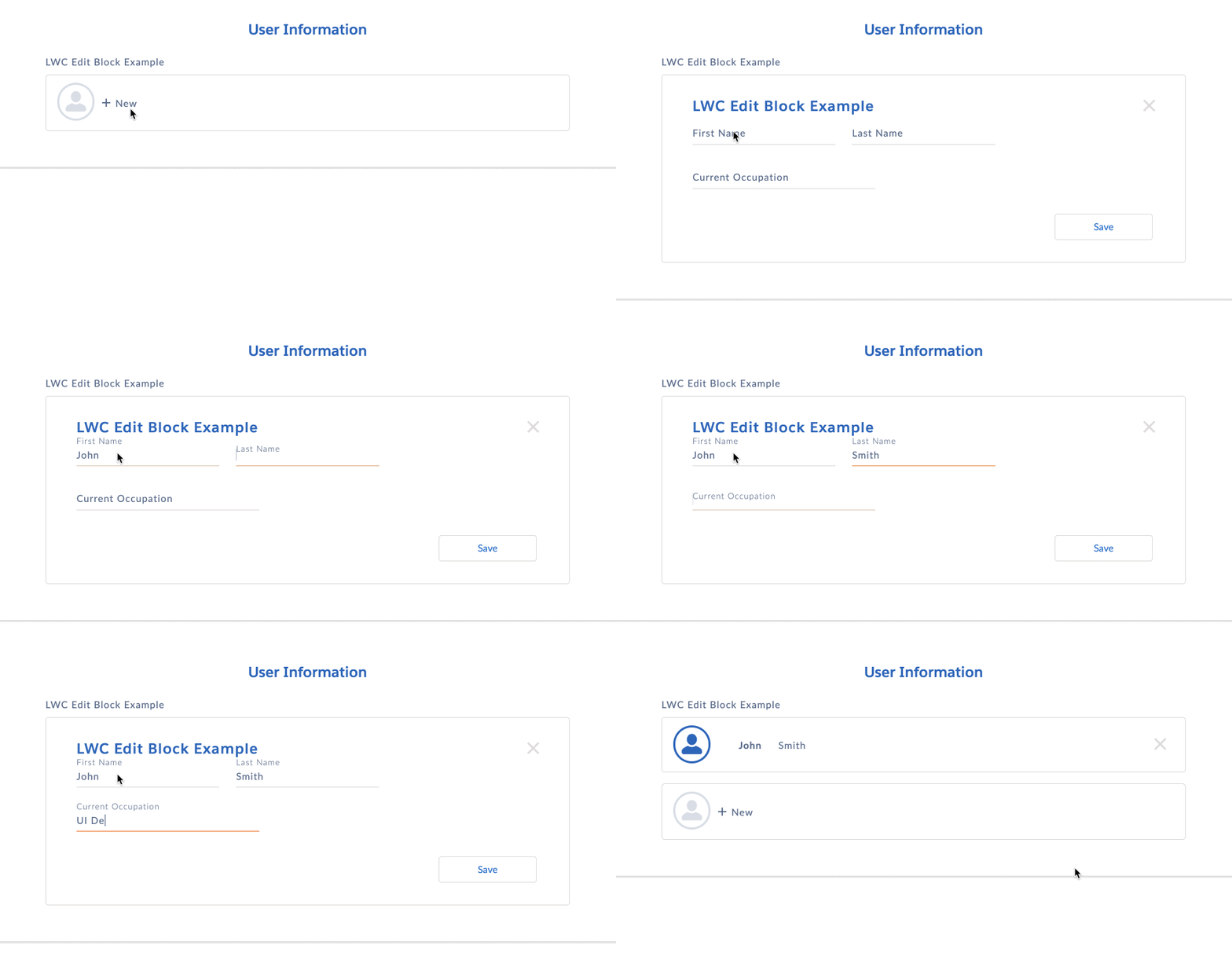
- Inline
Lightning example:
Newport example:
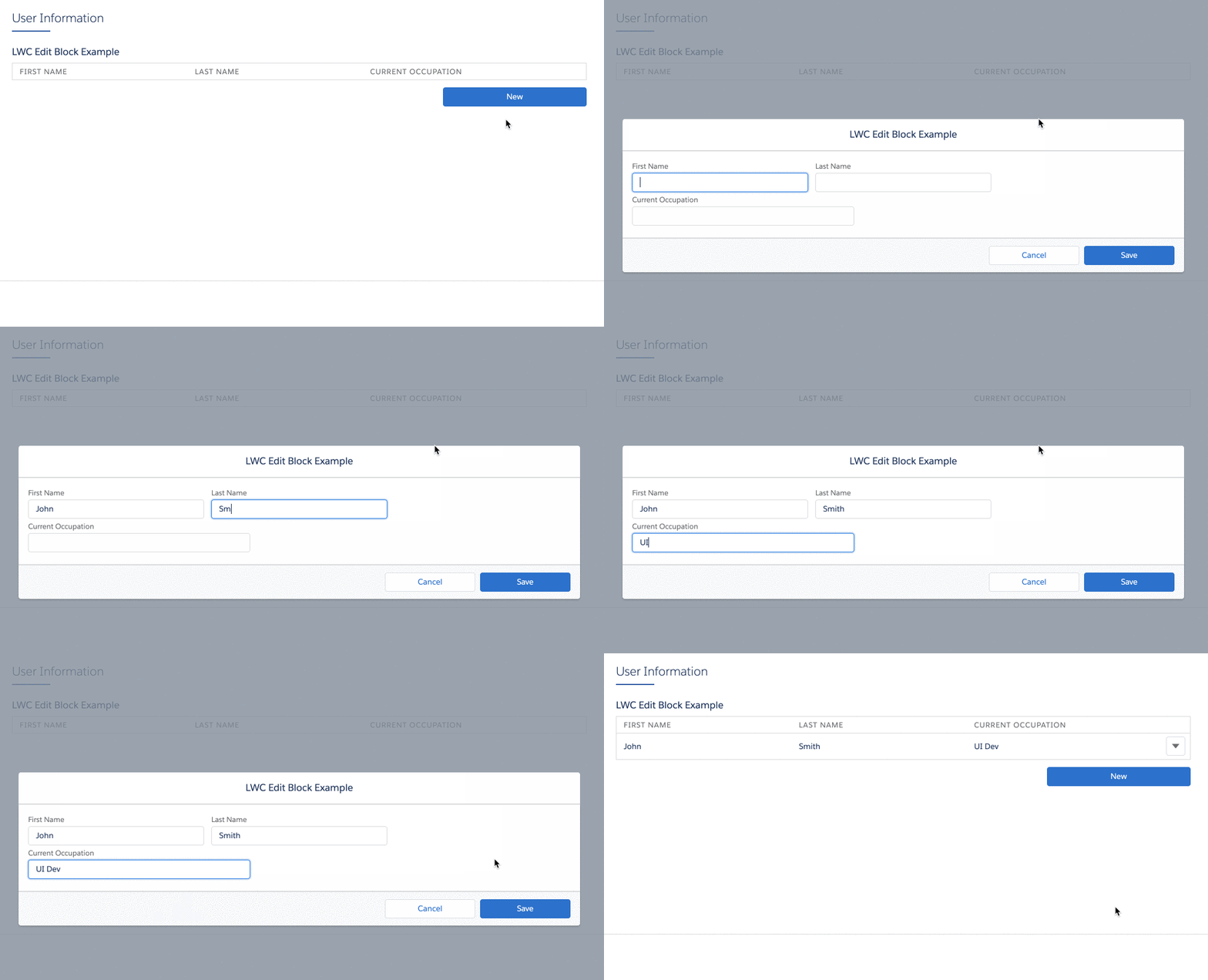
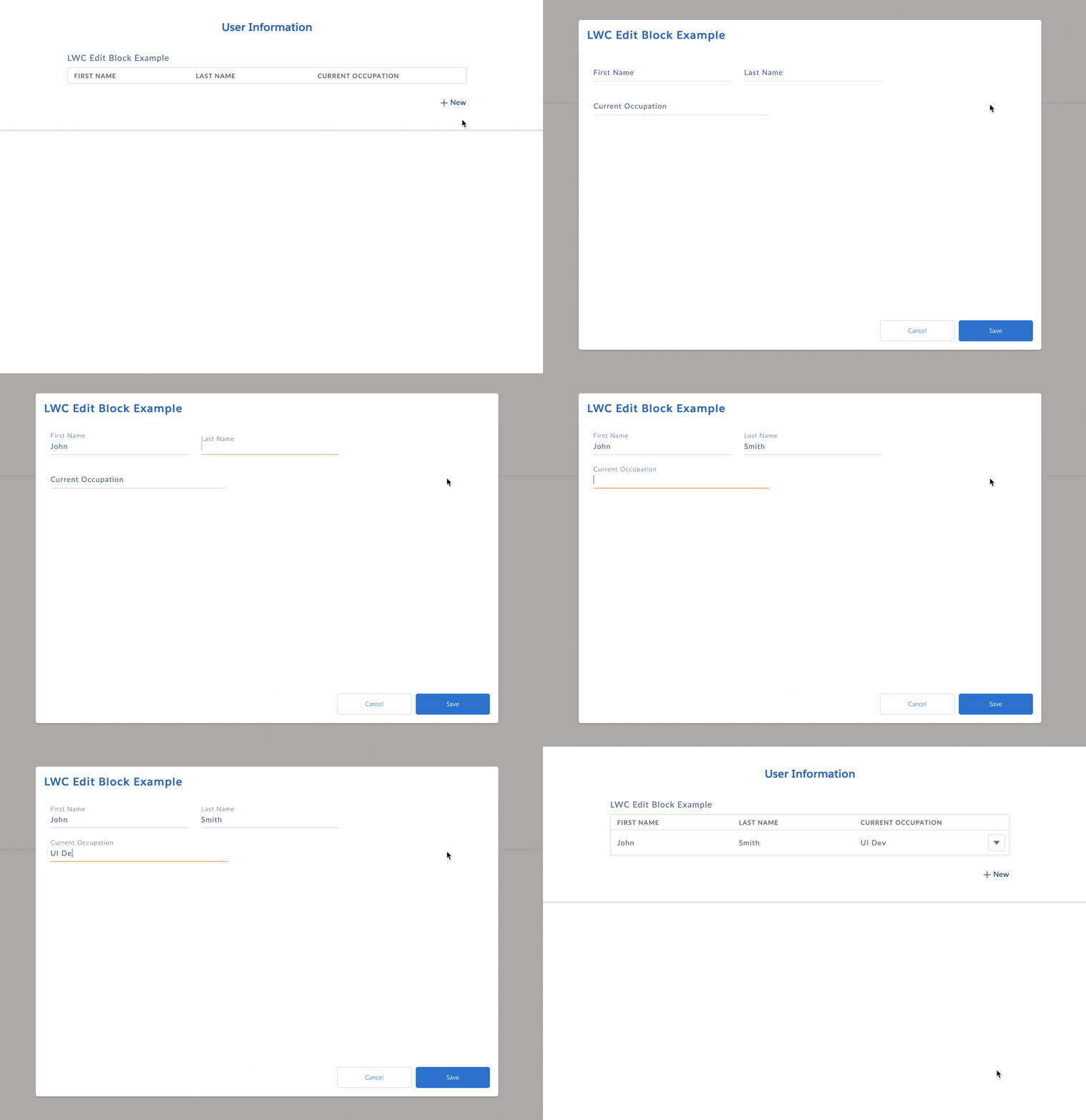
- Table
The maximum number of elements that you can show as columns is 6.
Currently, edit blocks configured in table mode in Omniscripts aren't compatible with screen readers. If you use a screen reader, we recommend that you use Flexcards instead of Omniscripts. In Flexcards, you can use data tables or Lightning datatables that are compatible with screen readers. See Show Data in a Table on a Flexcard and Lightning Web Component – Datatable.
Lightning example:
Newport example:
- Finance Statement
The total combined width of the elements must be less than or equal to 12. Salesforce recommends displaying fewer than twelve elements. Hidden elements don't affect the total display width
Lightning example:
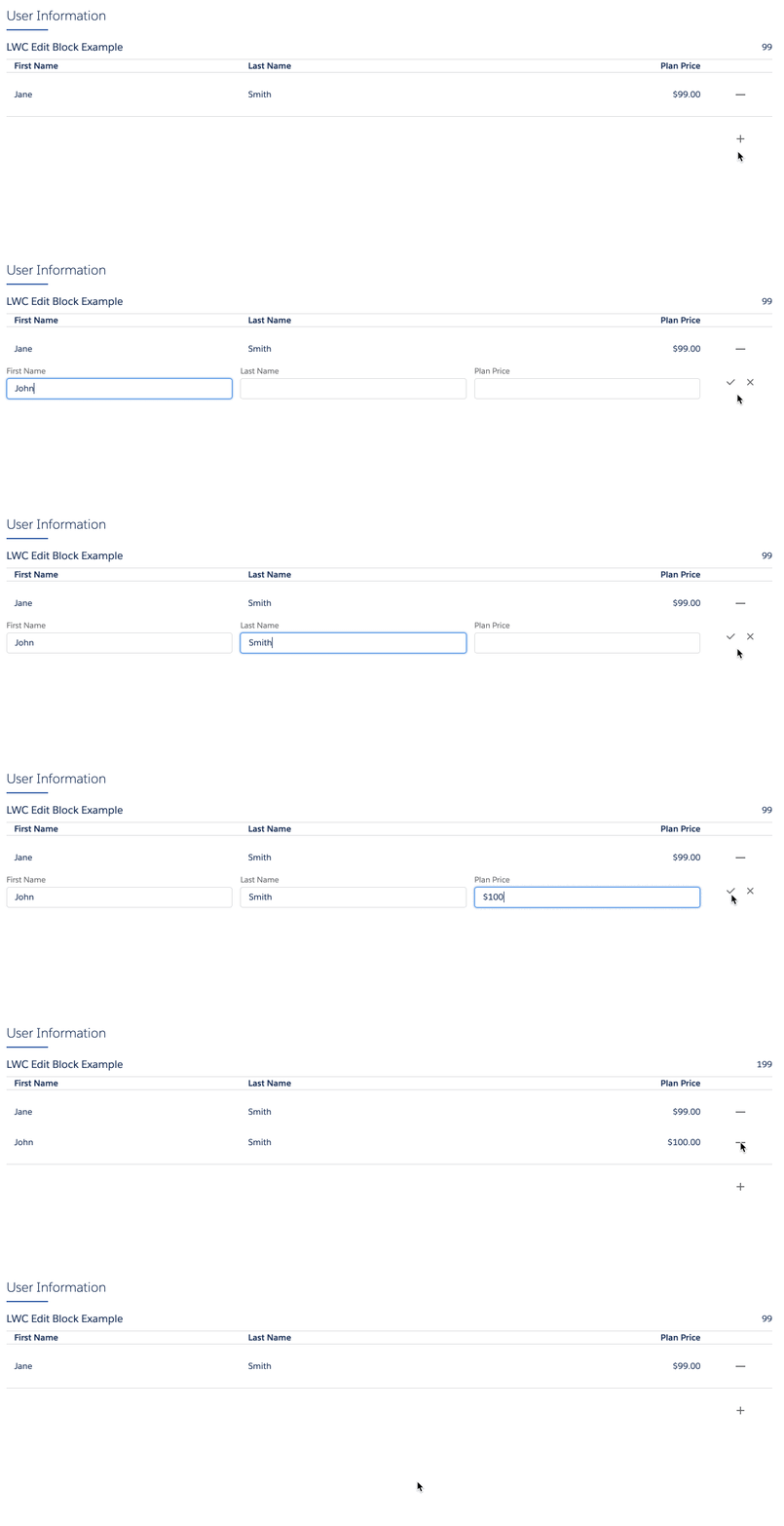
Newport example:
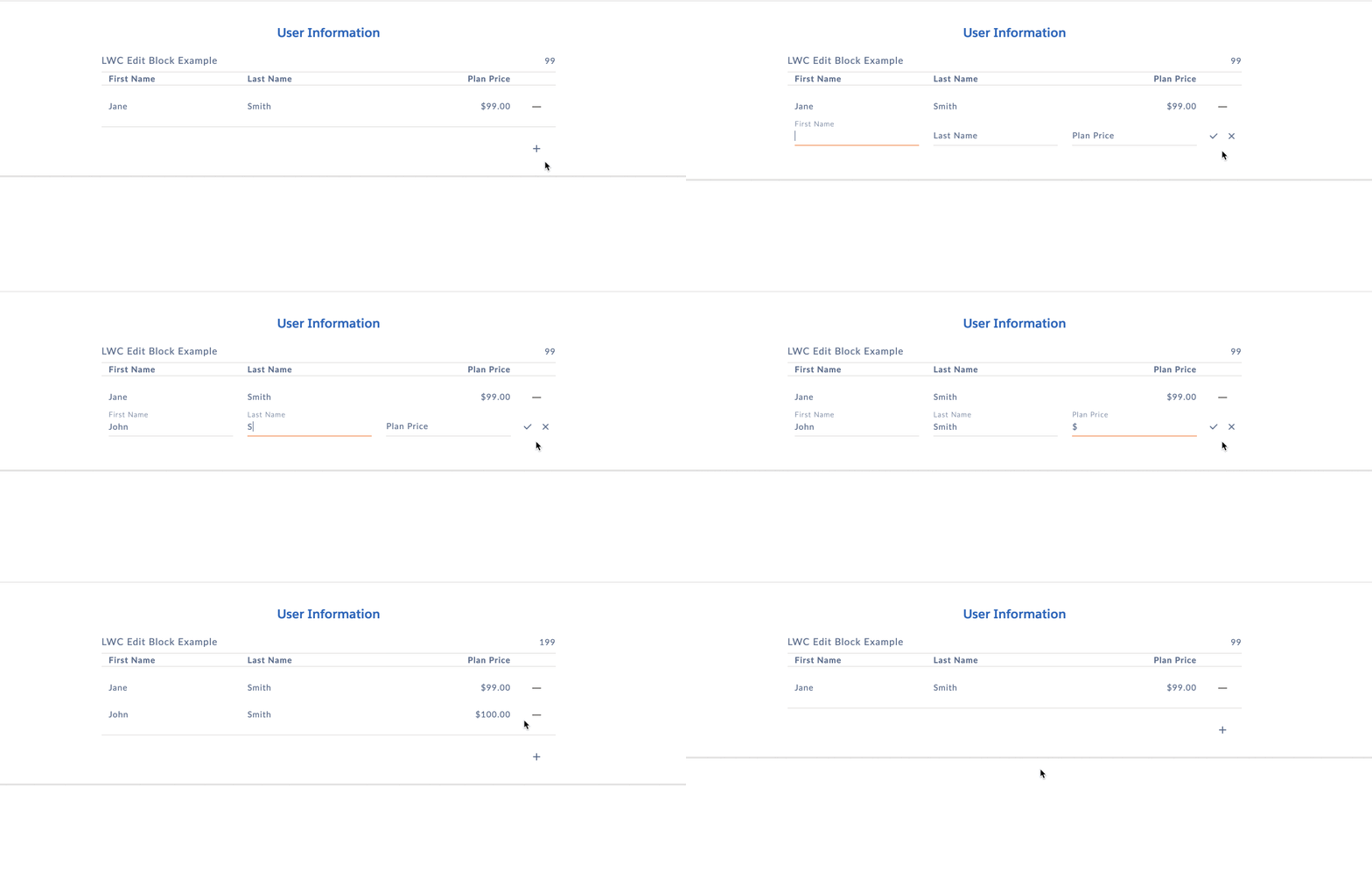
- Cards
The maximum number of elements that you can display in Cards mode varies by element type. For example, you can display up to three Text Elements. Visually inspect the Edit Block to ensure that elements are rendered correctly.
To add more than the maximum number of elements, set the
heightattribute of the Edit Block toautoin Omniscripts, for example:.omni-edit-block-card.omni-edit-block-short-cards[omnistudio-omniscriptEditBlock_omniscriptEditBlockCards] { height: auto !important }Lightning example:
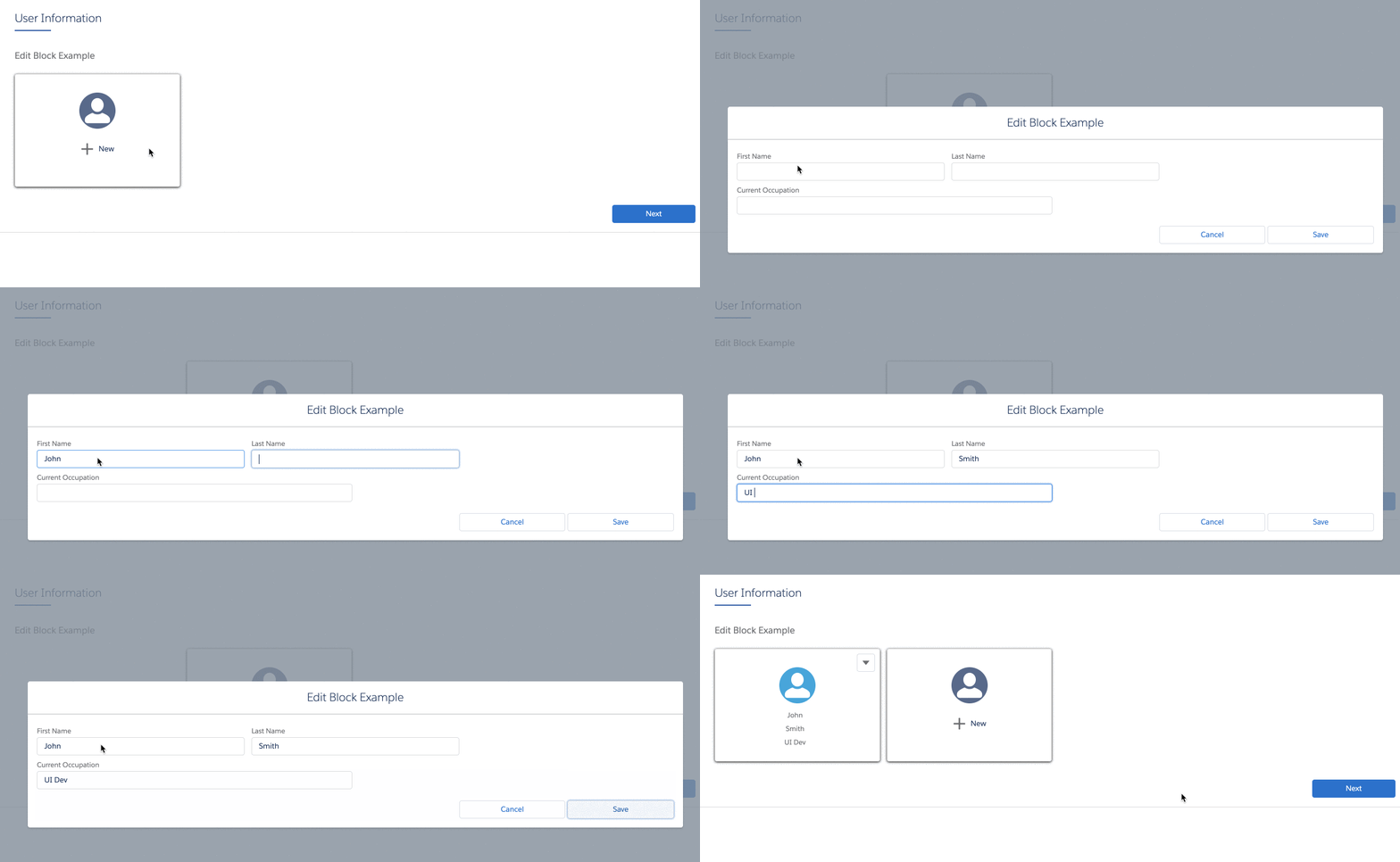
Newport example:
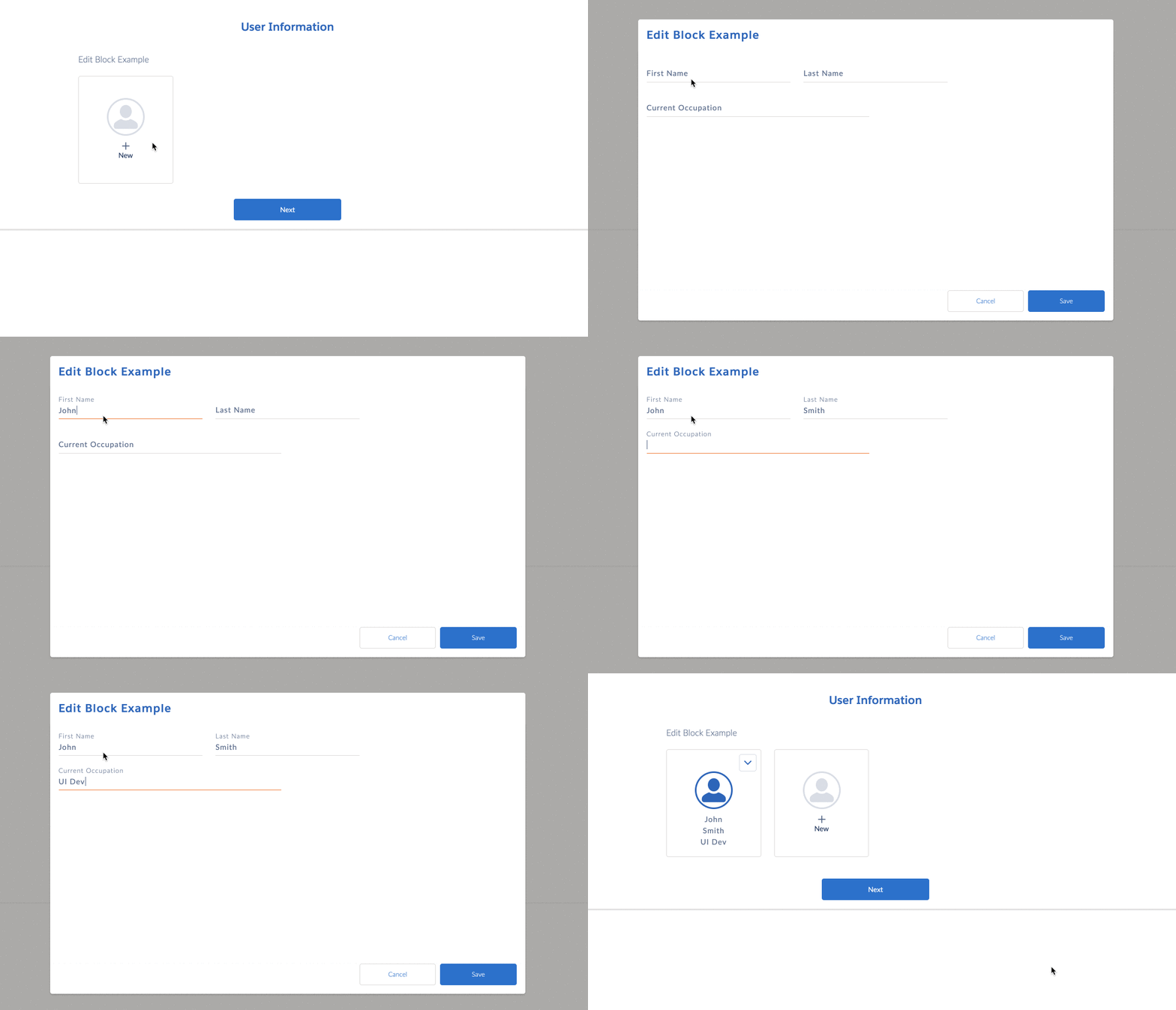
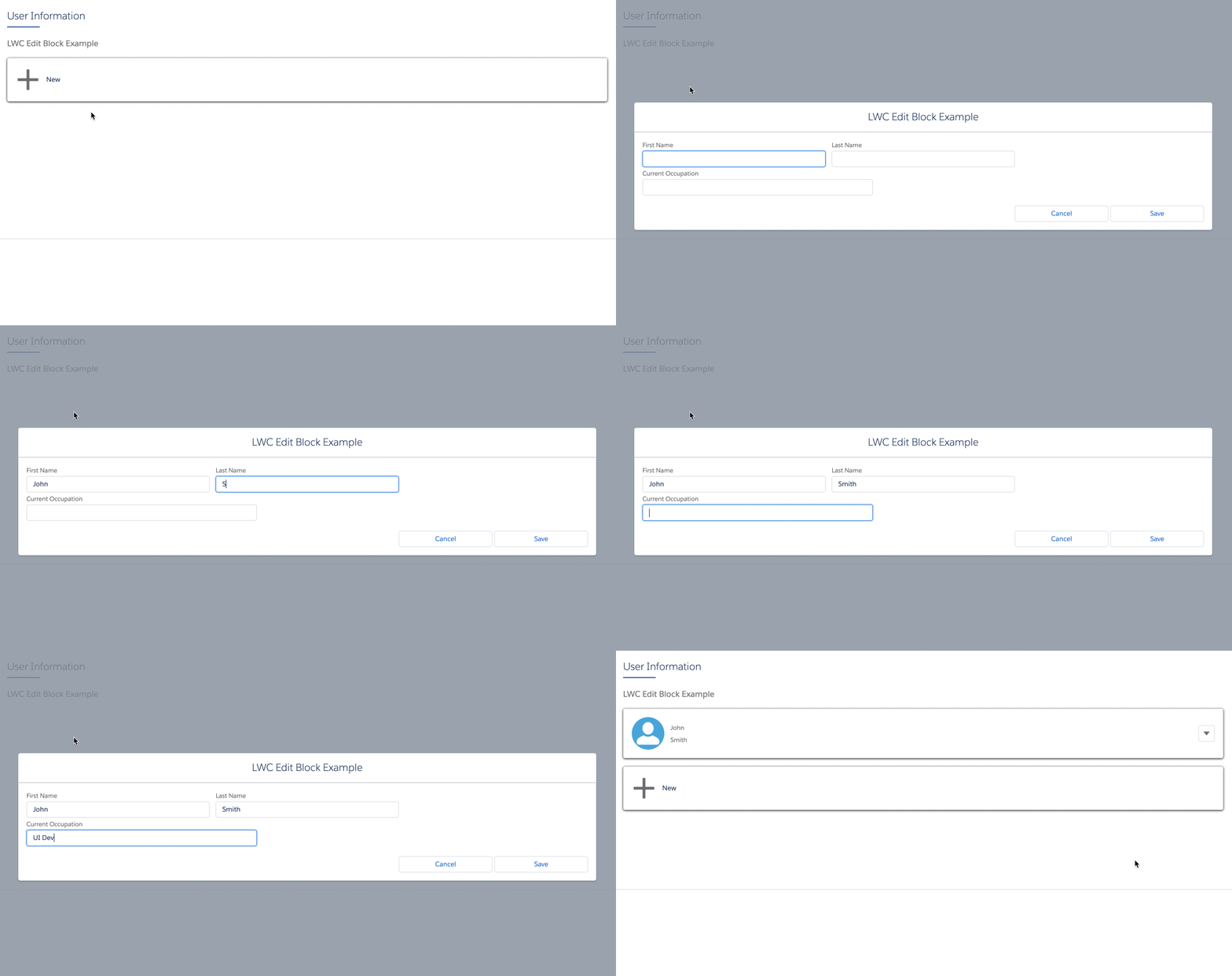
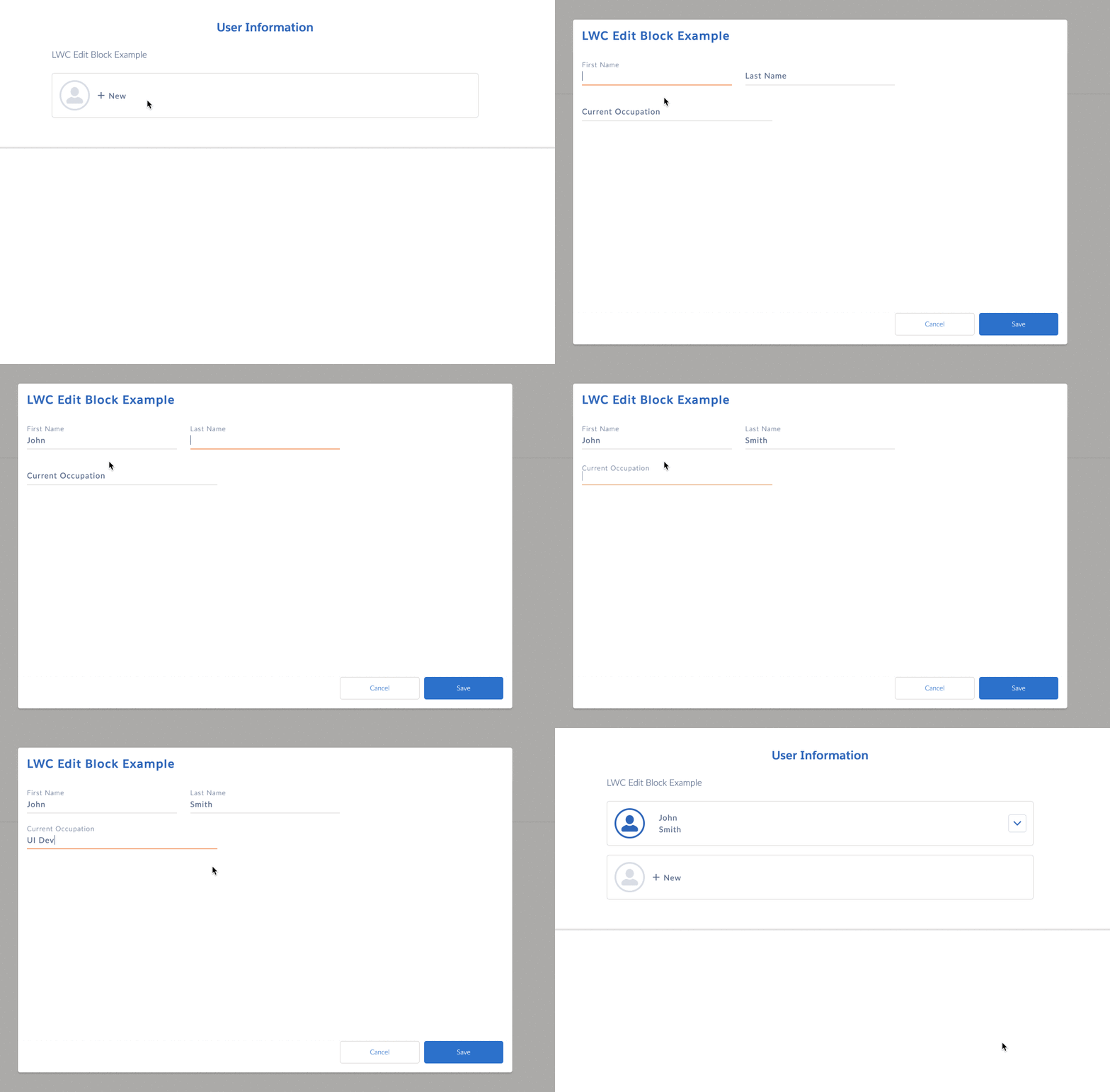
- LongCards
The width of LongCards must be set to 12.
The maximum number of elements that you can display in LongCards mode varies by element type. For example, you can display up to four Text Elements. Visually inspect the Edit Block to ensure that elements are rendered correctly.
To add more than the maximum number of elements, set the
heightattribute of the Edit Block toautoin Omniscripts, for example:div.slds-grid.slds-grid_vertical.slds-grid_align-center.slds-p-left_small.slds-max-small-size_5-of-12.slds-small-size_8-of-12 { height: auto !important; }Lightning example:
Newport example:
Compatible Elements
The following elements are compatible with Edit Block:
-
Aggregate
-
Checkbox
-
Currency
-
Date
-
Date/Time
-
Disclosure
-
Email
-
File
-
Formula
-
Headline
-
HTTP Action
-
Image
-
Integration Procedure Action
-
Line Break
-
Lookup
-
Matrix Action
-
Multi-select
-
Number
-
Password
-
Radio
-
Radio Group
-
Range
-
Remote Action
-
Select
-
Signature
-
Telephone
-
Text
-
Text Area
-
Text Block
-
Type Ahead Block
-
Time
-
URL
What’s Next
Add actions to an Edit Block or use sObject mapping to create, edit, and delete records. See Add, Edit, and Delete Records with Edit Block Actions.
