
You are here:
Create a Try-Catch Block Example with a Formula
An Integration Procedure finds Contacts with the specified Name and returns an error message if none are found. Because returning no records normally isn't considered a failure, the Omnistudio Data Mapper Extract Action within the Try-Catch Block includes a Failure Condition Formula.
The Integration Procedure has these components:
-
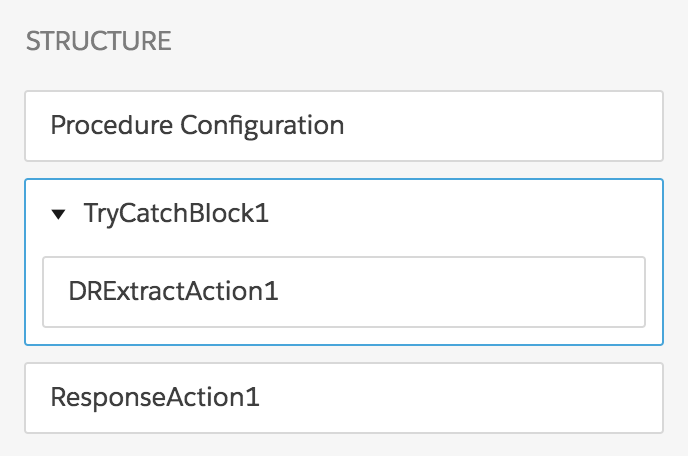
A Try-Catch Block, named TryCatchBlock1
-
A Data Mapper Extract Action, named DRExtractAction1
-
A Response Action, named ResponseAction1
The Structure panel looks like this:
To build this Integration Procedure:
-
Create the Data Mapper Extract that the Integration Procedure calls:
-
From the Omnistudio Data Mapper tab, click New.
-
Enter a Data Mapper Interface Name of
GetContactNameand an Interface Type of Extract, and click Save. -
On the Extract tab, click Add Extract Step and select Contact. Specify the path and filter
Contact Name LIKE Name. -
On the Output tab, click the + icon and enter
Contact:Nameas the Extract JSON Path andContactNameas the Output JSON Path.
If you aren't sure how to create a Data Mapper Extract, see the examples in Omnistudio Data Mapper Extract Examples.
-
- From the Omnistudio Integration Procedures tab, click New.
- Provide an Integration Procedure Name, a Type, and a SubType, and click Save.
-
Drag a Try-Catch Block into the Structure panel and give it the following settings:
-
Under Failure Response, click Add Key/Value Pair. Set the Key to
failureResponseand the Value toName %Name% not found. -
Make sure the Fail on Block Error checkbox is checked.
-
-
Drag a Data Mapper Extract Action component within the Try-Catch Block and give it the following settings:
- Set the Element Name to
DRExtractAction1. -
Set the Data Mapper Interface to
GetContactName. -
Make sure the Fail on Step Error checkbox is checked.
-
Specify this Failure Condition Formula:
ISBLANK(ContactName)
- Set the Element Name to
- Drag a Response Action after the Try-Catch Block and check the Return Full Data JSON box.
-
Go to the Preview tab and test the Integration Procedure:
-
Under Input Parameters, click Add New Key/Value Pair.
-
Set the Key to
Nameand the Value to any first or last name you like. -
Click Execute.
If at least one Contact with that Name is found, the output looks something like this:
{ "Name": "Leanne", "TryCatchBlock1": null, "DRExtractAction1Status": true, "TryCatchBlock1Status": true, "ResponseAction1Status": true, "options": { "vlcFilesMap": null, "forceQueueable": false, "mockHttpResponse": null, "vlcApexResponse": true, "ParentInteractionToken": null, "useFuture": false, "isTestProcedure": false, "useQueueable": false, "disableMetadataCache": false, "resetCache": false, "vlcIPData": null, "OmniAnalyticsTrackingDebug": false, "ignoreCache": true, "isDebug": true, "queueableChainable": false, "useContinuation": false, "chainable": false, "shouldCommit": false, "vlcTestSuiteUniqueKey": null, "vlcTestUniqueKey": null, "vlcCacheKey": null, "useHttpCalloutMock": false, "continuationStepResult": null, "useQueueableApexRemoting": false }, "DRExtractAction1": { "ContactName": "Leanne Tomlin" }, "response": {} } -
-
Change the Value to an uncommon name (or make it blank) and click
Execute again. The output looks something like this:
{
  "success": false,
  "result": {
    "error": [],
    "failureResponse": "Name Quincy not found.",
    "success": false,
    "result": []
  }
}
