
You are here:
Create an Example Test Procedure
After you mock a response in the Integration Procedure to be tested, create the Test Procedure that tests a calculation it performs.
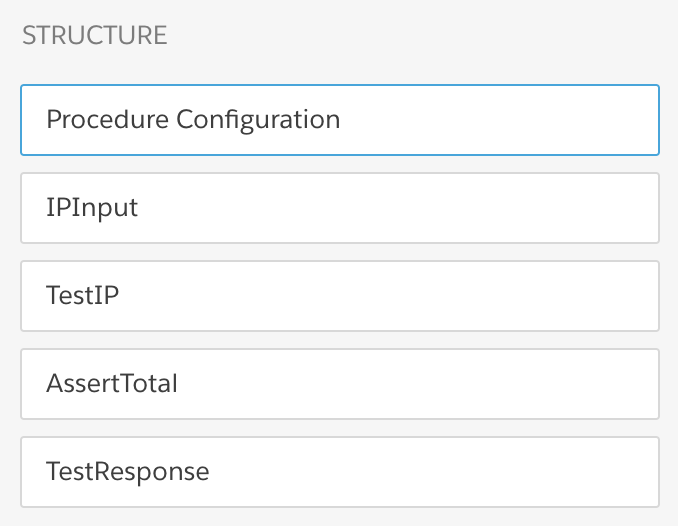
The Test Procedure has these components:
-
A Set Values component, named IPInput
-
An Integration Procedure Action component, named TestIP
-
An Assert Action, named AssertTotal
-
A Response Action, named TestResponse
A Response Action isn't required, but it's useful for testing the Test Procedure. After you have verified that the Test Procedure works, you can deactivate or delete it.
The Structure panel looks like this:
To create the Test Procedure:
- From the Omnistudio Integration Procedures tab, click New.
- Provide an Integration Procedure Name, a Type, and a SubType, and click Save.
- Scroll to the bottom of the Procedure Configuration and check Is Test Procedure.
-
Drag a Set Values component into the Structure panel and give it the following settings:
Property
Value
Element Name
IPInput
Element Value Map: Price
250
Element Value Map: State
NY
Response JSON Node
IPInput
-
Drag an Integration Procedure Action component into the Structure panel and give it the following settings:
Property
Value
Element Name
TestIP
Integration Procedure
Name you gave the Integration Procedure to be tested, described in Define Execution Logic.
Send JSON Path
IPInput
-
Drag an Assert Action component into the Structure panel and give it the following settings:
Property
Value
Element Name
AssertTotal
Assert Conditional Formula
TestIP:Output:Total == 265
Assert Failure Message
Calculation is incorrect.
-
Drag a Response Action component into the Structure panel and give it the following settings:
Property
Value
Element Name
TestResponse
Return Full Data JSON
(checked)
After you have verified that the Test Procedure works, you can deactivate this component.
-
Go to the Preview tab and click Execute. The output should look like this:
{ "response": { "testResult": "success" }, "TestResponseStatus": true, "AssertTotal": { "assertFailureMessage": "Calculation is incorrect.", "variableData": { "TestIP:Output:Total": 265 }, "assertConditionalFormula": "TestIP:Output:Total == 265", "assertResult": true }, "AssertTotalStatus": true, "TestIP": { "testResult": "success", "Output": { "Price": 250, "State": "NY", "Tax": 15, "TaxRate": 6, "Total": 265 } }, "TestIPStatus": true, "IPInput": { "Price": 250, "State": "NY" }, "IPInputStatus": true, "options": { "useQueueableApexRemoting": false, "queueableChainable": false, "ignoreCache": true, "resetCache": false, "chainable": false } } - (Optional) In the IPInput component, change the Price, or change the State to WA, OR, NV, or CA. Then return to the Preview tab and click Execute again. Note how the output changes.
-
Prepare for running the Test Procedure.
- In the TestResponse component, click Active to remove the check.
- In the Procedure Configuration, click Activate Version. IDX Workbench only runs active Test Procedures.
