
You are here:
Embed an Omniscript in Another Omniscript
An Omniscript can be reused in one or more existing Omniscripts. Reusing Omniscripts enables you to build a variety of smaller scripts and then piece them together into one or more parent scripts. Embedded Omniscripts behave just like other Omniscript elements.
A reusable Omniscript cannot contain another reusable Omniscript. Additionally, no element in a reusable Omniscript can have the same name as an element in the parent script. Reusable Omniscripts adopt the script configuration of the parent script.
Make sure that each embedded Omniscript defines unique Element Name JSON nodes in its Set Values elements. If two child Omniscripts of the same parent set values for the same JSON nodes, only values from the first child Omniscript are set, even if both children run conditionally.
- In the Omniscript you want to reuse, click Setup, and select Reusable.
- Activate the reusable Omniscript.
- Navigate to the Omniscript where you want to use the reusable Omniscript.
- From the elements panel, expand the Omniscripts section.
- Locate the reusable Omniscript and drag it into the canvas.
- Preview your Omniscript to test the behavior.
Activate and Deactivate Embedded Omniscripts
When you activate or deactivate an embedded script, Salesforce updates all activated parent Omniscripts to reflect the change.
- From the Setup section of the embedded Omniscript, activate or deactivate the Omniscript.
-
Verify the Affected Omniscripts (any active Omniscript that this form is embedded
in), and click Proceed.
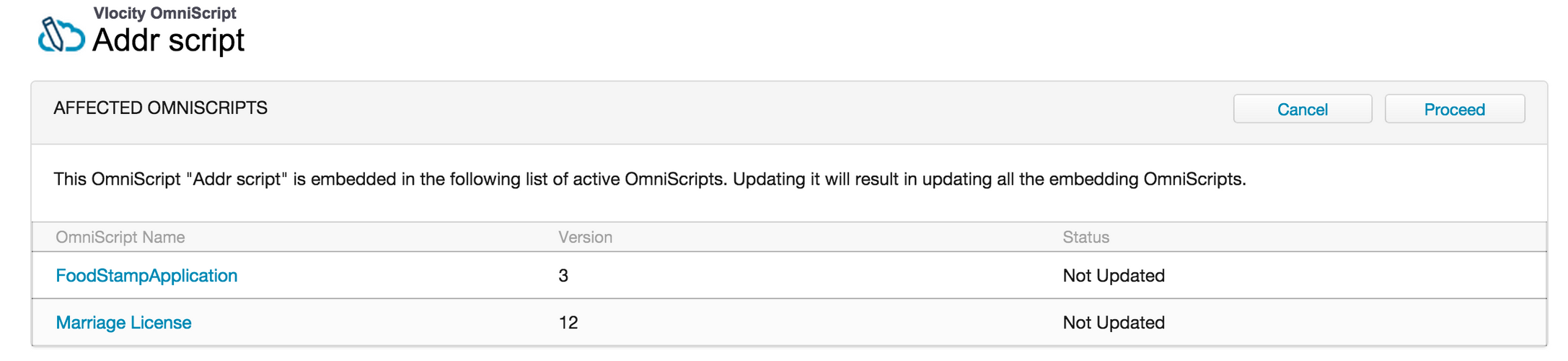
- After the parent scripts update, click Done.
Conditionally Run Embedded Omniscripts
Using the Conditional View property in the parent Omniscript, you can run an embedded Omniscript only under certain conditions.
- From the Properties section of the reusable Omniscript element of the parent Omniscript, expand Conditional View.
- Click the Show Element If True link. The Edit Show Hide Rules window opens.
- Create conditions as described in Conditionally Display Omniscript Elements.
- Click Save.
Elements in the embedded Omniscript run only if the conditions are true for those elements. If the conditions change while the embedded Omniscript is running, subsequent embedded Omniscript elements don't run. If the conditions are false for any embedded Omniscript elements, those elements are skipped.
