
You are here:
Guidelines for Accessing Select Element Data in Repeatable Blocks
When you use a Select element within a repeatable block, review guidelines and examples for accessing data within or outside the same repeatable block. The Select element is used with Salesforce dependent picklists.
Guidelines
In a repeatable block containing a Select element tied to a Salesforce dependent picklist, you use the dependent picklist element to access controlling picklist selections.
Guidelines for the controlling picklist element properties:
| Property | Configuration |
|---|---|
| Name | We recommend indicating in the name that this property is tied to the controlling picklist. |
| Field Label | The label that your users see. |
| Option Source | Select SObject. |
| Source | Indicate the picklist controlling field, separating the object and field names with a period. |
| Controlling Field Type | Leave as None. |
Guidelines for the dependent picklist element properties:
| Property | Configuration |
|---|---|
| Name | We recommend indicating in the name that this property is tied to the controlling picklist. |
| Field Label | The label that your users see. |
| Option Source | Select SObject. |
| Source | Indicate the picklist dependent field, separating the object and field names with a period. |
| Controlling Field Type | Select SObject. |
| Controlling Field Source | Indicate the picklist controlling field, separating the object and field names with a period. |
Controlling Field Element In the same repeatable block |
If the controlling field element is within the same repeatable block,
enter BlockName|n:ElementName. Then,
when the Omniscript runs, it accesses the named element in the current
block. |
Controlling Field Element In a different repeatable block |
If the controlling field element (which references the controlling
picklist) is in a different repeatable block, enter BlockName|1:ControllingFieldElementName
(where the number after BlockName| is
the block’s count in the Omniscript). |

Example 3: Controlling and Dependent Picklists in the Same Block In
this example, the Building Permit and Work Type block contains Select elements for both the
controlling picklist and the dependent picklist. The Building Permit and Work Type block is
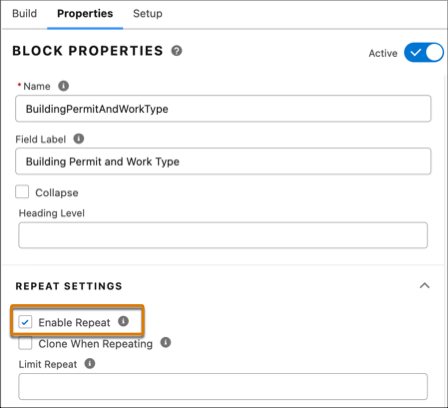
repeatable (1).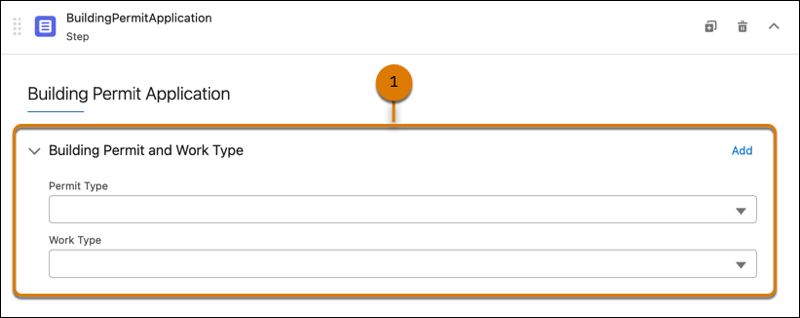 In the properties for the Building Permit and Work Type block, Enable Repeat is selected.
 In the properties for the Select element for the controlling picklist, the Option
Source is SObject, the Source is the object name and field, and the Controlling Field Type
is None.
In the properties for the Select element for the controlling picklist, the Option
Source is SObject, the Source is the object name and field, and the Controlling Field Type
is None.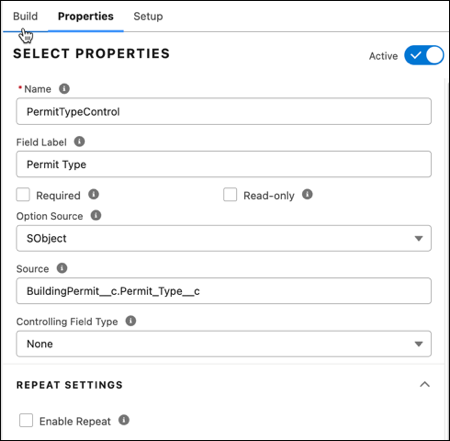 In the properties for the Select element for the dependent picklist, the Controlling
Field Type is SObject instead of None. The Controlling Field Source is the object name and
field. The Controlling Field Element property uses
In the properties for the Select element for the dependent picklist, the Controlling
Field Type is SObject instead of None. The Controlling Field Source is the object name and
field. The Controlling Field Element property uses 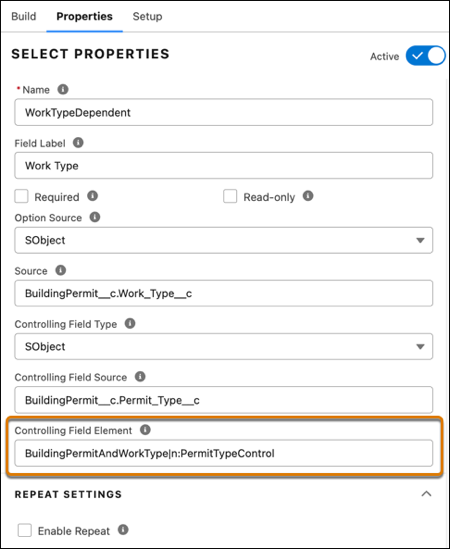 In Preview, the dependent picklist content depends on the user’s selection in the
controlling picklist.
In Preview, the dependent picklist content depends on the user’s selection in the
controlling picklist.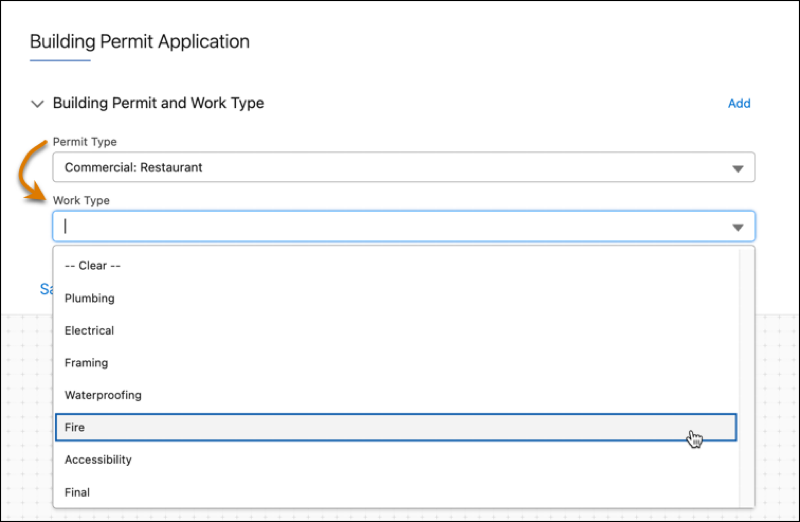
|n
to reference the controlling picklist because the picklists are in the same block.Example 4: Controlling and Dependent Picklists in Different Select
Elements In this example, the Select the Type of Work element contains the
dependent picklist, which references the controlling picklist in the Select the Permit Type
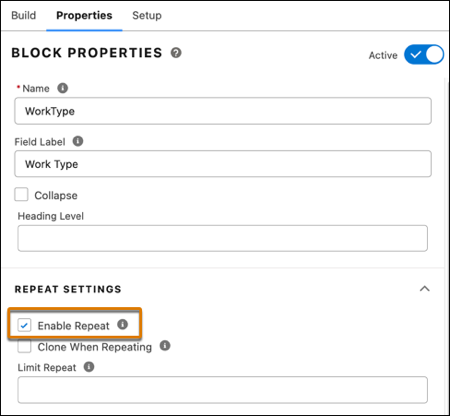
element. The Work Type block is repeatable (1).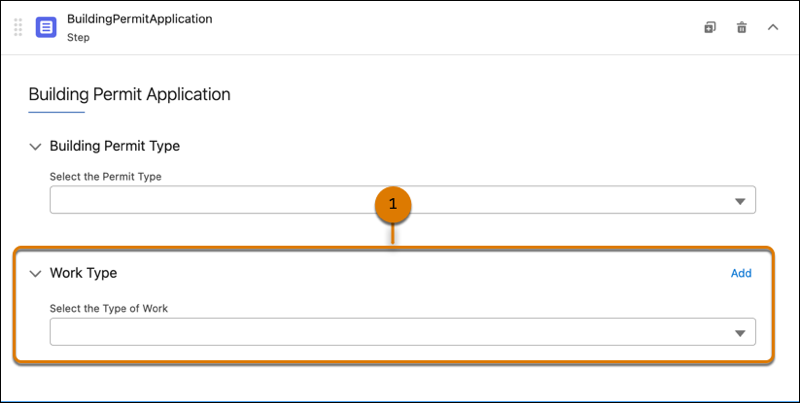 In the properties for the Work Type block, Enable Repeat is selected.
 Properties for the Select the Permit Type element. It’s named PermitTypeControl to
indicate that it contains the controlling picklist.
Properties for the Select the Permit Type element. It’s named PermitTypeControl to
indicate that it contains the controlling picklist.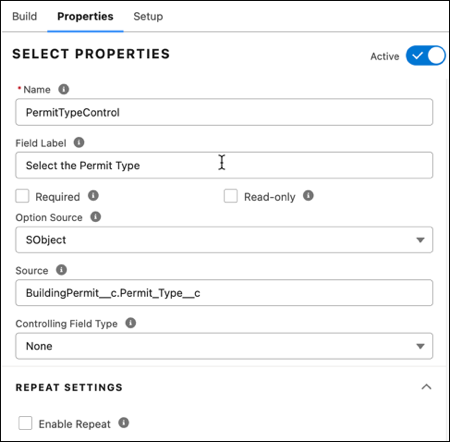 Properties for the Select the Type of Work element. It’s named WorkTypeDependent to
indicate that it contains the dependent picklist. The Controlling Field Type is SObject
instead of None. The Controlling Field Source is the object name and field. The Controlling
Field Element property references the controlling picklist element by specifying its
location in the first block, Building Permit Type.
Properties for the Select the Type of Work element. It’s named WorkTypeDependent to
indicate that it contains the dependent picklist. The Controlling Field Type is SObject
instead of None. The Controlling Field Source is the object name and field. The Controlling
Field Element property references the controlling picklist element by specifying its
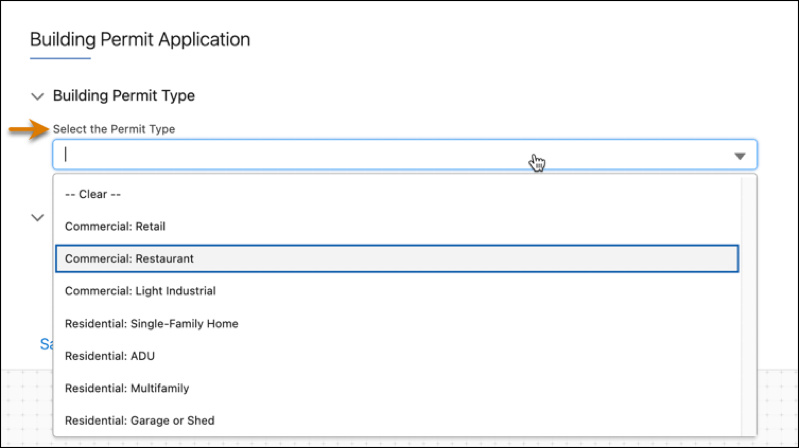
location in the first block, Building Permit Type.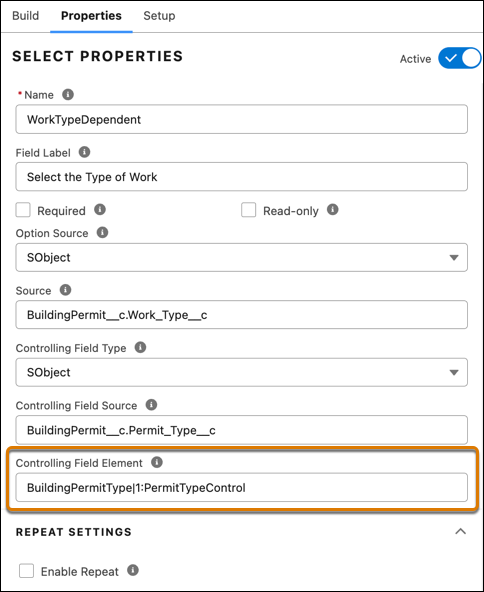 Preview shows the controlling picklist selections.
 The dependent picklist content depends on the user’s selection in the controlling picklist.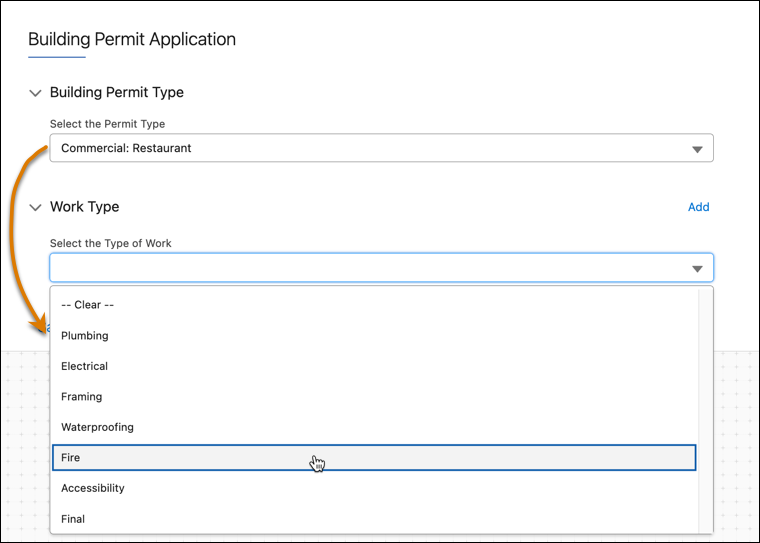
Did this article solve your issue?
Let us know so we can improve!
