
You are here:
Work with Data and Lists
Use Integration Procedures to read, write, and transform complex, hierarchical data from Salesforce objects and other sources. Use actions to work with data, and blocks to process it.
Use a Data Mapper Extract Action with an Omnistudio Data Mapper Extract to access complex, hierarchical data that you can use with other actions. For example, if you create a Data Mapper Extract for the Contact object where AccountId = id, you can then map fields in the object to output fields (for example contact:FirstName to contact:firstName). To access the results, create a Data Mapper Extract Action and specify the name of the Data Mapper. You can then use the extracted list in a Loop Block or a List Block, addressing it by the name of the Data Mapper Extract Action and the output object (DMExtractAddresses:contact, for example).
Iterate over a List by Using a Loop Block
A Loop Block iterates over the items in a list, enabling the Actions within it to repeat for each item. In the Loop List parameter, you put a JSON node containing a list. The Loop Block processes one item in the list at a time. For example, suppose the list looks like this:
      {
        "Products": {
          "Ids": [
            {
              "Id": 1
            },
            {
              "Id": 2
            }
          ]
        }
      }
Each iteration of the Loop Block receives a single element, nested in the structure of the list:
{
  "Products": {
    "Ids": {
      "Id": 1
    }
  }
}
Actions within the Loop Block have access to one element at a time.

For a Loop Block that calls an Omnistudio Data Mapper Transform, a list with more than 1000 items degrades performance. You can use a paging strategy to break up long lists.
stepResultFinal array exceeds a size of 1 and results in an
error:Cannot Write Array to Root
You can use a Loop Block to search for multiple records in a Salesforce object. Let’s say you wanted to search for Contacts with the name “Miller” or Torres. You can put a Data Mapper Extract Action in a Loop Block, then pass in a list of names in the Input Parameters.
Consider the following JSON:
{
    "names": [
        {
            "Name": "Miller"
        },
        {
            "Name": "Torres"
        }
    ]
}
To search for these names in a Loop Block:
- Create a Data Mapper Extract that selects records with the Filter
Contact.LastName LIKE
        Name
. - Create a Data Mapper Extract Action in the Loop Block with the Data Source
names:Nameand the Filter ValueName. Set the Data Mapper Name to the name of the Data Mapper Extract.
As the Loop Block executes, the Data Mapper Extract Action uses each Name
from the names list in the input JSON to search
Contact.LastName.
Merge Lists by Using a List Action
The List Action merges multiple lists by matching values of specified list item JSON nodes. A basic merge matches node names exactly. An advanced merge matches nodes that have different names or reside at different levels in the incoming lists.
The inputs to a List Action must each be in list format even if the list contains only one item. Omnistudio Data Mapper Extracts that return a list with one item often convert it to a single object. To convert a single object back into a list, you can use the first example in Omnistudio Data Mapper Transform Examples.
For more list processing options, see List Input for Omnistudio Data Mappers and the AVG, FILTER, IF, LIST, LISTMERGE, LISTMERGEPRIMARY, LISTSIZE, MAX, MIN, SORTBY, and SUM functions in the Function Reference.
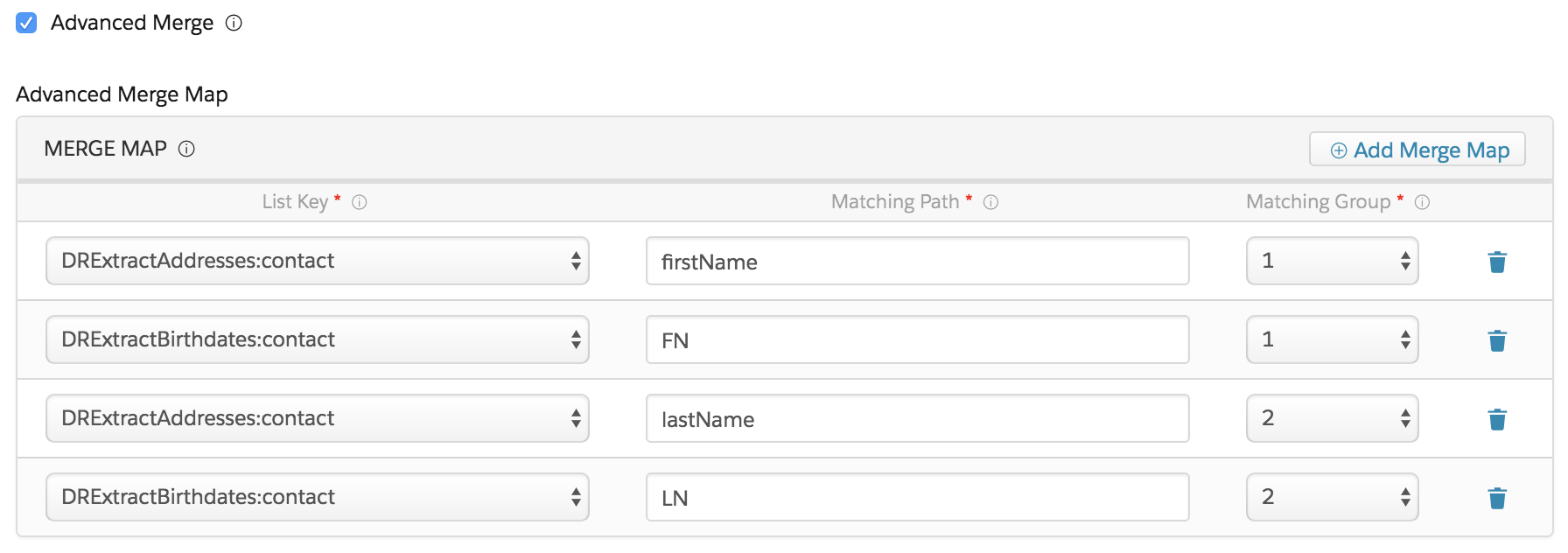
To match nodes that have different names or reside at different levels in the incoming lists, click Advanced Merge and specify settings for the nodes to be matched, as follows:
- List Key: Enter the name of the JSON list node where the node to be matched resides.
- Matching Path: Enter the path within the list to the node to be matched.
- Matching Group: Specify the same number for all nodes you want to match.
For example, this figure shows how to match first and last names from two incoming lists in which the nodes have different names.
- Concatenate List Items
This Integration Procedure example concatenates values from an array into a single comma-separated string by using a Set Values Action inside a Loop Block, then trimming and returning the output. - Create Contacts by Using a Loop Block
Use a Loop Block to iterate over a list provided in the input JSON, adding a Contact object for each element in the list. - Set Values in a List by Using Conditions
In this example, an Integration Procedure adds a dynamic value to each item in a list using conditions. Although dynamic in the list, the values are hard-coded in the Integration Procedure. Use this approach if you have a specific set of possible values. - Add Values to List Items by Using VALUELOOKUP
In this example, an Integration Procedure adds a dynamic value to each item in a list using the VALUELOOKUP function. The values aren't hard-coded in the Integration Procedure. Use this approach if you don't know the set of possible values in the input. - Match Records by Using Advanced Merge
Advanced Merge matches nodes with different names or at different levels in incoming lists. For example, instead of using a primary key that exists in both lists, you can match records based on first and last name.
