
You are here:
Create a Tracking Group and Add Components to Track
To specify a group of components that you want to track together, create a Tracking Group and add Omniscript and Flexcard components to it.
Make sure your Omniscripts and Flexcards meet these criteria:
- All Omniscript Step components have Step Label values.
- The Omniscript Setup and each Step component have all Messaging Framework boxes checked: Window postMessage, Pub/Sub, and Session Storage.
- The Omniscript or Flexcard is active.
- If you originally downloaded the Omniscript or Flexcard from an Omnistudio for Vlocity org, you’ve clicked the dropdown in the designer next to Edit or Help and selected Deploy Standard Runtime Compatible LWC.
- From Setup, in the Quick Find box, enter omni.
- Expand OmniAnalytics and click Tracking Groups.
- Click New.
- For the name, enter AnalyticsTest.
-
From the Tracking Group Type dropdown list, select Internal.
Internal specifies that you aren't using a third-party Analytics system. External specifies that you’re using a third-party system such as Google Analytics.
 Note A specific Omniscript or Flexcard can belong to two Tracking Groups if one is Internal and the other is External.
 -
Make sure Is Active is on for the Tracking Group.
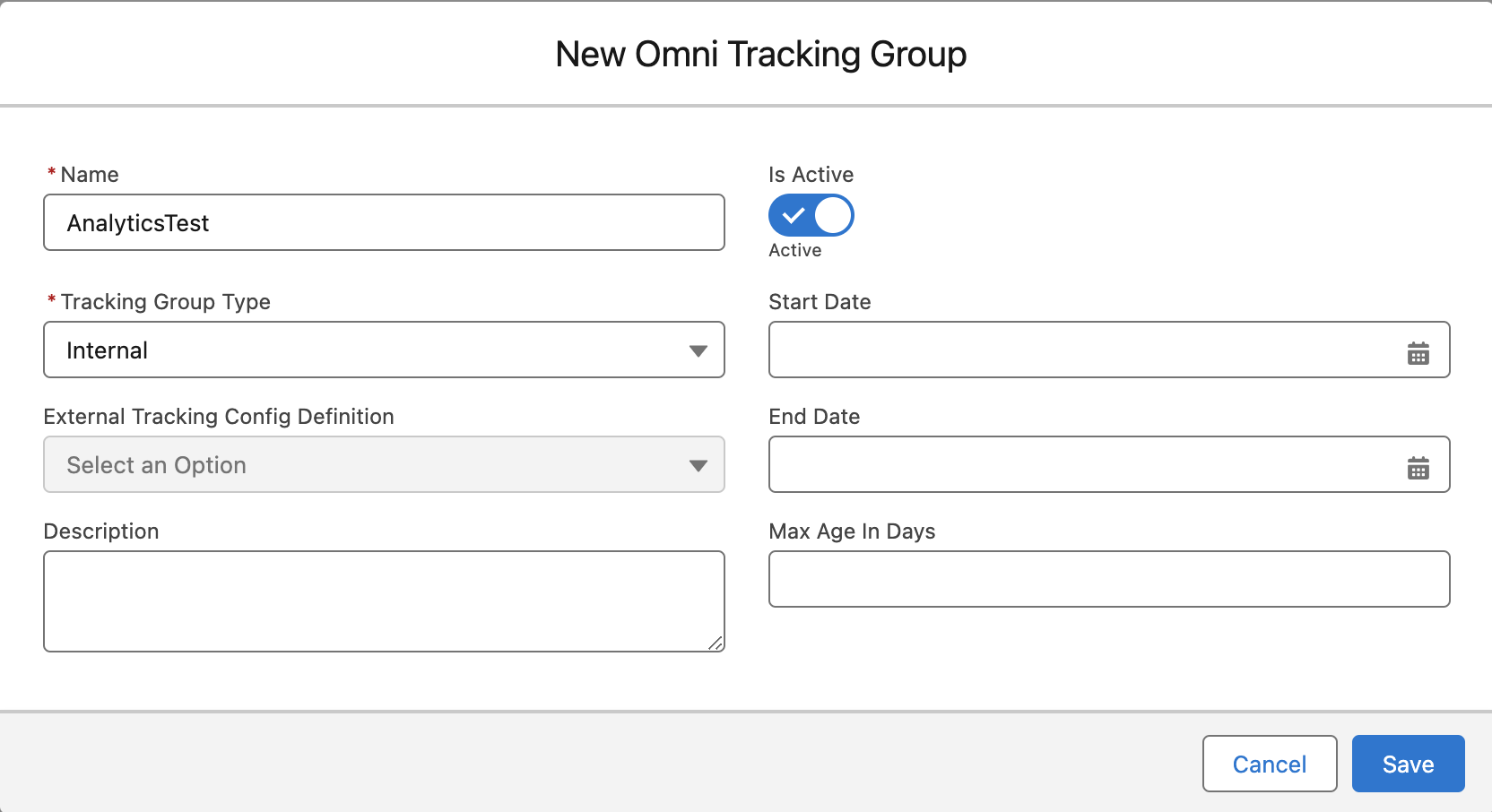
-
Save your changes.
The new tracking group is added to the list.
-
Click AnalyticsTest.
The tracking group page opens.
-
Click Add Component.
The Add Component window opens.
-
Select the Flexcard you want to add from the Available list and move it to the Selected
list.
Note Due to a known limitation, Flexcards added to a Tracking Group aren't automatically updated when modified. You must remove the Flexcard and add it again to the tracking group for it to work as expected.
- Collapse the Flexcard list and expand the Omniscript list.
-
Select the Omniscript you want to add from the Available list and move it to the
Selected list.
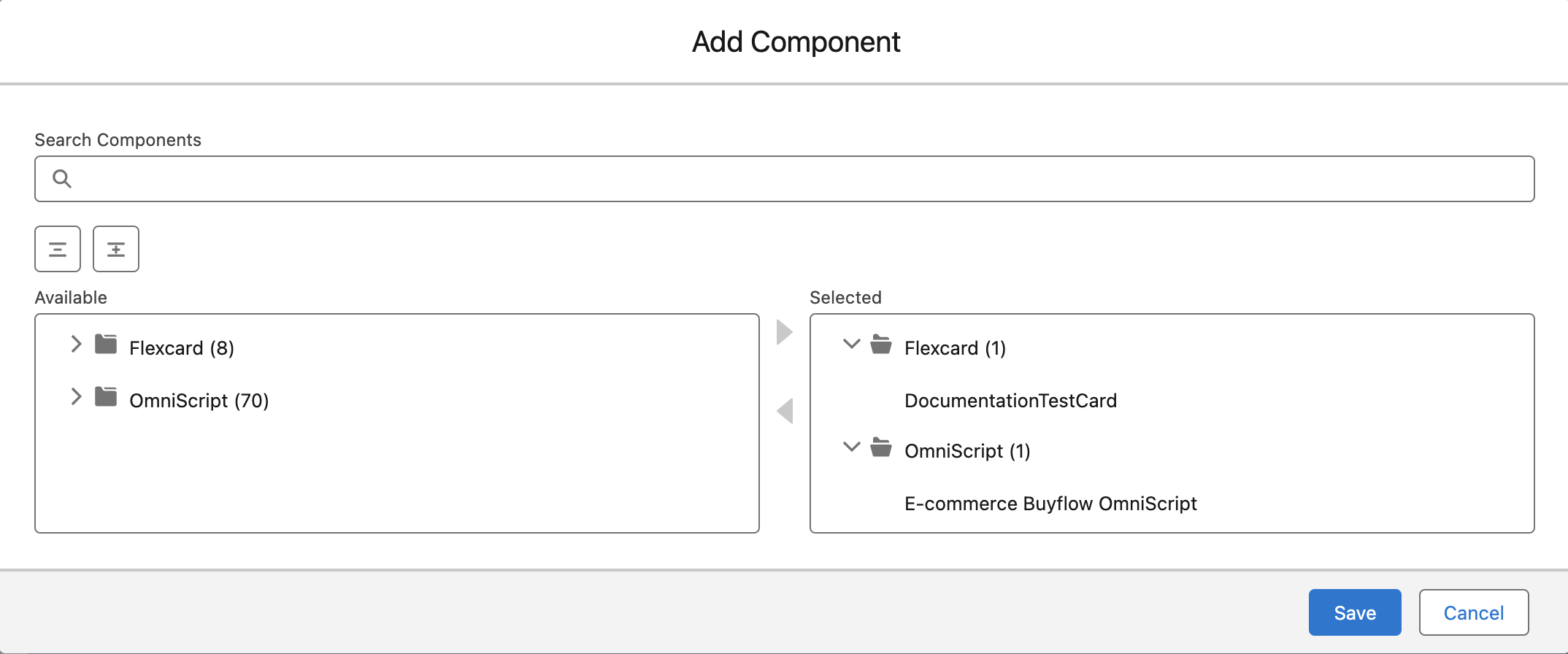
-
Save your changes.
You return to the Tracking Groups list.
-
Click AnalyticsTest again.
The Tracking Group looks like this:
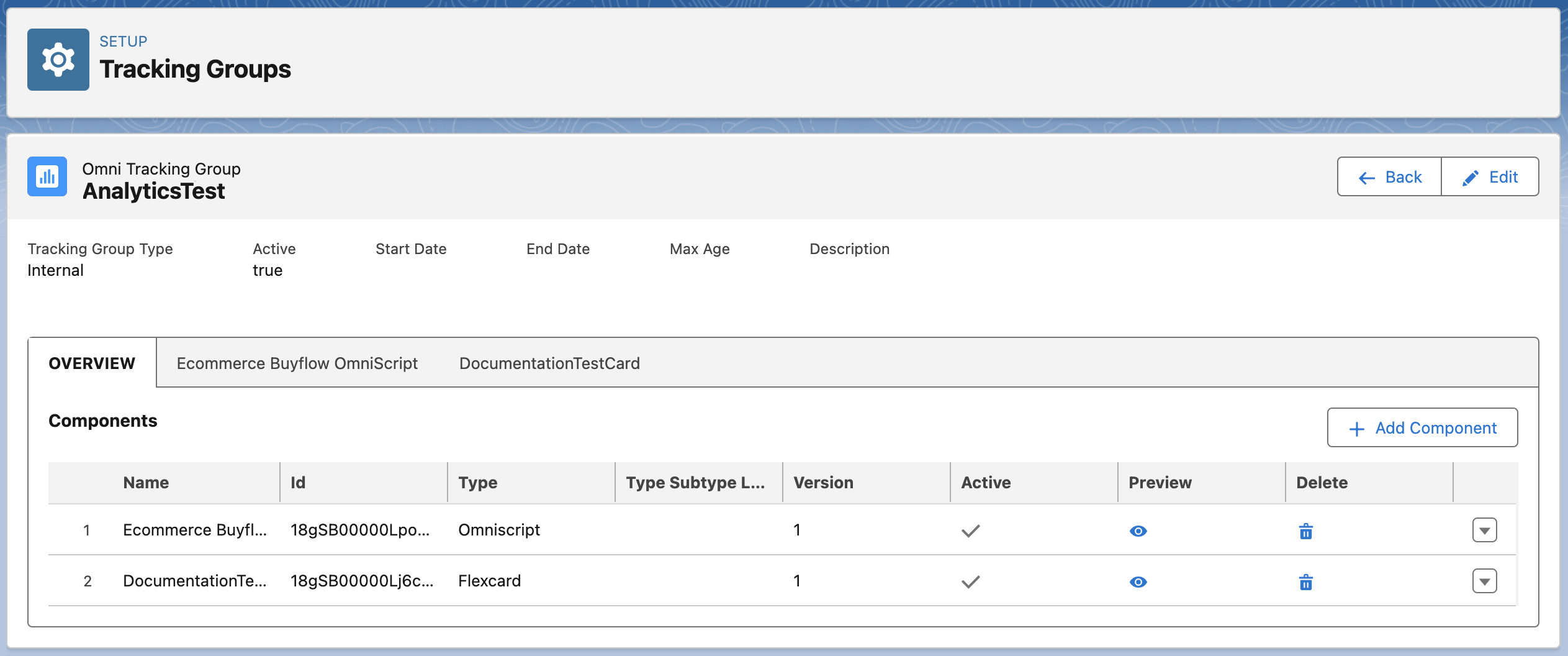 Note If you change a Tracking Group, you must refresh the browser.
After you create the tracking group, Add Tracked Components to a Lightning App Page.
Did this article solve your issue?
Let us know so we can improve!
