
You are here:
Add Tracked Components to a Lightning App Page
Users interact with Omniscripts and Flexcards via Lightning App Pages. However, instead of directly adding Omniscripts and Flexcards to pages, you add wrapper components that make the Omniscripts and Flexcards available to OmniAnalytics.
- From Setup, in the Quick Find box, enter lightning app, and then select Lightning App Builder.
- Click New.
- Select App Page, then click Next.
- In Label, type Analytics Test Page, then click Next.
-
Click One Region, then click Done.
The new page opens in Lightning App Builder.
- Drag the Omniscript standard component onto the page canvas.
-
In the component properties, set the Type to
Documentationand the SubType toOmniAnalytics, then select Enable Omnistudio Analytics. - Drag the Flexcard standard component onto the page canvas below the first component.
-
In the component properties, set the Flexcard Name to
DocumentationTestCardand select Enable Omnistudio Analytics. - Save your changes and click Activate.
- On the Activation page, click Lightning Experience, select Sales, click Add page to app, then save your changes.
- To exit Lightning App Builder, click Save, then click Back.
- From the App Launcher, go to the Sales app and Analytics Test Page.
-
Verify that the Analytics Test Page looks like this:
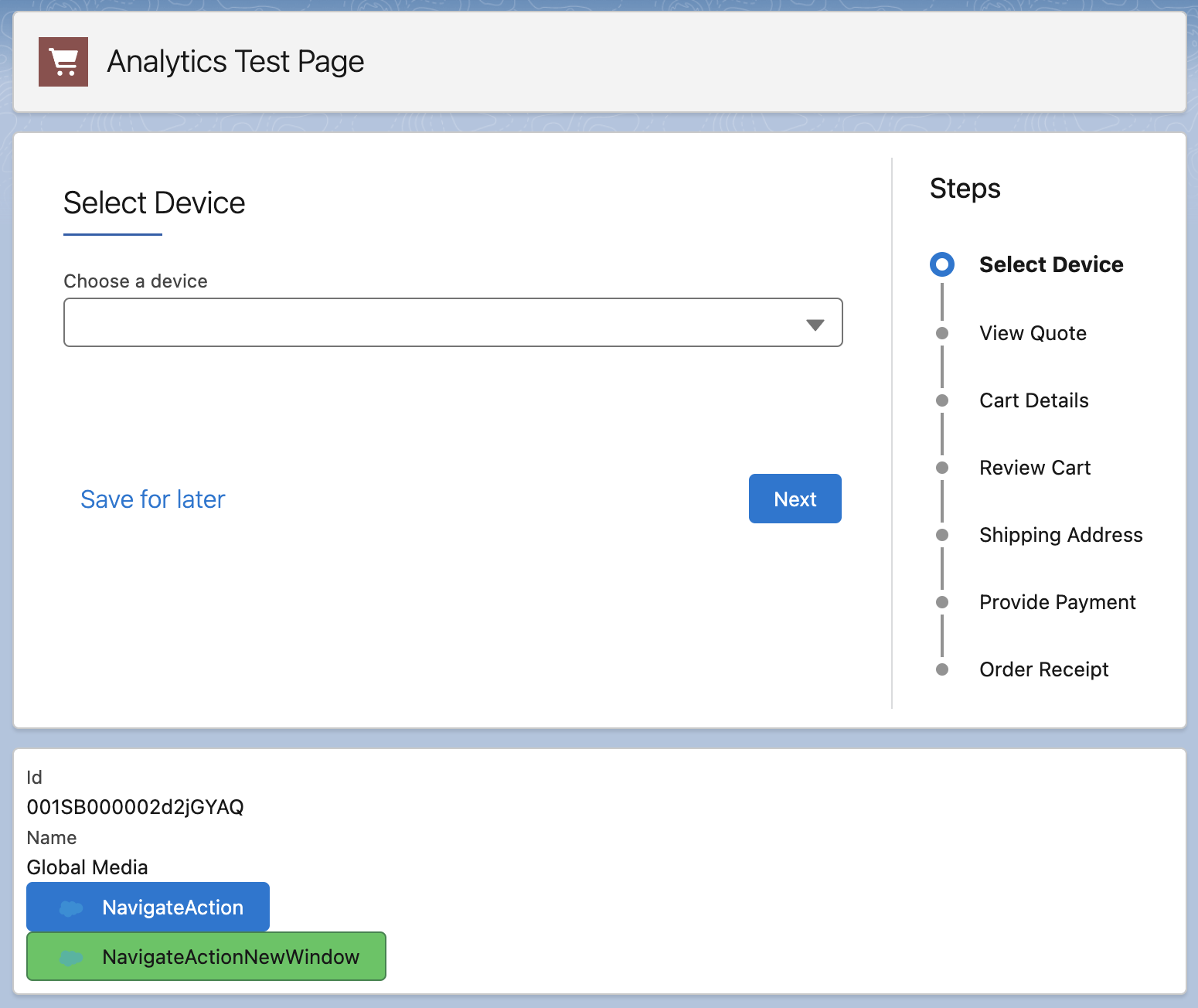
After you create the Lightning App Page, View Tracked Data in the Tracking Group to view tracked data.
Did this article solve your issue?
Let us know so we can improve!
