
Loading
Feature degradation | Gmail Email delivery failureRead More
Table of Contents
Select Filters

          No results
          No results
          Here are some search tips

          Check the spelling of your keywords.
          Use more general search terms.
          Select fewer filters to broaden your search.

          Search all of Salesforce Help
          View Tracked Data in the Tracking Group

          View Tracked Data in the Tracking Group

          After you add tracked components to a Lightning App page, you generate and view reports of the tracked data in the tabs for these components on the Tracking Group page.

          1. From Setup, in the Quick Find box, enter omni.
          2. Expand OmniAnalytics and click Tracking Groups.
          3. Click AnalyticsTest.
            The Tracking Group that you created opens.
          4. Click the Ecommerce Buyflow Omniscript tab and click Run Report.

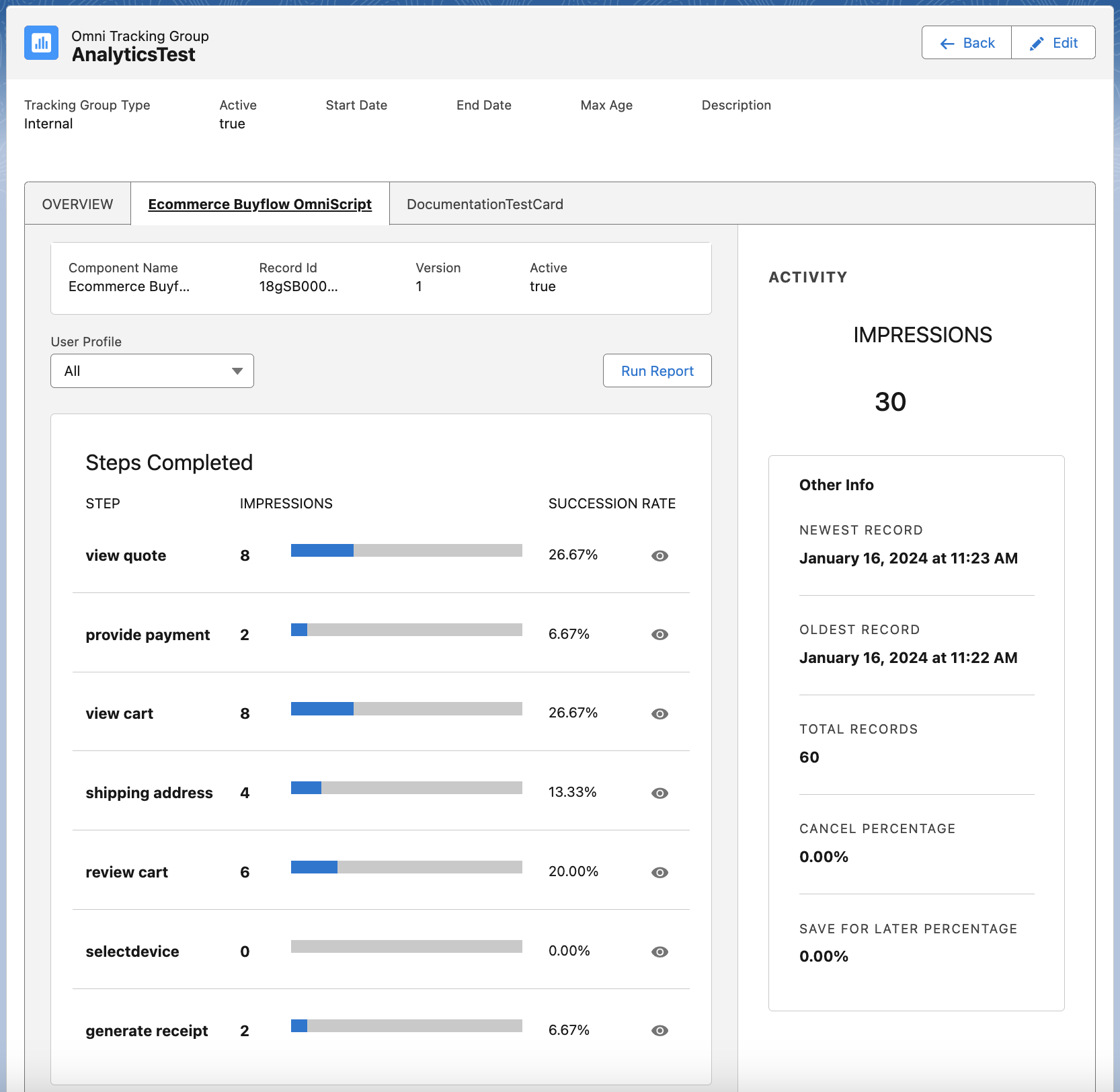
            A dashboard similar to this appears:

            The E-Commerce Buyflow Omniscript tab has Steps Completed and Activity panes. Under Steps Completed is a table with Step, Impressions, bars, and Succession Rate columns. The Succession Rate percentage of each bar is highlighted. Under Activity, Impressions is 11, Completions is 7, and Rate is 63.64%. Under Other Info are timestamps for the Newest Record and Oldest Record, Total Records, Cancel Percentage, and Save for Later Percentage.

            Analytics report data is updated at 30-minute intervals.

            Important
            Important

            If some steps are missing, make sure all Omniscript steps have Step Label values.

          5. Click the eye icon, Tracking Group report eye icon, for any step to display details about that step in the right panel.
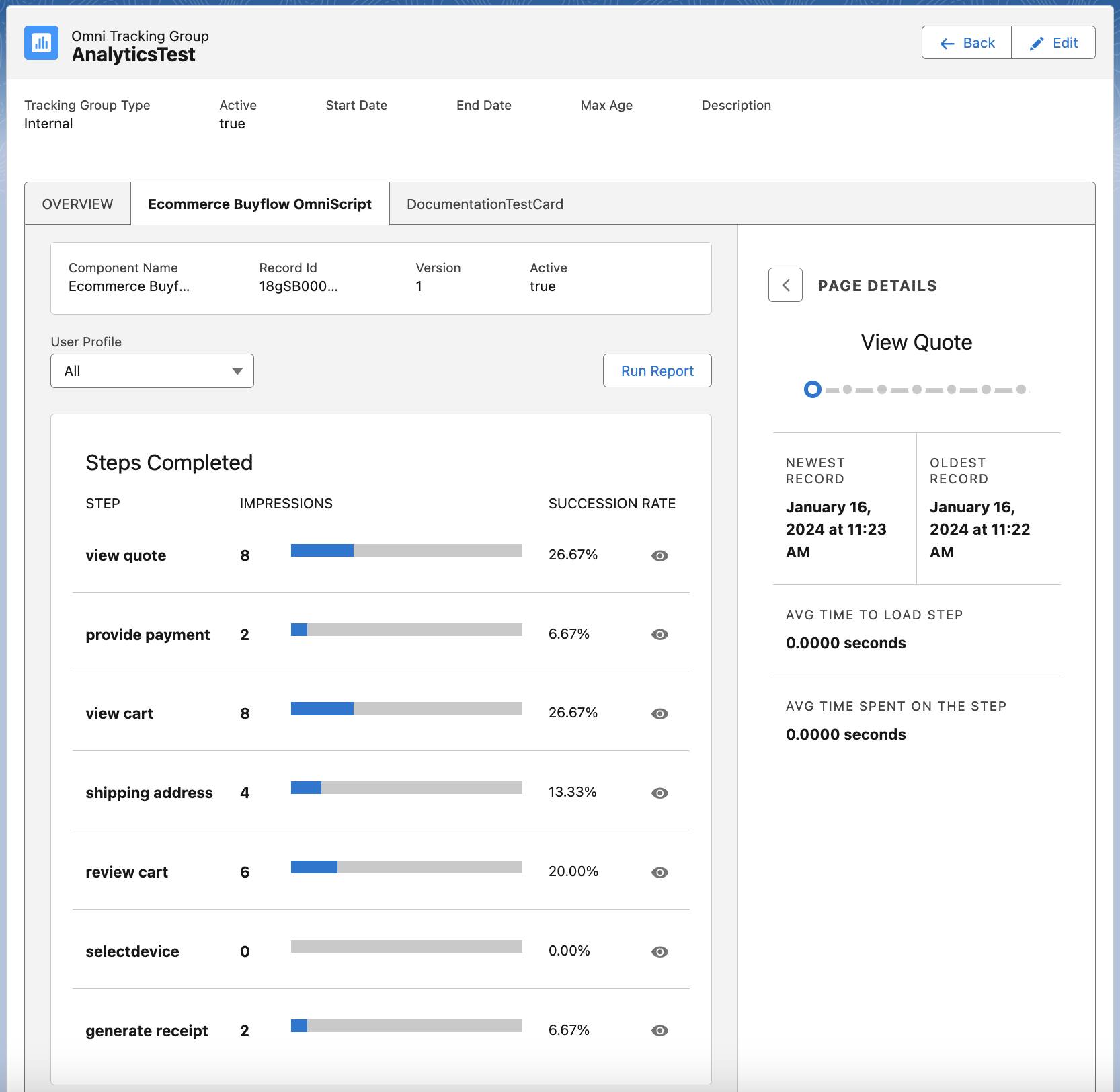
            The E-Commerce Buyflow Omniscript tab has Steps Completed and Page Details panes. Under Steps Completed is a table with Step, Impressions, bars, and Succession Rate columns. The Succession Rate percentage of each bar is highlighted. Under Page Details for Review Cart are timestamps for the Newest Record and Oldest Record, Avg time to Load Step and Avg Time Spent on the Step in seconds, and a Next value of 90%.

            To return to the general information, click <.

          6. Click the DocumentationTestCard tab and click Run Report. A report appears that’s similar to the Omniscript report.
          If you don't see report data after 30 minutes, make sure that:

          • All Omniscript Step components have Step Label values.
          • The Omniscript Setup and each Step component have all Messaging Framework boxes checked: Window postMessage, Pub/Sub, and Session Storage.
          • The Omniscript or Flexcard is active.
          • If the Omniscript or Flexcard was originally downloaded from an Omnistudio for Vlocity org, you’ve clicked the dropdown in the designer next to Edit or Help and selected Deploy Standard Runtime Compatible LWC.
          • An activated Lightning App Page includes the Omniscript or Flexcard standard component, which references the Omniscript or Flexcard, and has Enable Omnistudio Analytics checked.
           
          Loading
          Salesforce Help | Article