
You are here:
Omniscript Data Mapper Action Elements
Use Data Mapper actions to retrieve, write, or restructure data from one or more related Salesforce objects.
To add any of these elements, drag the element to the canvas. Add the Data Mapper element in the appropriate logical order, depending on the action. For example, if you're retrieving data, you'll like want to add it at the beginning of a step. Similarly, writing data to an object is likely done lower or even at the end of a step or in the last step in a sequence.
In the properties for the element, select the appropriate Data Mapper name to call. If it doesn't exist, create a Data Mapper from the properties panel.
- Retrieve Data From Multiple Objects With an Omnistudio Data Mapper Extract Action
To load an Omniscript with data from Salesforce objects, call a Data Mapper Extract. It can get data from one or more related Salesforce objects. You can also use formulas and complex field mappings. - Write Data to Objects With an Omnistudio Data Mapper Post Action
Create and update sObjects from an Omniscript with an Omnistudio Data Mapper Post Action. The Data Mapper Post Action sends data from the Omniscript to a Data Mapper Load that updates or adds to one or more Salesforce objects. - Restructure Data With an Omnistudio Data Mapper Transform Action
To restructure, rename, and convert data, use a Data Mapper Transform element. It sends the full Omniscript Data JSON to the Data Mapper and returns the mapping from the Data Mapper. Unlike Data Mapper Extracts and Loads, Transforms don’t read or write Salesforce data. - Retrieve Data From an Object with an Omnistudio Data Mapper Turbo Action
To get data from a single Salesforce object to use in an Omniscript, use a Data Mapper Turbo Extract Action. Unlike a standard Data Mapper Extract, a Data Mapper Turbo Extract doesn't support formulas or complex field mappings. Because the returned data type is Map<String, Object> and not SObject, you can't use it to update Product2 objects without reserializing. A Data Mapper Turbo is simpler to set up and can run more quickly than a Data Mapper Extract.
Retrieve Data From Multiple Objects With an Omnistudio Data Mapper Extract Action
To load an Omniscript with data from Salesforce objects, call a Data Mapper Extract. It can get data from one or more related Salesforce objects. You can also use formulas and complex field mappings.
- From the elements panel, drag the Data Mapper Extract Action element to the canvas.
-
From the properties panel, select the Data Mapper name to be called.
You can type in the field to filter the list. If the Data Mapper Extract doesn't exist, create a Data Mapper from the properties panel.
-
Provide the name of a JSON node and the value of the JSON node as input parameters
for the Data Mapper Extract.
Each Data Source field must match a Data Mapper Extract input parameter. Each Filter Value must match values in the sObject field to which the input parameter refers.
- Use the Response Transformations properties to trim or rename the output JSON.
Write Data to Objects With an Omnistudio Data Mapper Post Action
Create and update sObjects from an Omniscript with an Omnistudio Data Mapper Post Action. The Data Mapper Post Action sends data from the Omniscript to a Data Mapper Load that updates or adds to one or more Salesforce objects.
To use a Data Mapper Post Action in an Omniscript, you have three key items to set up:
- The data to add or update
- The object(s) to add or or update the data to
- The mapping of the data from the Omniscript JSON to the object and field
When multiple upsert keys are used, the record must match all keys for a match. If multiple actions are needed, use an Integration Procedure to host the Data Mapper Post Action and handle the requests.
First, the Omniscript must have access to or provide the data to update or add to an object. For example, if the data is user input, the Omniscript should have the input fields for that data, such as fields for an account name and industry and for an account contact’s first name, last name, and email address.
Second, the Data Mapper Load named in the action must include the Salesforce objects so you can write the data to those objects' fields. For example, the Data Mapper Load has the Account object and the Contact as a linked object via the AccountId field.
Third, in your Data Mapper, map data from the Omniscript to object fields to create or update. With the account contact example, the mapping includes the first name, last name, and email address. On the right, the JSON node reference is mapped to the object and field on the left.
| JSON Node reference | object and field |
|---|---|
| AccountDetails:AcctName | Account.Name |
| AccountDetails:Industry | Account.Industry |
| AccountDetails:ContactFirstName | Contact.FirstName |
| AccountDetails:ContactLastName | Contact.LastName |
| AccountDetails:ContactMail | Contact.Email |
To trim or rename the input JSON so it has the structure the Data Mapper Load expects, use the Send Transformations properties. See Manipulate JSON with the Send/Response Transformations Properties.
Previewing the Omniscript has the JSON for the example input:
{
  "omniscriptId": "0jNSG000000Fqnt2AC",
  "language": "English",
  "type": "Content",
  "subType": "Audit",
  "sId": "0jNSG000000Fqnt2AC",
  "runMode": "preview",
  "theme": "lightning",
  "LanguageCode": "en_US",
  "userProfile": "System Administrator",
  "timeStamp": "2025-05-19T15:43:49.752Z",
  "userTimeZoneName": "America/Los_Angeles",
  "userTimeZone": "-420",
  "userCurrencyCode": "USD",
  "userName": “exampleuser123,
  "userId": "005SG00000JaEzCYAV",
  "omniProcessId": "0jNSG000000Fqnt2AC",
  "localTimeZoneName": "Asia/Calcutta",
  "AccountDetails": {
    "AcctName": "Acme",
    "Industry": "Other",
    "ContactFirstName: "Jon”,
    "ContactLastName”: "Doe”,
    "ContactMail": “Jon_Doe@gmail.com"
  }
}
Restructure Data With an Omnistudio Data Mapper Transform Action
To restructure, rename, and convert data, use a Data Mapper Transform element. It sends the full Omniscript Data JSON to the Data Mapper and returns the mapping from the Data Mapper. Unlike Data Mapper Extracts and Loads, Transforms don’t read or write Salesforce data.
Use the Send/Response Transformations properties to trim or rename the input JSON so it has the structure the Data Mapper Transform expects. Or you can trim or rename the output JSON for a subsequent Omniscript step.
See Manipulate JSON with the Send/Response Transformations Properties.
Retrieve Data From an Object with an Omnistudio Data Mapper Turbo Action
To get data from a single Salesforce object to use in an Omniscript, use a Data Mapper Turbo Extract Action. Unlike a standard Data Mapper Extract, a Data Mapper Turbo Extract doesn't support formulas or complex field mappings. Because the returned data type is Map<String, Object> and not SObject, you can't use it to update Product2 objects without reserializing. A Data Mapper Turbo is simpler to set up and can run more quickly than a Data Mapper Extract.
The Data Mapper Turbo should extract the fields needed in the Omniscript.
-
Provide the name and value of a JSON node as input parameters that the Data Mapper
Turbo Extract requires.
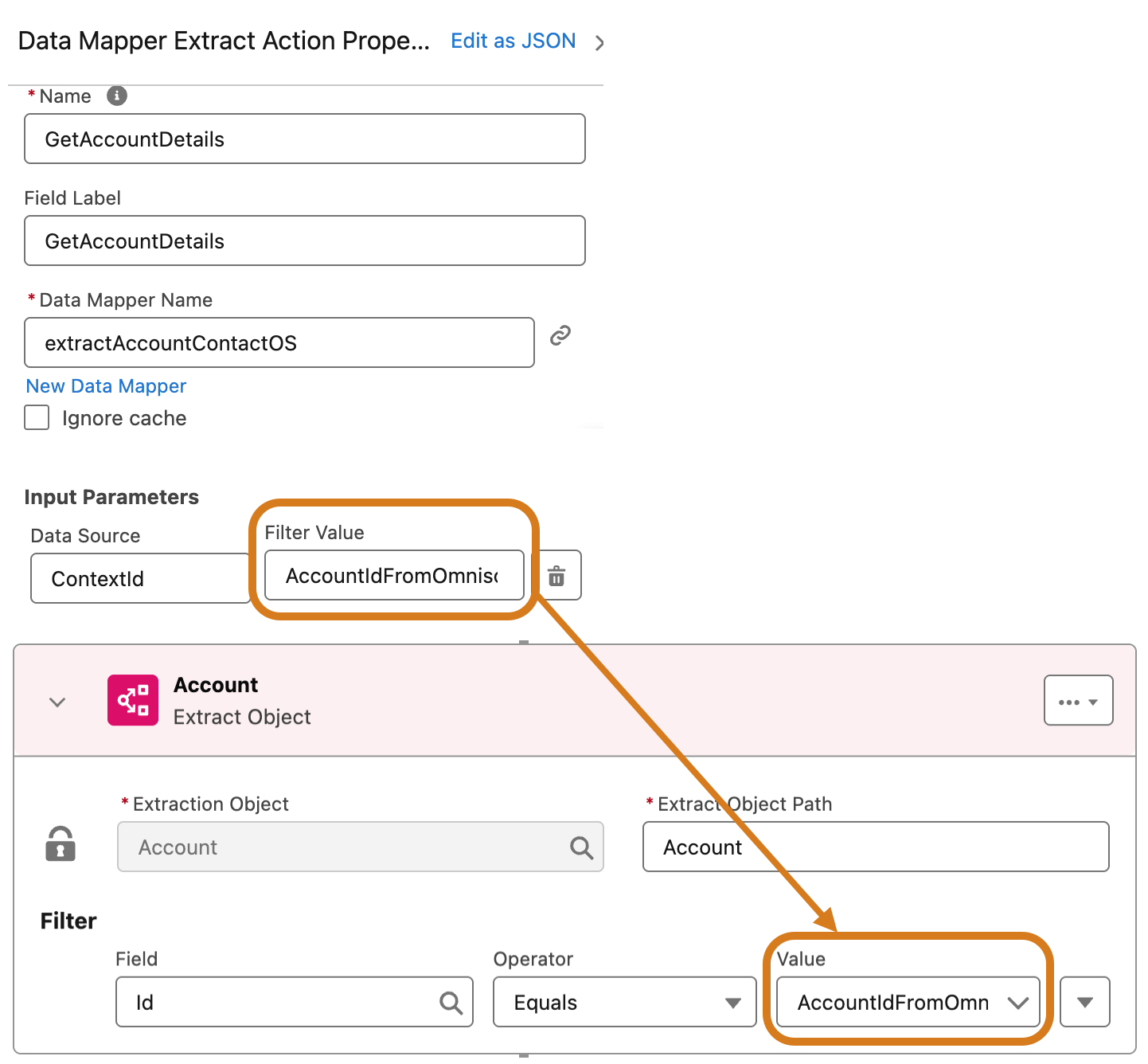
Each Data Source field must match a Data Mapper Turbo Extract input parameter. Each Filter Value must match values in the sObject field to which the input parameter refers.
 Note
NoteData Mapper Turbo Extracts return objects in a nested array format.
For example, to set the Context ID to the record ID for accounts, the Data Source field is set to Context ID, and Filter Value is set to the variable name as defined in the Data Mapper Turbo Extract.
-
Define the response transformations.
-
In the Response JSON Path field, enter the name of the
object returned in the Action's response.
To prefill elements, append a | delimiter and a number to access the correct instance in the nested array.
- To ensure the object isn't nested, enter VlocityNoRootNode in the Response JSON Node field.
-
In the Response JSON Path field, enter the name of the
object returned in the Action's response.
