
You are here:
Override an Edit Block LWC in Omniscripts
Apply custom code to an Edit Block by extending and overriding the Edit Block's lightning web components. Edit Blocks contain up to three LWC override fields based on the Edit Block's Edit mode.
Property |
Description |
Compatible Edit Modes |
Example |
|---|---|---|---|
LWC Component Override |
Customize the Edit Block component by extending the Edit Block component. |
All |
|
Edit Block Label LWC Component Override |
Customize the Edit Block's label by overriding the label component. |
Cards, Long Cards |
|
Edit Block New LWC Component Override |
Customize the Edit Block Card users click to create new entries by overriding the New LWC component. |
Cards |
Extend the Edit Block LWC
Customize an LWC Omniscript's Edit Block by extending the Edit Block LWC.
The Edit Block LWC overrides the entire Edit Block LWC unless the Edit Mode is Cards or Long Cards. Cards and Long Cards include additional extendable LWCs. For information on Cards and Long Cards LWC options, see Override an Edit Block LWC in Omniscripts.
-
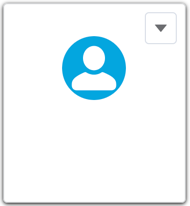
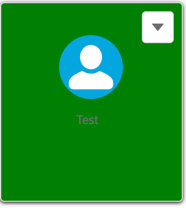
In VisualStudio, create a custom LWC and change the background of the Edit Block card
to green.
Original Edit Block Card
Custom Edit Block Card Example
-
In the LWC's JavaScript file, extend the Edit Block LWC. Using this code example, replace the NS with the namespace of the package. For information on finding the namespace, see View the Namespace and Version of Managed Packages.
Example:
import omniscriptEditBlock from "VLOCITYNAMESPACE/omniscriptEditBlock"; import template from "./editblockCardCustomize.html" export default class editblockCardCustomize extends omniscriptEditBlock{ // your properties and methods here render() { if (this.jsonDef) { this._hasChildren = this.jsonDef.children.length > 0; this._isFirstIndex = this.jsonDef.index === 0; if (this._isCards && this._isFirstIndex) { // hides the first short card with no children if (!this._hasChildren) { this.classList.add(this._theme + '-hide'); } else { this.classList.remove(this._theme + '-hide'); } } } return template; } } - Add code to the custom LWC.
- Deploy the custom LWC to Salesforce. See Deploy Lightning Web Components.
- Go to the Omniscript that contains the Edit Block LWC.
- In the Edit Block's LWC Component Override field, enter the name of the custom LWC.
- Activate the Omniscript, and preview your changes.
Extend the Edit Block Label LWC
Customize an LWC Edit Block's Label for the Cards and Long Cards edit modes by extending the Edit Block Label LWC. Exclusive to Cards and Long Cards edit mode, the Edit Block Label LWC overrides the original labels, including global actions.
-
In VisualStudio, create a custom LWC and change the label of a global action to green.
Original Edit Block Label
Custom Edit Block Label


-
In the LWC's JavaScript file, extend the Edit Block Label LWC. Using this code example, replace the NS with the namespace of the package. For information on finding the namespace, see View the Namespace and Version of Managed Packages.
Example:
import omniscriptEditBlockLabel from "NS/omniscriptEditBlockLabel"; import template from "./editblockLabelCustomize.html" export default class editblockLabelCustomize extends omniscriptEditBlockLabel{ // your properties and methods here render() { return template; } } - Add code to the custom LWC.
- Deploy the custom LWC to Salesforce. See Deploy Lightning Web Components.
- Go to the Omniscript that contains the Edit Block LWC.
- In the Edit Block's properties, select Edit Block Mode, and click Cards or LongCards.
- In the Edit Block's Edit Block Label LWC Component Override field, enter the name of the custom LWC.
- Activate the Omniscript, and preview your changes.
Extend the Edit Block New LWC
Customize an LWC Edit Block's new entry card by extending the Edit Block New LWC. Exclusive to the Card edit mode, the Edit Block New LWC overrides the new entry card.
-
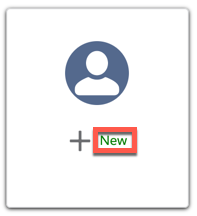
In VisualStudio, create a custom LWC and make a change such as changing the color of
the New button to green.
Original Edit Block New Card
Custom Edit Block New Example

-
In the LWC's JavaScript file, extend the Edit Block New LWC.
Using this code example, replace the NS with the namespace of the package. For information on finding the namespace, see View the Namespace and Version of Managed Packages.
Example:
import omniscriptEditBlockNew from "NS/omniscriptEditBlockNew"; import template from "./editblockNewCustomize.html" export default class editblockNewCustomize extends omniscriptEditBlockNew{ // your properties and methods here render() { return template; } } - Add code to the custom LWC.
- Deploy the custom LWC to Salesforce. See Deploy Lightning Web Components.
- Go to the Omniscript that contains the Edit Block LWC.
- In the Edit Block's properties, click Edit Block Mode and select Cards.
- In the Edit Block's Edit Block New LWC Component Override field, enter the name of the custom LWC.
- Activate the Omniscript, and preview your changes.
