
You are here:
Pass Data from a Flexcard to an Omniscript By Using a Custom JSON Data Source
To pass data from a Flexcard’s data JSON to an Omniscript, embed the Flexcard as a custom Lightning web component (LWC) inside the Omniscript.
- Create a Flexcard with a custom data source. See Create a Flexcard.
- Select Custom as the data source type and add your custom data JSON.
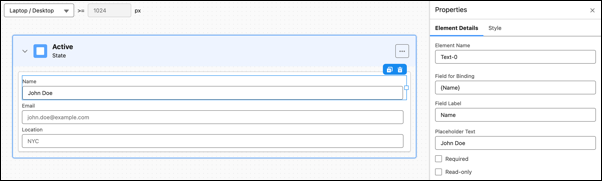
- Add elements to the Flexcard corresponding to the fields you’ve specified in your JSON.
- In the Setup tab of the Flexcard, select the Omniscript Support checkbox.
- Activate the Flexcard.
- Create an Omniscript. See Create an Omniscript.
- In the first step, add elements corresponding to the fields you’ve specified in the Flexcard.
- Create a new step and add the Custom LWC input element to it.
-
Configure the custom LWC with these parameters.
-
Lightning Web Component Name: Choose the Flexcard you created.
 Note
NoteAny validation rules applied to the Flexcard input elements doesn't prevent the Omniscript from proceeding. Set up all input validations within the Omniscript.
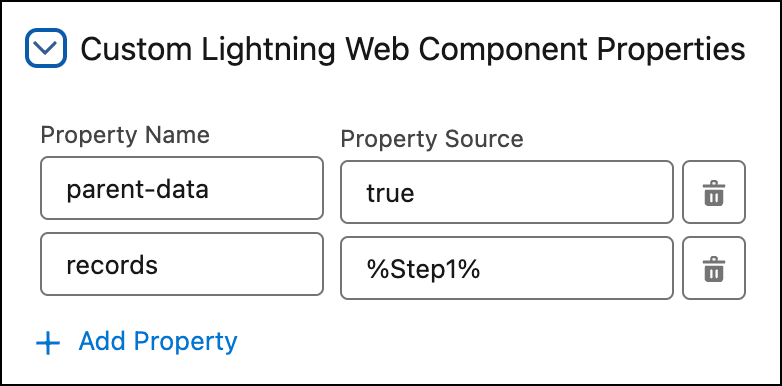
- In the Custom Lightning Web Component Properties section, click Add Properties.
- Property Name: parent-data
- Property Source: true
- Add another property and for Property Name, enter records.
- In the corresponding Property Source field, enter the name of the previous step surrounded by the % key. For example, if the previous step is called Step1, enter %Step1%.
-
Lightning Web Component Name: Choose the Flexcard you created.
- Preview your Omniscript to check if the Flexcard sends the requisite data to your Omniscript.
Did this article solve your issue?
Let us know so we can improve!
