
You are here:
Take Actions with Omniscripts
Besides getting, modifying, and writing data, Omniscripts can take other types of actions. Omniscripts can send messages to users or systems. Users can also provide input to the Omniscript or go to another page or site from an Omniscript. Users can also use DocuSign to sign documents electronically. You can automate decisions in Omniscripts with the Business Rules Engine. You can also extend Omniscript elements for custom behaviors.
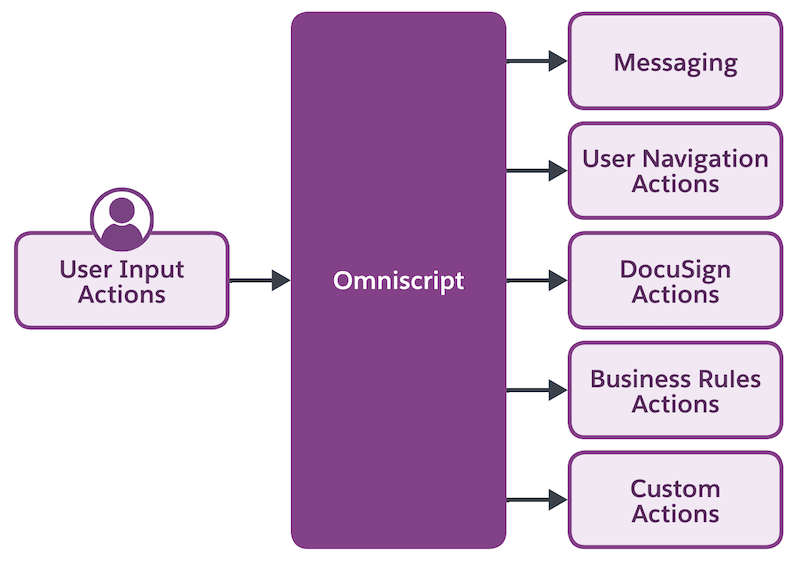
To give users help messages, you can add tooltips to elements or set an error message for an element, such as a step. Or use the Set Error element when required information isn’t provided or a condition in a step isn’t provided. To communicate between an Omniscript and windows, Lightning web components, or other Omniscript elements, you can set up the messaging framework.
A common type of Omniscript action is to go to another Omniscript, site, Knowledge article, Experience Cloud page, or Salesforce record or object with the Navigate element. Users can select to go to these and other pages, or you can have them happen automatically. You can use these for different purposes, such as confirming a record change or addition.
When configured with DocuSign, Omniscripts can open a PDF for a user’s signature and then send a signed document with the DocuSign Signature and DocuSign Envelope elements.
To check customer eligibility or automate decision making, you can use the Expression Set and Decision Matrix elements to use those existing components in the Business Rules Engine.
If the standard Omniscript actions don’t cover your needs, you can extend an element for custom behaviors.
