
You are here:
Template Designer Settings (Managed Package)
For the managed package runtime, to configure the look and behavior of the Template Designer:
 This information is for Omnistudio for Managed Packages. For Omnistudio on standard runtime, see Omnistudio Help.
- Go to the Vlocity Templates tab, click a template, then click a template version.
-
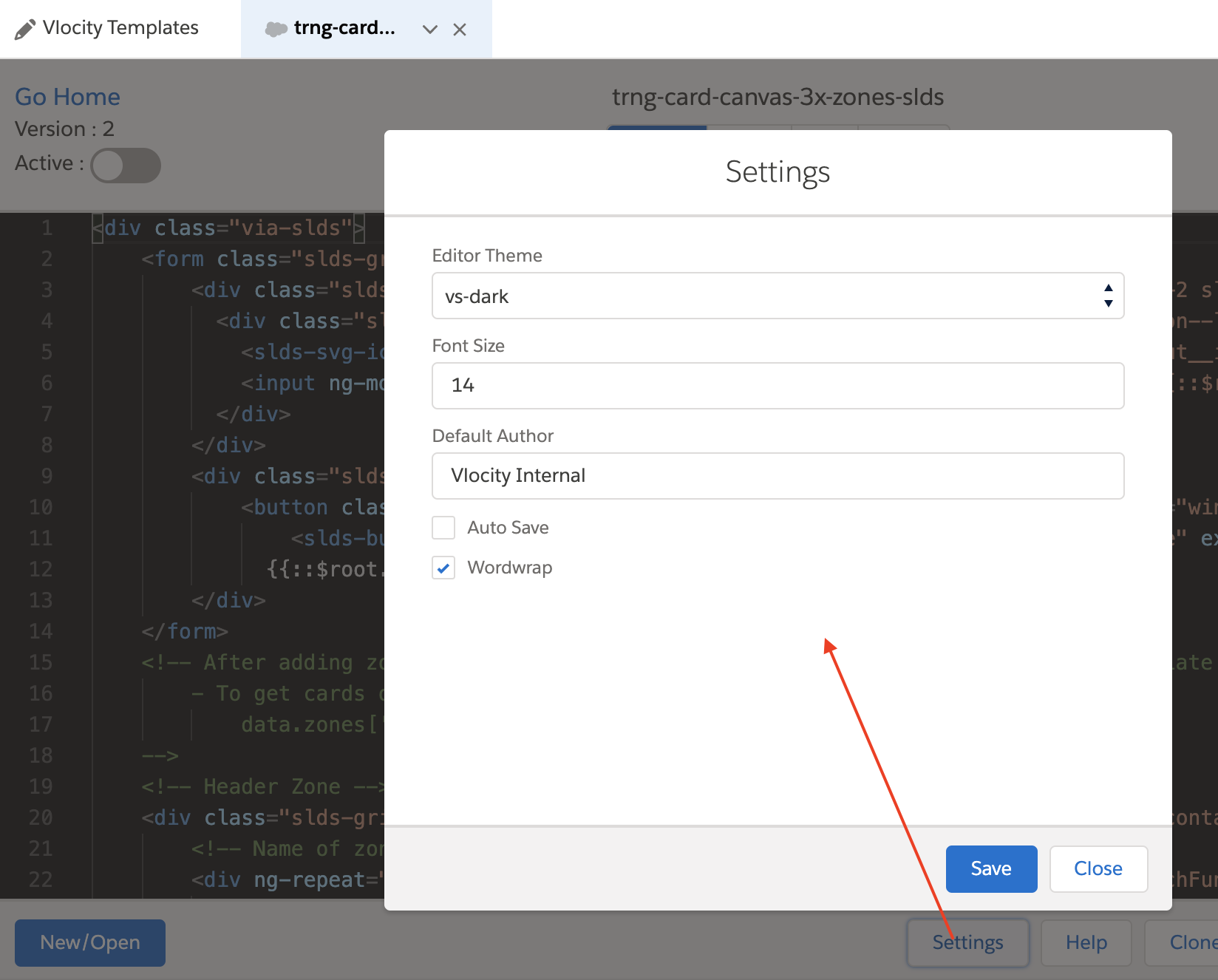
Click Settings.
-
Update or enter values for the following fields:
-
Editor Theme: To modify the background and text colors in the code editor to suit your preferred working environment, select from the dropdown list.
-
Font Size: To change the font size in the code editor, update the number in this field.
-
Default Author: To change the default author, which describes the team creating the content, update this field.
-
Auto Save: To automatically save changes, select this checkbox.
-
Wordwrap: To force the code to wrap to another line and avoid scrolling right, select this checkbox.
-
