
You are here:
Test Data Source Settings on a Flexcard
Preview a Flexcard with real data by adding test values to runtime variables. The variables populate the dynamic fields in a data source, such as a contextId from an Omnistudio Data Mapper that gets data from an Account.
- From the Flexcards home tab, click a version of a Flexcard to open the Flexcard Designer.
- In the Setup panel, click + Add New in the Test Parameters section.
- In the Key field, enter a test variable name. For example, if your data source is a Data Mapper, enter the variable from the Input Map representing a contextId such as recordId. See Flexcards Context Variables.
- In the Value field, enter a test variable value. For example, enter a record Id, such as the one found in the URL of an Account page.
-
(Optional) If your returned data has multiple arrays, to return a specific dataset enter its JSON path in Result JSON Path. For example, to return just the Cases dataset, enter [0]['Cases'] if your JSON looks like this:
{ [ "Cases": [ { "Priority": "High", "IsEscalated": false, "CaseId": "5006g00000FpEz5AAF", "Created": "2020-07-22T00:22:42.000Z", "Type": "Mechanical", "Subject": "Generator won't start", "Status": "New", "Origin": "Web", "Description": "Despite turn the power on and off several times, the generator wouldn't start", "CaseNumber": "00001028" }, { "Priority": "Medium", "IsEscalated": false, "CaseId": "5006g00000BsfKkAAJ", "Created": "2020-02-27T22:28:20.000Z", "Type": "Mechanical", "Subject": "Shutting down of generator", "Status": "Closed", "Origin": "Web", "CaseNumber": "00001017" } ], "Account": { "Type": "Customer - Direct", "Name": "Edge Communications", "Street": "312 Constitution Place\nAustin, TX 78767\nUSA", "State/Province": "TX", "City": "Austin", "Revenue": 139000000 } ] } -
Click Save & Fetch to view the Test Results.
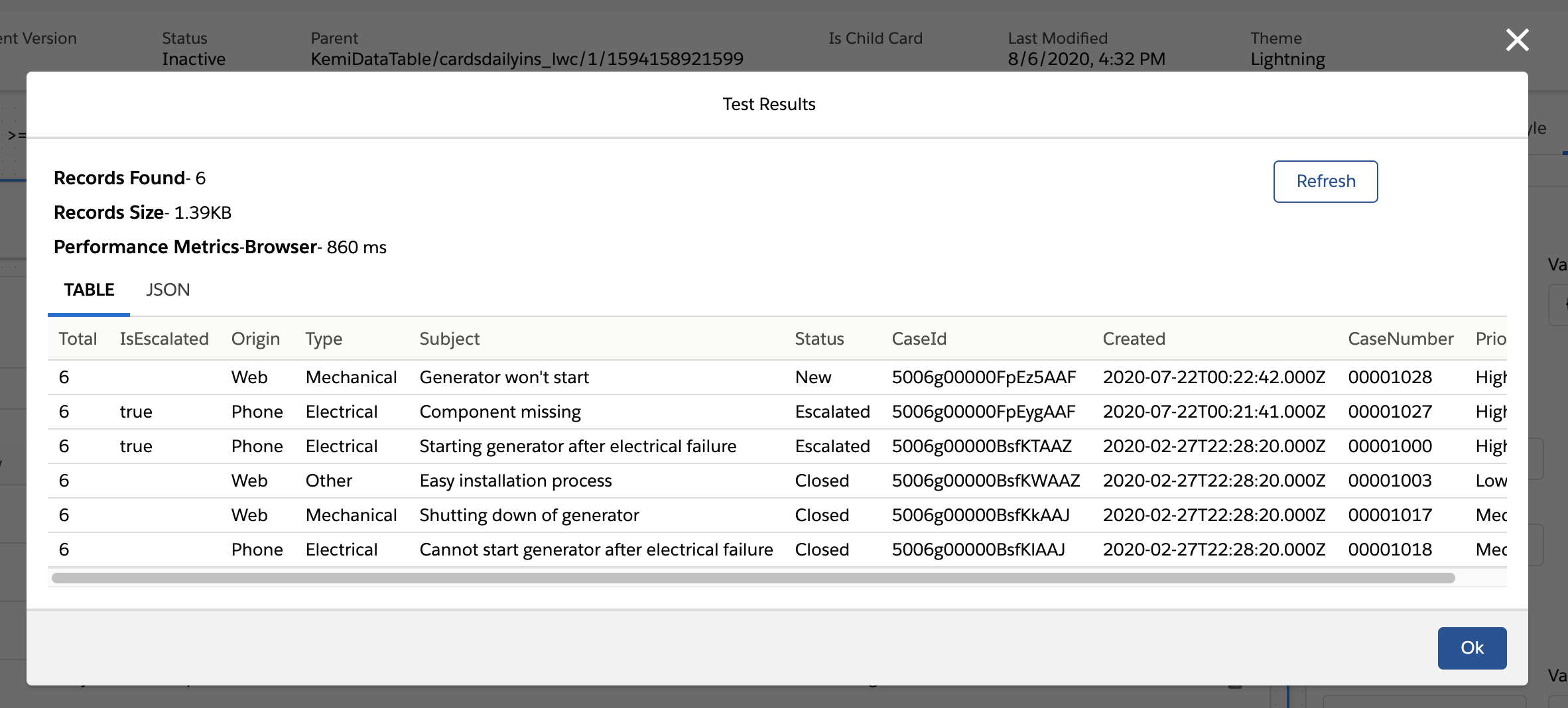
- (Optional) Click JSON to view test results as JSON.
- (Optional) Click Refresh to see the latest data.
Did this article solve your issue?
Let us know so we can improve!
