
You are here:
What Happens When You Purchase Salesforce
New to Salesforce, or maybe you’re not so new? In either case, to get the most out of Salesforce, it helps to know how your org is created and the types of licenses, permissions, and profiles that you receive. Understanding how these elements interact and impact what users can do saves you time.
When your order is activated, our provisioning process creates a license request. The license request includes definitions that build out your org. These definitions consist of settings that indicate which licenses, permissions, and profiles you receive. It’s these basic elements that shape the org that you use and what users can do in it.
You probably know that we offer different license types. Think of them as org-level and user-level licenses. You can also purchase permission set licenses and add-on licenses.
Org-Level Licenses
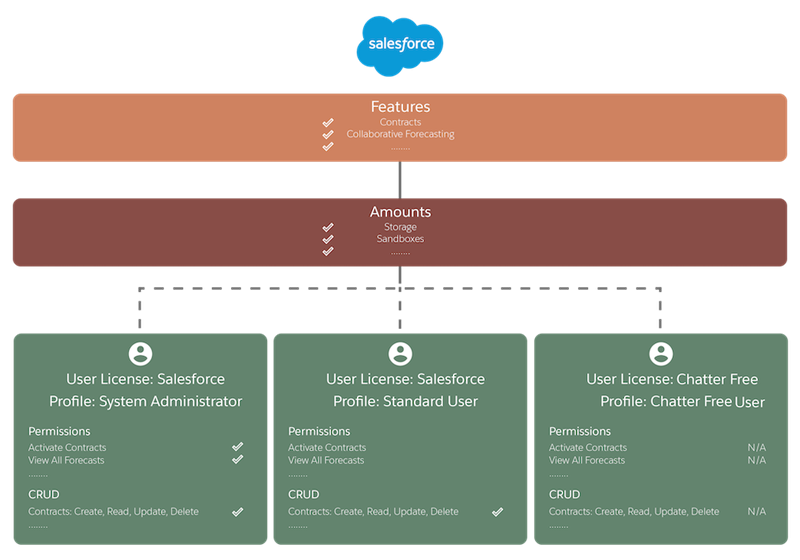
When you purchase Salesforce, you purchase an org-level license, or edition. An edition defines your:
- Features, such as contracts or Collaborative Forecasts
- Amounts, such as quantity of storage and the number of sandboxes
To check how much storage or the number of sandboxes that your org has, from Setup, in the Quick Find box, enter Storage Usage or Sandboxes.
User-Level Licenses
Your org receives a specific number of user licenses, such as Salesforce or Chatter Free user licenses. A user license defines:
- User permissions, such as Activate Contracts or View All Forecasts
- CRUD (Create, Read, Update, and Delete) access allowed on objects, such as who can create a contract or delete an account
When you create users, you assign each one to a user license. A user license defines the permissions or the maximum capabilities that a user can have.
To see which user licenses your org has, from Setup, in the Quick Find box, enter Company Information, and then select User Licenses.
Permission Set Licenses
Permission set licenses let you offer more functionality to users in your org. An example of a permission set license is Identity Connect. When you purchase a permission set license, you receive user permissions pertaining to the license and the accompanying CRUD permissions. For example, with Identity Connect, you receive the Use Identity Connect permission, which allows assigned users to use the feature.
To check which permission set licenses your org has, from Setup, in the Quick Find box, enter Company Information, and select Permission Set Licenses.
Add-On Licenses
Your org receives a specific number of user licenses, such as Salesforce or Chatter Free user licenses. A user license defines:
- User permissions, such as Activate Contracts or View All Forecasts
- CRUD (Create, Read, Update, and Delete) access allowed on objects, such as who can create a contract or delete an account
When you create users, you assign each one to a user license. A user license defines the permissions or the maximum capabilities that a user can have. To see which user licenses your org has, from Setup, in the Quick Find box, enter Company Information, and then select User Licenses.
Add-on licenses extend functionality at the org level. An example is the purchase of more API requests to extend the limit for your org.
Permissions
User permissions specify:
- Tasks that users can perform
- Features that users can access in your org configuration
The base user permissions, such as Activate Contracts or View All Forecasts, that someone has depends on the user license assigned. You can use profiles and permission sets to refine which permissions a group of users has.
For example, users with the View All Forecasts permission can view other users’ forecasts, but they must have the correct user license. If you assign the Chatter Free user license to users, they do not receive the View All Forecasts permission because this user license does not offer it.
To find which user license a user is assigned, from Setup, in the Quick Find box, enter Users. Click the name of the user whose information you want to view. Look for User License.
Profiles
You can have standard profiles and custom profiles, depending on the edition that you purchase. Profiles define:
- User access to objects and data
- What users can do within the org
When you create users, you assign each user a profile. A profile belongs to exactly one user license type. Let’s say that your purchase comes with the Salesforce and Chatter Free license types, among others. You assign profiles to users based on these licenses.
For example, based on the Salesforce user license, you can assign the System Administrator, Standard User, or one of several other profiles to a user. Based on the Chatter Free user license, you can assign only the Chatter Free User or Chatter Moderator User profiles to users.
You can create custom profiles to offer different permissions or functionality to users with the same user license. However, using a permission set is typically a more efficient way to achieve the same goal. (Make sure that the permissions defined in the profile or permission set don’t exceed the permissions defined in the user license, though.) For example, you can assign a profile to a group of users. Then, you can assign users different permission sets to give certain people in that group more capabilities.
To see which profile and permission sets that a user is assigned, from Setup, in the Quick Find box, enter Users. Click the name of the user whose information you want to view. To check the assigned profile, look for Profile. Click Permission Set License Assignments or Permission Set Assignments: Activation Required for permission set information.
