Establish an Inbound Connection with AWS
An inbound connection allows you to send traffic into Salesforce from your AWS Virtual Private Cloud (VPC) using the standard APIs.
Required Editions
| Available in: Lightning Experience |
| Available in: Enterprise, Performance, Unlimited, and Developer Editions |
Overview
From the AWS Regions dropdown in the Private Connect Setup page, copy the Service Name that corresponds to your AWS VPC region. In AWS, use the Service Name to create an Endpoint for your VPC. Then, use the VPC Endpoint ID of the newly created Endpoint to create an Inbound Connection in the Setup wizard. Use Route53 as a private Hosted Zone to map your VPC to your Salesforce My Domain so that all traffic is redirected over the connection. Provision the connection when you’re ready to use it and continue to call the standard Salesforce APIs.
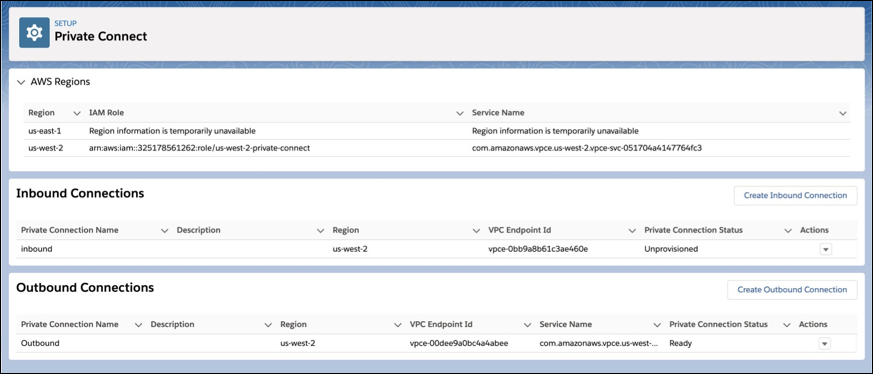
- From Setup, in the Quick Find box, enter Private Connect, and then select Private Connect.
- To open a dropdown menu of the available regions, IAM Roles, and Service Names, click AWS Regions.
- Find the region in which your VPC is hosted and copy the corresponding Service Name.
- In the AWS Console, create an Endpoint using the Service Name you copied in Step 3 for your VPC.
- After saving the Endpoint, copy the VPC Endpoint ID and the IP address from the Subnet of your Endpoint.
- From the Private Connect Setup page, click Create Inbound Connection.
- Select the AWS PrivateLink Connection Type.
- Enter the Connection Name, Description, and the VPC Endpoint ID you copied in Step 5.
- Save your changes. Your connection appears on the Inbound Connections list with the Status field as Unprovisioned.
- In the AWS Console, create a private Hosted Zone with your My Domain name and the VPC
ID that matches the location of the endpoint. Create a Record Set for the Hosted Zone that
includes your My Domain name and the IP address of your Endpoint Subnet from Step 5.To ensure that your Hosted Zone and Record Set are configured properly, perform an
nslookupof your My Domain from your VPC. Make sure it matches the Record Set entry in the Hosted Zone and not the public Salesforce IP. - From the Private Connect Setup page, click the arrow under the Actions field that
corresponds to your connection on the Inbound Connections list. Click
Sync.
 Warning After the Status field changes to Ready, it can take an extra few minutes for the connection to be fully prepared for runtime callouts. Wait a few minutes before making callouts.
To view details about the inbound connection, such as its allocated source IP addresses, click the connection name. Use these IP addresses to further protect your Salesforce org.
After you create an inbound connection, follow these tips to manage it properly.
- If you update a developer-controlled field of a private connection during a package upgrade (service name, endpoint ID, or region) you risk breaking the connection.
- If you delete an inbound connection in Salesforce, you must delete the endpoint in AWS as well.
- If you make any external changes to a connection, sync the connection again in Salesforce to retrieve the latest status or catch runtime errors.

UnprovisionedAllocatingPendingAcceptancePendingActivationRejectedRemotelyDeletedRemotelyTeardownInProgressReady
Use Source IP Addresses For Added Security
The Source IP Address Ranges table on an inbound connection’s detail page lists the IP addresses allocated to the connection.
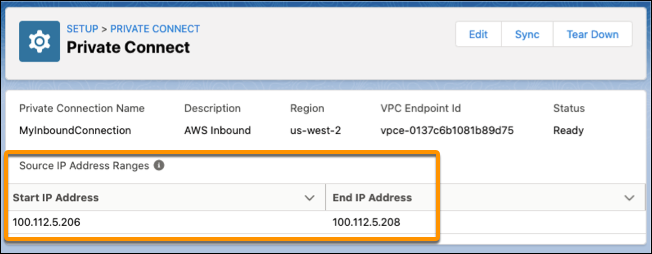
These IP address ranges are allocated by the Salesforce-managed VPC in your cloud provider, such as AWS. The IP addresses are unique to your inbound connection and don’t change after you provision it. Use them to add more protection to your Salesforce org. Here are some examples.
- Define a list of IP addresses that users can log in from without receiving a login challenge.
- Restrict the IP addresses that users can access Salesforce from to only certain ranges.
- Let Salesforce Authenticator automatically verify identities based on trusted IP addresses only.
- Monitor and view the user session information about Private Connect users, including their source IP address.
- View the login history of Private Connect users, including their source IP address.
- Control login access at the user level by specifying a range of allowed IP addresses on a user’s profile.
- Restrict access to trusted IP address when using the OAuth web server flow.
