Make the Threat Detection App Visible to Users
Before you can view the Threat Detection events in Salesforce and provide feedback, you must make the app visible to users. You also specify which of the tabs are visible to different user profiles.
Required Editions
| Available in both Salesforce Classic (not available in all orgs) and Lightning Experience. |
Available in: Enterprise, Unlimited, and Developer Editions Requires Salesforce Shield or Salesforce Event Monitoring add-on subscriptions. |
| User Permissions Needed | |
|---|---|
| To view the Threat Detection events: | View Threat Detection Events |
Use Event Manager to enable streaming and storage for the Threat Detection events: ReportAnomalyEvent, SessionHijackingEvent, GuestUserAnomalyEvent, LoginAnomalyEvent and CredentialStuffingEvent.
- Create a permission set that’s associated with the Salesforce license.
- Edit the System Permissions page of your permission set and enable the View Threat Detection Events permission.
-
Assign the permission set to the user who administers the Threat Detection app.
Salesforce recommends that you create a profile specifically for security administrators who are responsible for managing threat detections. For example, create a profile called Threat Detection Administrator. Then assign the permission set to a user with the Threat Detection Administrator profile.
-
Edit the Tab Settings of each user profile that uses the Threat Detection app and
specify the visibility of the tabs. The tabs are named Report Anomaly Event Store, Session
Hijacking Event Store, Credential Stuffing Event Store, and Threat Detection
Feedback.
For example, system administrators usually access everything in the UI, so set the visibility of all tabs to Default On for the System Administrator profile. If you created a Threat Detection Administrator profile, set the same visibility. If you don’t want standard users to view feedback, set the visibility of Threat Detection Feedback for the Standard User profile to Tab Hidden.
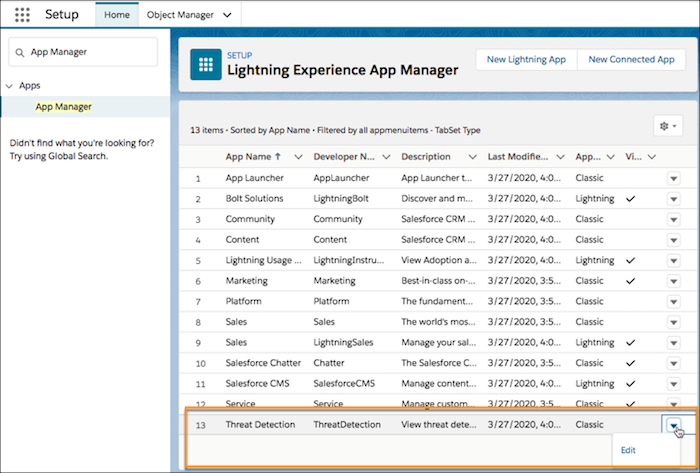
- From Setup, in the Quick Find box, enter App Manager.
-
Edit the Threat Detection app by selecting Edit in the dropdown
to the right of the app.
-
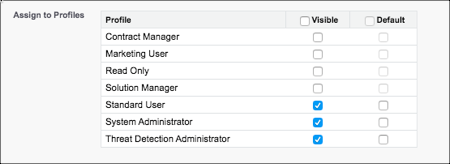
In the Assign to Profiles section, select the profiles for which the Threat Detection
app is visible.
- Save your changes.
The Threat Detection app is now visible to selected users.
Did this article solve your issue?
Let us know so we can improve!
