
Headless Identity APIs: Authorization Code and Credentials Flow for Private Clients
For private clients, such as client-server apps, you can set up headless login for customers and partners by using the Authorization Code and Credentials Flow, which is built on the OAuth 2.0 Authorization Code grant type.
Required Editions
| Available in: both Salesforce Classic and Lightning Experience |
| Available in: Enterprise, Unlimited, and Developer Editions |

With the Authorization Code and Credentials Flow, you control the front-end login experience in a third-party app. You call Salesforce Headless Login APIs via your Experience Cloud site to handle the back-end work of authenticating users and granting access to protected Salesforce resources. With separate front-end and back-end processes, your users can log in and access Salesforce data without leaving your app. For private clients, you start the flow in the browser and complete the code exchange using a server-side callback handler to extract the authorization code and exchange it for an access token.
Before setting up this flow, complete these steps.
- Complete prerequisites for Headless Identity.
- Integrate your off-platform app with Salesforce using one of these options.
Because you manage Salesforce Customer Identity through Experience Cloud sites, you can
configure the Authorization Code and Credentials Flow only for customers and partners using an
Experience Cloud site subdomain such as https://MyExperienceCloudSite.my.site.com. You can’t set up this flow for
employees accessing the Salesforce platform with login.salesforce.com or your org-specific My
Domain login URL, or for employees who access Experience Cloud sites.
Here’s an example use case for the Authorization Code and Credentials Flow. You work for a travel company that stores customer data in Salesforce. You created a custom app with a client-server architecture, and you want users to have access to their past travel bookings from your app. You also want full control over the login experience so that you can align with your company’s branding. So you configure your custom app as an external client app or connected app and set up the Authorization Code and Credentials Flow.
By default, users enter their username to log in. To give users more options, set up headless user discovery. For example, develop a flow where users enter their email address, phone number, or even an order number. See Headless Login Without a Username.
Here’s a simplified overview of the flow in action.
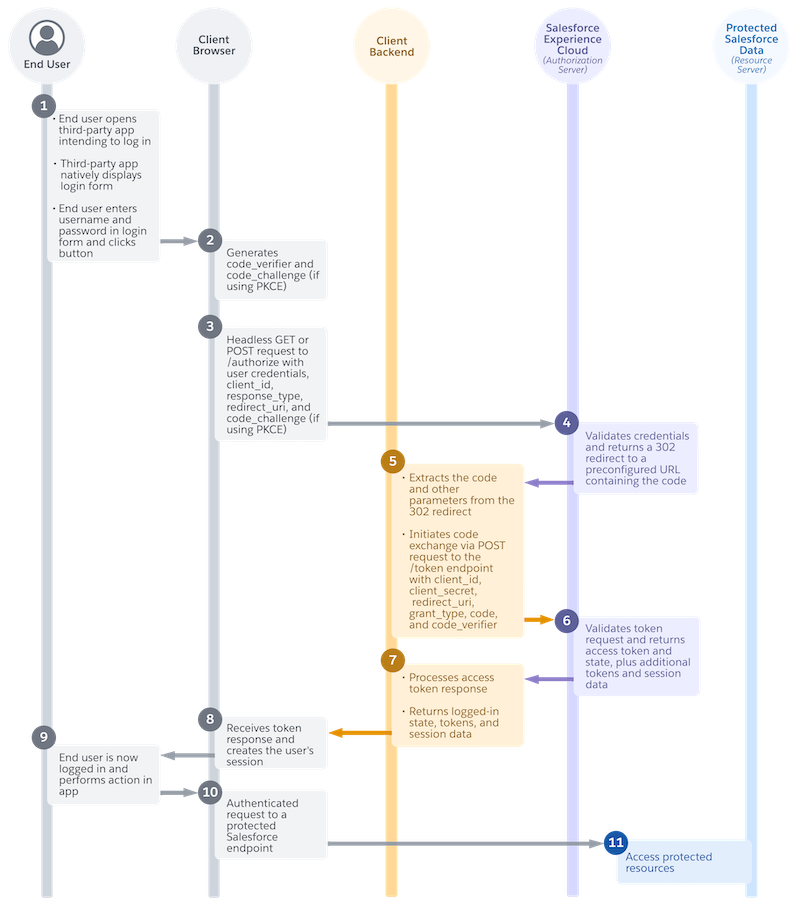
- Your user goes to your custom app, where your login form is natively displayed within the app, and enters their username and password. Or, if you're using headless user discovery, they enter an identifier such as an email address, phone number, or order number, along with their password.
- If you’re using the Proof Key for Code Exchange (PKCE) extension, the app generates values to verify the authorization code. If you’re not using PKCE, your flow skips this step.
- From the browser, your custom app—via JavaScript—sends a headless authorization code request to the Salesforce Headless Login API authorization endpoint on your Experience Cloud site.
- If you're using headless user discovery, your Apex handler finds the user based on the identifier that they used to log in. If the user credentials are valid and the user has a verified email address or phone number, the login proceeds.
- Salesforce Headless Login API validates the user’s credentials and returns a 302 redirect to a preconfigured URL containing the authorization code. The 302 redirect is processed within the browser, and the response is delivered headlessly to your preconfigured callback handler on your server.
- The server-side callback handler extracts the authorization code and other parameters from the 302 redirect response. It then initiates the code exchange via a server-side POST request to the Experience Cloud site token endpoint.
- From the token endpoint, Salesforce Headless Login API returns an access token response to the server-side callback handler.
- The server-side callback handler processes the token response and returns the logged-in state to the app. This response can include session details, user info, and possibly the access token, depending on your app design and security posture.
- The browser receives the logged in response and creates the user’s session.
- The user is now logged in, and they perform an action in your custom app that initiates a request for Salesforce data. For example, they click a button to access their travel booking history, which is stored in the Salesforce Experience Cloud site.
- Your custom app makes an authenticated request to a protected Salesforce endpoint, such as a Salesforce API.
- The customer can now access their protected data in your custom app. For example, they can see their travel booking history.
A key component of this flow is the client-side JavaScript that requests authorization and receives the access token response. This example uses a connected app.
var clientId = '<Connected App Client ID>';
var baseURL = '<Experience Cloud Domain>';
var redirectURL = '<Experience Cloud Domain>/services/apexrest/code/exchange';

function getUserInfo(accessToken, userInfoBaseURL) {
   var client = new XMLHttpRequest();
   client.open("GET", userInfoBaseURL + "/services/oauth2/userinfo", true);
   client.setRequestHeader("Content-Type", "application/json");
   client.setRequestHeader("Authorization", "Bearer " + accessToken);
   client.send();
   client.onreadystatechange = function() {
       if(this.readyState == 3) {
           response = JSON.parse(client.response);
           response.access_token = accessToken;
           document.getElementById("json").textContent = JSON.stringify(response, undefined, 2);
           document.getElementById("results").style.display="block";
       }
   }
}

function startLogin() {
   var username = document.getElementById('user_name').value;
   var password = document.getElementById('password').value;
   var encodedUNP = btoa(username + ':' + password);
   var client = new XMLHttpRequest();
   client.open("POST", baseURL + "/services/oauth2/authorize", true);
   client.setRequestHeader("Auth-Request-Type", "Named-User");
   client.setRequestHeader("Content-Type", "application/x-www-form-urlencoded");
   client.setRequestHeader("Authorization", "Basic " + encodedUNP);
   client.send("response_type=code_credentials&client_id=" + clientId + "&redirect_uri=" + redirectURL);
   client.onreadystatechange = function() {
       if(this.readyState == 3) {
           console.log("here");
           console.log(client.response);
           response = JSON.parse(client.response);
           if (response.success) {
               getUserInfo(response.access_token, baseURL);
           }
       }
   }
   return false;
}
Another key component is the server-side callback handler, which extracts the code and exchanges it for an access token. Here’s an example callback handler using an Apex class exposed as a REST resource.
@RestResource(urlMapping='/code/exchange')
global class CodeExchangeAPI {

   @HttpGet
   global static ExchangeResponse doGet() {
       RestRequest req = RestContext.request;
       RestResponse res = RestContext.response;
       try {
           res.statusCode = 200;

              String accessToken = doCodeExchange(req.params.get('code'), req.params.get('sfdc_community_url'));
           if (accessToken != null) {
                return new ExchangeResponse(accessToken, req.params.get('state'));
           } else {
               return new ExchangeResponse('Could not parse auth code redirect URI');
           }
       } catch (Exception e) {
           res.statusCode = 500;
           return new ExchangeResponse('Could not parse auth code redirect URI');
       }

   }


   global static String doCodeExchange(String code, String communityURL) {
       String clientId = 'Connected App Client ID';
       String redirectURL = '<Experience Cloud Domain>/services/apexrest/code/exchange';
       String clientSecret = null;

       Http h = new Http();
       HttpRequest req = new HttpRequest();
       req.setMethod('POST');

       //Create Code Exchange URL
       String url = communityURL + '/services/oauth2/token';
       req.setEndpoint(url);

       //Post Body
       String body = 'grant_type=authorization_code';
       body = body + '&client_id=' + clientId;
       body = body + '&code=' + code;
       if (clientSecret != null) {
          body = body + '&client_secret=' + clientSecret;
       }
       body = body + '&redirect_uri=' + redirectURL;

       //URL encode Post Body
       String encodedBody = EncodingUtil.urlEncode(body, 'UTF-8');

       // Set request body
       req.setBody(body);

       //Add Headers
       req.setHeader('Content-Type','application/x-www-form-urlencoded');

       //Send Token Request
       HttpResponse res = h.send(req);

       if (res.getStatusCode() == 200) {
           //Extract Token from Response
           Map<String,Object> tokenResponseMap = (Map<String, Object>) JSON.deserializeUntyped(res.getBody());
           return (String)tokenResponseMap.get('access_token');
       } else {
           return null;
       }
   }

   // Response Wrapper
   global class ExchangeResponse {
       String access_token;
       String state;
       String errMsg;
       Boolean success;

       public ExchangeResponse(String access_token, String state) {
           this.access_token = access_token;
           this.state = state;
           this.success = true;
       }

        public ExchangeResponse(String errMsg) {
           this.success = false;
           this.errMsg = this.errMsg;
       }
   }
}
Here’s a detailed breakdown of this flow.
End User Opens Third-Party App and Logs In
Your user opens your third-party app intending to log in. In your app, your login form appears showing username and password fields and a login button. Salesforce doesn’t provide this login form. Its look and feel are up to you. Your user enters their username and password and clicks the login button.
Third-Party App Generates code_verifier and
code_challenge Values (Optional)
If you’re using the Proof Key for Code Exchange (PKCE) extension, the app generates values used to verify the authorization code.
As a security best practice, we strongly recommend using the PKCE extension when you implement the Authorization Code and Credentials Flow. For more information on PKCE, see the specificationRFC 7636: Proof Key for Code Exchange by OAuth Public Clients provided by the Internet Engineering Task Force (IETF).
The PKCE specification defined in RFC 7636 also includes an optional code_challenge_method parameter that you can send in the
authorization request. Salesforce ignores any value that you send in this parameter and
defaults to SHA256.
When you’re implementing this flow using a server-side callback handler, enable the Require Secret for Web Server Flow and Require Secret for Refresh Token Flow settings in your external client app or connected app settings. With these settings enabled, ensure that your callback handler keeps the consumer secret secure.
Third-Party App Headlessly Requests an Authorization Code
From the browser, the third-party app sends a headless authorization request to the Headless Login API authorization endpoint on your Experience Cloud site using Asynchronous Java and XML ((AJAX). If you aren't using headless user discovery, you can use either the GET or POST method for this request. If you are using headless user discovery, only POST requests are supported.
In this client-side JavaScript example, the startLogin function headlessly sends a POST request to the authorization
endpoint.
function startLogin() {
   var username = document.getElementById('user_name').value;
   var password = document.getElementById('password').value;
   var encodedUNP = btoa(username + ':' + password);
   var client = new XMLHttpRequest();
   client.open("POST", baseURL + "/services/oauth2/authorize", true);
   client.setRequestHeader("Auth-Request-Type", "Named-User");
   client.setRequestHeader("Content-Type", "application/x-www-form-urlencoded");
   client.setRequestHeader("Authorization", "Basic " + encodedUNP);
   client.send("response_type=code_credentials&client_id=" + clientId + "&redirect_uri=" + redirectURL);
   client.onreadystatechange = function() {
       if(this.readyState == 3) {
           console.log("here");
           console.log(client.response);
           response = JSON.parse(client.response);
           if (response.success) {
               getUserInfo(response.access_token, baseURL);
           }
       }
   }
   return false;
}
For both GET and POST requests, you must include the header Auth-Request-Type: Named-User.
Optionally, to connect this flow to the
headless guest flow, you can include a Uvid-Hint header
with a JWT-based access token containing a UVID value, which is a Version 4 universally
unique identifier (UUID) that’s generated and managed entirely by your app. To get an access
token with a UVID, you must enable your external client app or connected app to issue
JWT-based access tokens and implement the headless guest flow on your app.
If you implement the guest user flow on your app, you can optionally use this header to pass in a JSON Web Token (JWT)-based access token containing a unique visitor ID (UVID) tied to a guest user’s identity. By passing the UVID into a named user flow, you can carry contextual information from a guest user session, like the user’s cookie preferences, into a named user session.
You can also include the plain UVID value in the request body.
Depending on which method you use and your configuration, you’re sometimes required to include an authorization header of type Basic containing the user’s credentials. If you’re using a GET request, you must send the user’s credentials—their username and password, appended to each other and Base64-encoded—in an authorization header. Here’s an example GET request.
GET /services/oauth2/authorize? HTTP 1.1
Host: MyDomainName.my.site.com
Auth-Request-Type: Named-User
Authorization: Basic <encoded username:password>

response_type=code_credentials&
redirect_uri=https://www.MyDomainName.my.site.com/services/apexrest/code/exchange&
client_id=******&
code_challenge=Y29kZ*******
If you’re using a POST request, you can include the Base64-encoded user credentials in an authorization header, or you can put them in the request body.
If you're using
headless user discovery, you don't send a username and password. Instead, you send an
identifier in the login_hint parameter, optional custom
data, and a password. Include the identifier, custom data, and password in the body of a
POST request. Don't use a GET request.
For GET and POST methods, include these required parameters in the body of the authorization request.
| Parameter | Description |
|---|---|
client_id |
The consumer key of the external client app or connected app. |
redirect_uri |
The URL where users are redirected after a successful authentication. The redirect URI must match one of the values in the external client app or connected app’s Callback URL field. Otherwise, the approval fails. For private clients, use
a |
response_type |
The OAuth 2.0 grant type that the app requests. For the Authorization Code and
Credentials Flow, the value must code_credentials. |
You can also include these optional parameters in the authorization request.
| Parameter | Description |
|---|---|
code_challenge |
Required if using the PKCE extension. Specifies the SHA256 hash value of the
This parameter is required if a
|
scope |
Permissions that define the type of protected resources an external client app or connected app can access. You assign scopes to a connected app when you build it, and they’re included with the OAuth tokens during the authorization flow. If you don’t include this parameter, all scopes assigned to the app are requested. To restrict the scopes further, pass a subset of the assigned scopes in this parameter. For valid parameters, see OAuth Scopes. |
state |
Any state that the external web service requests to be sent to the callback URL. This value must be URL encoded. |
uvid_hint |
A plain Instead of passing the UVID in the request body, you can also pass it
in a JWT-based token with a UVID via the |
login_hint |
Required if using headless user discovery. An identifier that your Apex handler
uses to find a user's Salesforce account. For example, collect a user's order number
in your app and pass it in the login_hint
parameter. We send the login_hint value
straight to your Apex handler. |
customdata |
Required if you're using a headless user discovery handler that handles custom data. For example, if you're also using the handler with a login flow that handles custom data, you must pass custom data in the forgot password flow. A JSON string containing additional data that your Apex headless discovery handler uses to find a user's Salesforce account. For example, pass information about the user's locale. |
(Optional) Headless User Discovery Handler Finds the User
If you're using a headless user discovery handler, the handler takes the login_hint and customdata parameters and finds the associated user. The handler confirms that
the email address or phone number for the user is verified.
For an example handler, see Auth.HeadlessUserDiscoveryHandler.
Salesforce Validates Credentials and Returns a 302 Redirect
Salesforce Headless Login API validates the user and app credentials and returns an HTTP 302 redirect to a preconfigured URL containing the authorization code. The 302 redirect is processed within the browser, and the response is delivered headlessly to the redirect URL, which is a preconfigured callback endpoint on your server. Here’s an example URL.
https://www.MyDomainName.my.site.com/services/apexrest/code/exchange?code=aPrxC1*******
&sfdc_community_url=https%3A%2F%2FMyDomainName.my.site.com&sfdc_community_id=0DBxxxxxxxxxxxx
Callback Handler Extracts Code and Performs Code Exchange
The server-side callback handler extracts the authorization code and other parameters from the 302 redirect. It then initiates the code exchange by sending a headless POST request to the token endpoint.
In the example Apex REST callback handler, the doGet
method extracts the
code.
@RestResource(urlMapping='/code/exchange')
global class CodeExchangeAPI {

   @HttpGet
   global static ExchangeResponse doGet() {
       RestRequest req = RestContext.request;
       RestResponse res = RestContext.response;
       try {
           res.statusCode = 200;

              String accessToken = doCodeExchange(req.params.get('code'), req.params.get('sfdc_community_url'));
           if (accessToken != null) {
                return new ExchangeResponse(accessToken, req.params.get('state'));
           } else {
               return new ExchangeResponse('Could not parse auth code redirect URI');
           }
       } catch (Exception e) {
           res.statusCode = 500;
           return new ExchangeResponse('Could not parse auth code redirect URI');
       }

   }
Then the doCodeExchange method sends the token
request.
global static String doCodeExchange(String code, String communityURL) {
       String clientId = 'Connected App Client ID';
       String redirectURL = '<Experience Cloud Domain>/services/apexrest/code/exchange';
       String clientSecret = '<ConnecedApp Secret>';

       Http h = new Http();
       HttpRequest req = new HttpRequest();
       req.setMethod('POST');

       //Create Code Exchange URL
       String url = communityURL + '/services/oauth2/token';
       req.setEndpoint(url);

       //Post Body
       String body = 'grant_type=authorization_code';
       body = body + '&client_id=' + clientId;
       body = body + '&code=' + code;
       if (clientSecret != null) {
          body = body + '&client_secret=' + clientSecret;
       }
       body = body + '&redirect_uri=' + redirectURL;

       //URL encode Post Body
       String encodedBody = EncodingUtil.urlEncode(body, 'UTF-8');

       // Set request body
       req.setBody(body);

       //Add Headers
       req.setHeader('Content-Type','application/x-www-form-urlencoded');

       //Send Token Request
       HttpResponse res = h.send(req);

       if (res.getStatusCode() == 200) {
           //Extract Token from Response
           Map<String,Object> tokenResponseMap = (Map<String, Object>) JSON.deserializeUntyped(res.getBody());
           return (String)tokenResponseMap.get('access_token');
       } else {
           return null;
       }
   }
For the access token request, you can use only a POST request—GET requests aren’t
supported. You must include a Content-Type header.
Include these required parameters in the request body.
| Parameter | Description |
|---|---|
client_id |
The consumer key of the external client app or connected app. |
client_secret |
The consumer secret of the external client app or connected app. |
code |
The authorization server creates an authorization code, which is a short-lived token, and passes it to the client after successful authentication. The client sends the authorization code to the authorization server to obtain an access token and, optionally, a refresh token. |
grant_type |
The type of validation that the app can provide to prove it’s a safe visitor.
For the Authorization Code and Credentials Flow, the value must be authorization_code. |
redirect_uri |
The URL where users are redirected after a successful authentication. The redirect URI must match one of the values in the Callback URL field. Otherwise, the approval fails. This value must be URL encoded. For private clients, use a |
You can also include these optional parameters in the token request.
| Parameter | Description |
|---|---|
code_verifier |
Required if using the PKCE extension. Specifies 128 bytes of random data with
high entropy to make guessing the
|
format |
The expected format of the response. Salesforce supports these formats.
|
In the Apex code, the response wrapper sets the variables that are eventually sent back to the app, including success and error indicators.
 // Response Wrapper
   global class ExchangeResponse {
       String access_token;
       String state;
       String errMsg;
       Boolean success;

       public ExchangeResponse(String access_token, String state) {
           this.access_token = access_token;
           this.state = state;
           this.success = true;
       }

        public ExchangeResponse(String errMsg) {
           this.success = false;
           this.errMsg = this.errMsg;
       }
   }
Salesforce Grants an Access Token
Salesforce Headless Login API receives the token request and returns an access token response to the server-side callback handler. Here’s an example access token response in JSON format.
{
"access_token":"*******************",
"sfdc_community_url":"https://MyDomainName.my.site.com",
"sfdc_community_id":"0DBxxxxxxxxxxxx",
"signature":"ts6wm/svX3jXlCGR4uu+SbA04M6qhD1SAgVTEwZ59P4=",
"scope":"openid api",
"id_token":"XXXXXX",
"instance_url":"https://yourInstance.salesforce.com",
"id":"https://yourInstance.salesforce.com/id/00Dxxxxxxxxxxxx/005xxxxxxxxxxxx",
"token_type":"Bearer",
"issued_at":"1667600739962"
}
The access token response contains these required parameters.
| Parameter | Description |
|---|---|
access_token
|
OAuth token that the external client app or connected app uses to request access to a protected resource on behalf of the client application. Additional permissions in the form of scopes can accompany the access token. |
id
|
An identity URL that can be used to identify the user and to query for more information about the user. See Identity URLs. |
instance_url
|
A URL indicating the instance of the user’s org. For example: https://yourInstance.salesforce.com/. |
issued_at
|
Time stamp of when the signature was created, expressed as the number of milliseconds from 1970-01-01T0:0:0Z UTC. |
signature
|
Base64-encoded HMAC-SHA256 signature signed with the client_secret. The signature can include the
concatenated ID and issued_at value, which you
can use to verify that the identity URL hasn’t changed since the server sent
it. |
sfdc_community_url
|
The URL of the Experience Cloud site. |
sfdc_community_id
|
The user’s Experience Cloud site ID. |
token_type
|
A Bearer token type, which is used for all
responses that include an access token. |
The access token response can also include these parameters.
| Parameter | Description |
|---|---|
id_token
|
A signed data structure that contains authenticated user attributes, including a unique identifier for the user and a timestamp indicating when the token was issued. It also identifies the requesting client app. See OpenID Connect specifications. This parameter is
returned if the scope parameter includes |
refresh_token
|
Token obtained from the web server, user-agent, or hybrid app token flow. This
value is a secret. Take appropriate measures to protect it. This parameter is
returned only if your external client app or connected app is set up with a refresh_token scope. |
state
|
The state requested by the client. This value is included only if the state parameter is included in the original query
string. |
Callback Handler Processes Token Response and Returns Parameters to App
The server-side callback handler gets the access token from the response. In the
server-side Apex code example, this process takes place within the doCodeExchange method as part of sending the token
request.
//Send Token Request
       HttpResponse res = h.send(req);

       if (res.getStatusCode() == 200) {
           //Extract Token from Response
           Map<String,Object> tokenResponseMap = (Map<String, Object>) JSON.deserializeUntyped(res.getBody());
           return (String)tokenResponseMap.get('access_token');
       } else {
           return null;
       }
The server-side callback handler returns the access token and state to the browser, along with user data, tokens, and session data. In our example, the response wrapper returns the access token to the app. As a best practice, we recommend that you configure your server to store the access token, create a session for the app, and return the session to the app, instead of returning the access token. As the developer, you’re in full control of creating the session, storing the access token, and managing the logged-in state, so your specific implementation is up to you.
Here’s an example of a successful response in the browser console log.
{"success":true,"state":"https://MyExperienceCloudSite.my.site.com/","errMsg":null,"access_token":"00*******"}App Processes Token Response and Creates the User Session
The app receives the token response, processes it, and creates the user session. In the
client-side JavaScript example, the response is processed via the getUserInfo
function.
function getUserInfo(accessToken, userInfoBaseURL) {
   var client = new XMLHttpRequest();
   client.open("GET", userInfoBaseURL + "/services/oauth2/userinfo", true);
   client.setRequestHeader("Content-Type", "application/json");
   client.setRequestHeader("Authorization", "Bearer " + accessToken);
   client.send();
   client.onreadystatechange = function() {
       if(this.readyState == 3) {
           response = JSON.parse(client.response);
           response.access_token = accessToken;
           document.getElementById("json").textContent = JSON.stringify(response, undefined, 2);
           document.getElementById("results").style.display="block";
       }
   }
}
End User Is Logged in and Performs an Action in the App
Your user is now logged in. They perform an action in your app that requires access to Salesforce data. For example, they click a button to view their travel booking history, which is stored in Salesforce.
App Makes an Authenticated Call to a Salesforce Endpoint
To access the user’s Salesforce data, your app uses the access token to make an authenticated call to a protected Salesforce endpoint, such as a Salesforce API.
End User Can Access Salesforce Data
The user can now access protected Salesforce data in your app. For example, they can see their travel booking history. From the end user’s perspective, the entire process from logging in to accessing their data happened without ever requiring them to leave the app.
