
Headless Identity APIs: Headless Forgot Password Flow for Customers and Partners
Set up a headless password reset process on your app using the Headless Forgot Password Flow, which calls Headless Forgot Password API. Use this flow along with other headless flows to provide native identity experiences. With this flow, a user who has forgotten their password can verify their identity and create a password without ever leaving the branded experience of your app.
Required Editions
| Available in: both Salesforce Classic (not available in all orgs) and Lightning Experience |
| Available in: Enterprise, Unlimited, and Developer Editions. |
This help content describes how to set up the flow and how it works. To set up an end-to-end example implementation, see the Headless Identity Implementation Guide.
To ensure that you complete all prerequisite steps, see Headless Identity Implementation Checklists.
The Headless Forgot Password Flow resolves a common situation. When a user forgets their password and can’t log in, this flow provides the functionality to reset it without disrupting your app’s branded experience.
Because you manage Salesforce Customer Identity through Experience Cloud sites, you can configure the Headless Forgot Password Flow only for customers and partners using an Experience Cloud site subdomain, such as https://MyExperienceCloudSite.my.site.com. You can’t set up this flow for employees who access Experience Cloud sites or for employees accessing the Salesforce platform with login.salesforce.com or your org-specific My Domain login URL.
The Headless Forgot Password Flow works similarly for private clients, such as client-server apps, and public clients, such as single-page apps or mobile apps. The main difference is the security settings that you enable for private clients and public clients. These security settings control which parameters you’re required to pass in the initial password reset request. There are two security settings, both on the Experience Cloud Login & Registration page.
- Require authentication to access this API
- Require reCAPTCHA to access this API
For private clients, at minimum, we recommend that you enable Require authentication
to access this API. With this setting enabled, you must include an access token
issued to an internal integration user in your requests to Headless Forgot Password API. The
access token must include the forgot_password scope. For
extra protection, you can also enable Require RECAPTCHA to access this
API.
For public clients like mobile apps, we recommend that you enable Require reCAPTCHA to access this API. With this setting enabled, you must include a reCAPTCHA token in your initial request to Headless Forgot Password API. We don’t recommend enabling Require authentication to access this API because a public client can’t keep the access token secret.

Public clients must also implement an API gateway between the client and Salesforce to maintain security.
To expand your email template options for the one-time password (OTP) email sent to end users during the flow, opt in to email template allowlisting and create an allowlist with custom templates. See Use Multiple Email Templates for Headless Flows.
By default, users enter their username to reset their password. To give users more options, set up headless user discovery. For example, develop a flow where users enter their email address, phone number, or even an order number. See Headless Login without a Username.
This diagram shows how your app interacts with Salesforce to reset a password.
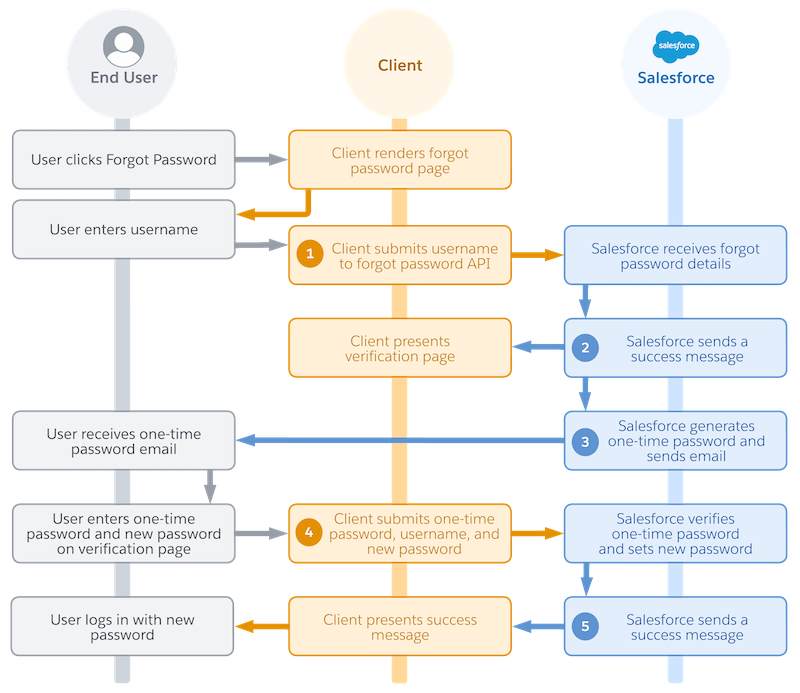
Let’s take a closer look at the steps in this flow that involve interactions between your user, your app, and Salesforce.
- Your client requests a password reset (1).
- Salesforce returns a success message (2) and checks that the user exists and is verified.
- Salesforce generates and emails a one-time password (3).
- Your client submits the new password (4).
- Salesforce verifies the passwords and returns a success message (5).
Your Client Requests a Password Reset
After your user starts the password reset process, your client sends a POST request to the headless forgot password endpoint on your Experience Cloud site (1).
Here’s the URI for the POST request.
/services/auth/headless/forgot_passwordInclude these headers in the request.
| Header | Required? | Description |
|---|---|---|
Authorization: Bearer
|
Required if you enable Require authentication to access this API on the Experience Cloud Login & Registration page. For private clients, we strongly recommend that you always enable this setting. For public clients, we never recommend enabling this setting. |
Contains an access token issued to an internal integration user. To get the access
token, use any standard OAuth flow that Salesforce supports. Ensure that you assign
the forgot_password scope to the connected app issuing
the token, or pass it as a parameter during the OAuth flow. |
Content-Type
|
No. | Specifies the format of your request, such as application/json. |
Include these parameters in the request body.
| Parameter | Required? | Description |
|---|---|---|
username
|
Required if you aren't using headless user discovery. | The username for the account. |
login_hint
|
Required if you're using a headless user discovery Apex handler. | An identifier that your Apex handler uses to find a user's Salesforce account. For
example, collect a user's order number in your app and pass it in the login_hint parameter. We send the login_hint value straight to your Apex handler. |
customdata
|
Required if you're using a headless user discovery handler that handles custom data. For example, if you're also using the handler with a login flow that handles custom data, you must pass custom data in the forgot password flow. Otherwise, it's optional but can be useful to help your handler find the user. |
A JSON string containing additional data that your Apex headless discovery handler uses to find a user's Salesforce account. For example, pass information about the user's locale. |
emailtemplate
|
No. | The custom email template developer name. If you enable Use only allowlisted email templates in your Experience Cloud settings, then this parameter can include only an email template from the allowlist. If you don’t enable email template allowlisting, this parameter can include any template in your org. To control the language for a custom email template, create a template in the desired language. If you don’t include this parameter, Salesforce uses the email template configured in your Experience Cloud settings, regardless of whether email template allowlisting is enabled. With this option, Salesforce determines the language from the user’s settings. See Language, Locale, and Currency Settings. |
recaptcha
|
Required if these conditions apply to you.
|
An encrypted token issued by the Google reCAPTCHA API when a user completes a reCAPTCHA challenge. |
recaptchaevent
|
Required if these conditions apply to you:
|
A JSON object containing these subparameters.
For more information, see Google's reCAPTCHA documentation. |
Here’s an example request for a public client that’s using a custom email template. It
includes a reCAPTCHA token for security and an emailtemplate parameter with the developer name of a custom template.
POST /services/auth/headless/forgot_password HTTP/1.1
Host: MyDomainName.my.site.com
Content-Type: application/json
{
    "username":"lhansen@example.com",,
    "emailtemplate":"unfiled$public/SalesNewCustomerEmail",
    "recaptcha": "<recaptcha token>"
}
Here’s an example request for a private client that’s using the default email template. It includes an access token for security.
POST /services/auth/headless/forgot_password HTTP/1.1
Host: MyDomainName.my.site.com
Authorization: Bearer 00DR****************
Content-Type: application/json

{
    "username": "lhansen@example.com"
}
Here's an example request for a private client that uses headless user discovery.
POST /services/auth/headless/forgot_password HTTP/1.1
Host: MyDomainName.my.site.com
Authorization: Bearer 00DR****************
Content-Type: application/json

{
    "login_hint": "<user identifier such as email address, phone number, order number>",
    "customdata": {
        "firstName": "Lyle",
        "lastName": "Hansen"
    }
}
(Optional) Headless User Discovery Handler Finds the User
If you're using a headless user discovery handler, the handler takes the login_hint and customdata
parameters and finds the associated user. The handler confirms that the email address or phone
number for the user is verified.
For an example handler, see Auth.HeadlessUserDiscoveryHandler.
Salesforce Returns a Success Message and Verifies the Username
When Salesforce successfully receives the forgot password request, it sends a success message to the client (2). If you're not using a headless discovery handler, Salesforce then verifies that the username matches an account. If the username doesn’t match an account, the flow stops.
Here’s an example of a successful response.
{
    "status": "success",
    "status_code": "otp_sent"
}
If the request fails, Salesforce returns an error message describing the request. For most errors, Salesforce returns the error message in this format.
{
"status_code": "<error code>",
"<error name>": "<error description>",
"status": "failed"
}
For example, if the client uses the wrong type of HTTPS request, Salesforce returns this error response.
{
"status_code": "post_required",
"invalid request": "use a POST request",
"status": "failed"
}
For the invalid_recaptcha error code, the response
includes additional information from Google’s reCAPTCHA service. Here’s how these responses are
formatted.
{
"status_code": "invalid_recaptcha",
"invalid_request: "invalid reCAPTCHA token",
"status": "failed",
"recaptcha_response": {
    "success": <true or false>,
    "challenge_ts": <timestamp of the challenge in ISO format (yyyy-MM-dd'T'HH:mm:ssZZ)>,
    "hostname": "<host name of the client where the reCAPTCHA was solved>",
    "error-codes": [<error codes from Google reCAPTCHA...>]
    }
}
Here’s an overview of the error responses.
| Error Code | Error Name | Error Description | Details and Resolution |
|---|---|---|---|
authentication_req
|
invalid_request
|
include an authentication header
|
You get this error if you enable the Require authentication to access this
API setting (always recommended for private clients) and you don’t send the
access token correctly. Send the access token in an Authorization:Bearer header. |
headless_forgot_password_disabled
|
invalid_experience
|
enable the headless forgot password flow
|
Turn on Allow password reset via the Headless Forgot Password Flow in your Experience Cloud settings. See Configure Experience Cloud Settings for the Headless Forgot Password Flow. |
https_required
|
invalid_request
|
use a URL that starts with HTTPS
|
The request doesn’t conform to the HTTPS protocol. Review the Hyptertext Transfer Protocol specification, update the request, and resend it. |
invalid_authorization
|
invalid_request
|
authentication failure
|
You get this error if you enabled the Require authentication to access this
API setting (always recommended for private clients) and the access token
included in the request isn’t valid. For example, the access token is expired or doesn’t
include the forgot_password scope. Check the access
token and get a new one if necessary. |
invalid_domain
|
invalid_request
|
invalid domain
|
Requests to this endpoint are supported only for Experience Cloud site domains. |
invalid_params
|
invalid_request
|
invalid parameters
|
The request contains unsupported parameters, or the parameters aren’t formatted correctly. Review the supported header and body parameters and example requests for initializing password reset. |
invalid_recaptcha
|
invalid_request
|
invalid reCAPTCHA token
|
For this error, the response includes an extra For more information on specific errors, see these resources in Google’s documentation. |
invalid_template
|
invalid_param
|
invalid email template
|
Confirm that the client is sending the developer name of a custom email template in
the emailtemplate parameter. |
missing_auth_params
|
invalid_request
|
include an authentication header or reCAPTCHA
         parameter
|
Requests to this endpoint must include, at minimum, either an access token or a reCAPTCHA token, depending on your app type and Experience Cloud settings. Review Configure Experience Cloud Settings for the Headless Forgot Password Flow and update the request to match your settings. |
not_allowed_template
|
invalid_param
|
email template not allowlisted
|
You get this error if you enable email template allowlisting and the value in the
emailtemplate parameter isn’t part of the allowlist.
For more information about allowlisting, see Use Multiple Email Templates for
Headless Flows. |
otp_generation_failed
|
otp_error
|
OTP generation failed
|
Salesforce couldn’t generate an OTP. Try sending the request again. |
post_required
|
invalid_request
|
use a POST request
|
The request type isn’t supported. Send an HTTPS POST request. |
recaptcha_req
|
invalid_request
|
include a reCAPTCHA parameter
|
You get this error if you enable Require reCAPTCHA to access this
API in your Experience Cloud site settings and the request doesn’t include a
reCAPTCHA token in the recaptcha parameter. Include a
reCAPTCHA token. |
unknown_error
|
unknown_error
|
retry your request
|
There was a problem sending the request, but we don’t know what went wrong. Try checking your internet connection, refreshing the page, and resending the request. |
user_account_locked
|
invalid_user
|
user account is locked
|
The user is locked out of their account. To restore their access, unlock the user. |
Salesforce Generates and Emails a One-Time Password
Salesforce verifies that an account with the user’s username exists in the system. If the
account exists, it generates a one-time password and sends it in an email (3) to the email
address on file. This email is generated using either the default email template or by
referencing a custom template from the emailtemplate
parameter in the initial request. For information about customizing the email template, see
Customize Email Sent from Experience
Cloud Sites.
Your Client Submits the New Password
When the client receives the success message from Salesforce, the client natively displays a password reset page to the user. This page must include fields for the one-time password and the user’s new password. The new password is subject to the Salesforce password requirements. After the user fills in these fields, the client sends another the username, OTP, and new password in another POST request to the forgot password endpoint (4).
Include these headers in the request.
| Header | Required? | Description |
|---|---|---|
Authorization: Bearer
|
Required if you enable Require authentication to access this API on the Experience Cloud Login & Registration page. For private clients, we strongly recommend that you always enable this setting. For public clients, we never recommend enabling this setting. |
Contains an access token issued to an internal integration user. To get the access
token, you can use any standard OAuth flow that Salesforce supports. Ensure that you assign
the forgot_password scope to the connected app issuing
the token, or pass it as a parameter during the OAuth flow. |
Content-Type
|
No. | Specifies the format of your request, such as application/json. |
Include these parameters in the request body.
| Parameter | Required? | Description |
|---|---|---|
username
|
Required if you're not using a headless user discovery handler. | The username for the account. |
login_hint
|
Required if you are using a headless user discovery handler. | The identifier that your Apex handler used to find the user's Salesforce account. |
otp
|
Yes. | The one-time password that Salesforce generated and emailed to the user. |
newpassword
|
Yes. | The new password that the user created. |
Here’s an example request for a private client.
POST /services/auth/headless/forgot_password HTTP/1.1
Host: MyDomainName.my.site.com
Authorization: Bearer 00DR****************
Content-Type: application/json

{
"username": "lhansen@example.com",
"otp" : "123abc",
"newpassword" : "abcd1234"
}
Here’s a similar request for public clients that doesn’t include an access token. Because the reCAPTCHA token was sent in the initial request, it’s not required in this one.
POST /services/auth/headless/forgot_password HTTP/1.1
Host: MyDomainName.my.site.com
Content-Type: application/json
{
"username": "lhansen@example.com",
"otp" : "123abc",
"newpassword" : "abcd1234"
}
Salesforce Verifies the Passwords and Returns a Success Message
When Salesforce receives the password request, it verifies that the one-time password is valid, and it checks that the new password meets the requirements. If these two criteria are met, it sets the new password. After the password is changed, Salesforce sends a success message to the client (5). Here’s what the success message looks like.
{
    "status": "success",
    "status_code": "success"
}
Your client must notify the user that the change has been accepted and that they can log in with their new password.
If the client sends an incorrect OTP or the new password doesn’t meet the standard Salesforce security requirements, the password reset fails. If the password reset fails, your client can make a set number of attempts to reset the password using the same OTP. You control the maximum number of attempts in your Experience Cloud settings. After too many failed attempts, your client must send a new initial reset password request so that a new one-time password can be generated and emailed to your user.
If the password change isn’t successful, Salesforce returns an error response in this format.
{
"status_code": "<error code>",
"<error name>": "<error description>",
"status": "failed"
}
Here’s an overview of the errors for this request.
| Error Code | Error Name | Error Description | Details and Resolution |
|---|---|---|---|
headless_forgot_password_disabled
|
invalid_experience
|
enable the headless forgot password flow
|
Turn on Allow password reset via the Headless Forgot Password Flow in your Experience Cloud settings. See Configure Experience Cloud Settings for the Headless Forgot Password Flow. |
https_required
|
invalid_request
|
use a URL that starts with HTTPS
|
The request doesn’t conform to the HTTPS protocol. Review the Hyptertext Transfer Protocol specification, update the request, and resend it. |
invalid_domain
|
invalid_request
|
invalid domain
|
Requests to this endpoint are supported only for Experience Cloud site domains. |
invalid_otp
|
otp_error
|
invalid OTP
|
The OTP doesn’t match what Salesforce sent to the user, or it’s expired. Check the OTP and request a new one if necessary. |
invalid_params
|
invalid_request
|
invalid parameters
|
The request contains unsupported parameters, or the parameters aren’t formatted correctly. Review the supported header and body parameters and example requests for changing the password. |
password_policy_check_failure
|
password error
|
password does not follow policy
|
The password doesn’t follow the password policy configured for your org. In addition to the policy you set, Salesforce enforces some password requirements for all user passwords. See Set Password Policies. |
post_required
|
invalid_request
|
use a POST request
|
The request type isn’t valid. Send an HTTPS POST request. |
regenerate_otp
|
otp_error
|
user made too many invalid attempts; regenerate
         OTP
|
The user tried unsuccessfully to use the OTP too many times. Request a new OTP. You can control the maximum number of password reset attempts you allow before the user must request a new OTP. See Configure Experience Cloud Settings for the Headless Forgot Password Flow. |
unknown_error
|
unknown_error
|
retry your request
|
There was a problem sending the request, but we don’t know what went wrong. Try checking your internet connection, refreshing the page, and resending the request. |
user_account_locked
|
invalid_user
|
user account is locked
|
The user is locked out of their account. To restore their access, unlock the user. |
