Create an OAuth Custom Scope
To define permissions about the data that an external client app can access from an external entity, create an OAuth custom scope in Salesforce. The custom scope tells the external entity which information the external client app is authorized to access.
Required Editions
| Available in: both Salesforce Classic and Lightning Experience |
External client apps can be created in: Group, Essentials, Professional, Enterprise, Performance, Unlimited, and Developer Editions External client apps can be installed in: All editions |
| User Permissions Needed | |
|---|---|
| To manage, create, edit, and delete OAuth apps: | Manage external client apps |
The OAuth custom scope that you create in your Salesforce org corresponds to a policy that you define in your external entity and assign to the resource.
For example, you want to create a custom web app that can access customer order status data in your order status API. In Salesforce, you create an order_status OAuth custom scope. You assign the Salesforce custom scope to the external client app that is requesting access to the order status API. You then define an order_status policy in your external entity. This policy allows access to customer order status data in your order system’s API. When the external entity receives the external client app’s request to access a customer’s order status, it validates the external client app’s access token and order_status scope. With a successful validation, the app can access the customer order status information in the order system API.
- From Setup, enter Custom Scopes in the Quick Find box, and select OAuth Custom Scopes.
- Click New Custom Scope.
- Enter the name of the custom scope. When you define the corresponding policy in your
external entity, give it the exact name as the custom scope.The name of the custom scope must be unique and begin with a letter. Include only alphanumeric characters and underscores. You can’t use spaces in custom scope names.
- Enter a description of the protected data that the scope allows access to. The description
must be unique, include only alphanumeric characters, and not be more than 60 characters.You can enter a custom label in place of a description. An advantage of custom labels is that you can maintain reusable text in a single location and translate the text into multiple languages. See Custom Labels.
 Note The same description formatting requirements apply to the custom labels that are associated with custom scopes.Custom scope descriptions and custom labels display on the OAuth approval page when a user approves the external client app to which the custom scope is assigned.
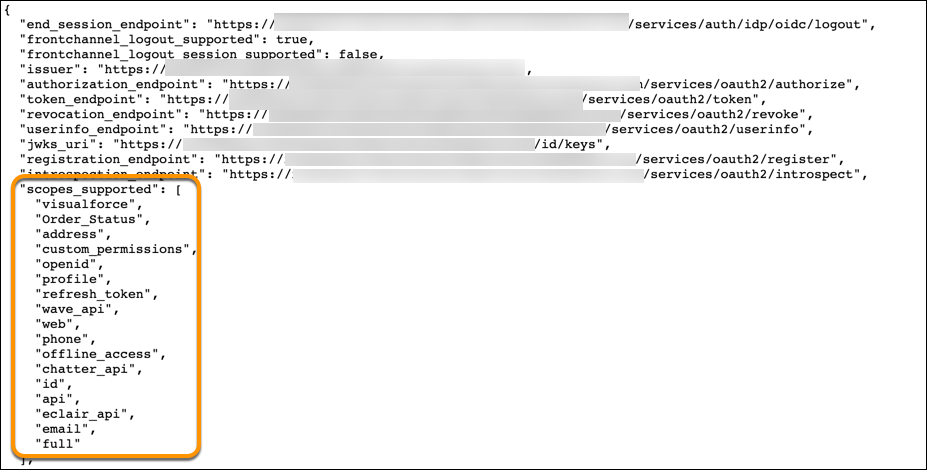
 - To include the custom scope in the external client app’s OpenID Connect discovery endpoint
(
https://<your_domain_name>.my.salesforce.com/.well-known/openid-configuration), select Include on well known endpoint.