Loading
Salesforce now sends email only from verified domains. Read More
Salesforce Data Pipelines
Table of Contents
Select Filters

          No results
          No results
          Here are some search tips

          Check the spelling of your keywords.
          Use more general search terms.
          Select fewer filters to broaden your search.

          Search all of Salesforce Help
          Schedule Data Sync to Run Automatically

          Schedule Data Sync to Run Automatically

          To ensure that the latest source data is loaded into datasets, schedule data syncs to pull data into Salesforce Data Pipelines before the corresponding recipes. You schedule data sync for each connection, where all objects under the connection sync at the specified time, and not individual objects. To sync objects from the same data source on different intervals, create multiple connections to the data source, and set a unique schedule for each connection.

          Required Editions

          Available in: Lightning Experience
          Available with Salesforce Data Pipelines, which is available for an extra cost in Enterprise, Performance, and Unlimited Editions
          User Permissions Needed
          To schedule sync: Edit CRM Analytics Dataflows
          Note
          Note Data sync jobs don’t count towards your daily recipe run limit. To ensure that sync completes before the recipe starts, use event-based scheduling for the recipe.
          1. In data manager, click the Connections tab to display the list of objects enabled for sync grouped by connection.
          2. Click Actions button to the right of the connection that you want to schedule, and select Schedule. The scheduler appears.
          3. Select the time to run the recipe. You can schedule it to run by minute, hour, week, or month. Salesforce Data Pipelines runs the data sync according to the time zone of the user who set the schedule.
          4. If you schedule the recipe to run by minute or hour, select Stop schedule at a specific time to stop the recipe from running after a certain time. For example, to restrict runs to office hours, set a job to start at 8:00 AM, run every hour, and stop at 6:00 PM.
            Note
            Note If you don’t select a time, the schedule stops adding data sync runs to the queue at 11:59 PM.
          5. Click Save. Schedule information for the connection displays in the connection header.
          6. Set the sync type for each object in the connection.
            • Click Actions button to the right of the object that you want to set the sync type for, and select Edit Connection Mode.
            • Choose from the following:
              1. Incremental Sync updates only rows that changed since the last sync. It’s the fastest option.
              2. Periodic Full Sync updates rows incrementally and periodically overwrites all rows with records in the Salesforce object.
              3. Full Sync updates all rows with records in the Salesforce object.
                Note
                Note

                The API Type for the connector must be BULKV2 for incremental and periodic full sync.

            • Click Save.
          Note
          Note When reviewing the results of an incremental sync job in Job Manager, the Rows in and Rows out values represent the total number of rows across all syncs.

          Schedules for data sync, dataflow, and recipes are removed 30 days after the last save in Sandbox and Developer edition orgs, and 10 days after the last save in Trial orgs. Users subscribed to notifications receive an email when a schedule is removed. Set the schedule again at any time.

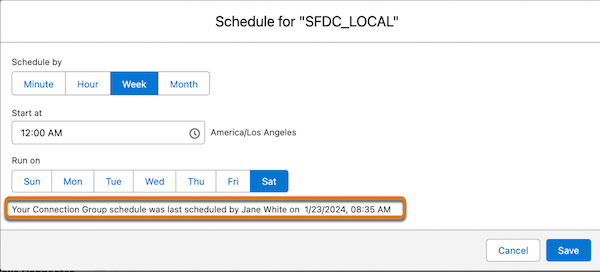
          The scheduler provides details on who created or modified the schedule and when the schedule was created or last modified.

          The scheduler with audit information on when the schedule was last updated and by who.

          When you deactivate a user who scheduled a data sync, the schedule is deleted and the data sync is unscheduled.

           
          Loading
          Salesforce Help | Article