You are here:
Configure SAML Single Logout with Salesforce as the Service Provider
Configure single logout (SLO) for a SAML identity provider. With SAML SLO, users can log out of either Salesforce or the identity provider to log out of both of them.
Required Editions
| Available in: both Salesforce Classic and Lightning Experience |
Federated Authentication is available in: All Editions Delegated Authentication is available in: Professional, Enterprise, Performance, Unlimited, Developer, and Database.com Editions Authentication Providers are available in: Professional, Enterprise, Performance, Unlimited, and Developer Editions |
| User Permissions Needed | |
|---|---|
| To view the settings: | View Setup and Configuration |
| To edit the settings: | Customize Application AND Modify All Data |
Before you configure SAML SLO, review this information.
- If the identity provider sends more than one session index parameter, Salesforce stores only the first one that it receives. The session index parameter can’t be more than 512 characters.
- You can configure a custom logout URL and identity provider SLO URL. If Salesforce is the service provider and initiates the logout request, the identity provider can post a logout response to redirect the user back to Salesforce. In this scenario, Salesforce sends the user to the custom URL upon logout. If the identity provider doesn’t redirect the user back to Salesforce in a logout response, the identity provider determines the SLO redirect URL upon logout.
- Some identity providers don’t support logout initiated by the service provider. In this case, skip to step 6 in the setup. Users are logged out of Salesforce when initiated by the identity provider. However, logging out of Salesforce doesn’t necessarily log the user out of the identity provider session.
- Salesforce currently supports front-channel SLO only, meaning that SLO redirects must occur in the same browser. Salesforce doesn’t support SLO across different browsers.
Before configuring SAML SLO, prepare by gathering this information.
- Get the Issuer URL from the identity provider. This URL uniquely identifies your SAML identity provider. SAML assertions sent to Salesforce must match this value exactly in the <saml:Issuer> attribute of SAML assertions.
- Get and save the certificate for validating signatures from the identity provider.
- Get the SLO URL from the identity provider.
- From Setup, use the Quick Find box to find and select Single Sign-On Settings.
- In SAML Single Sign-On Settings, select New.
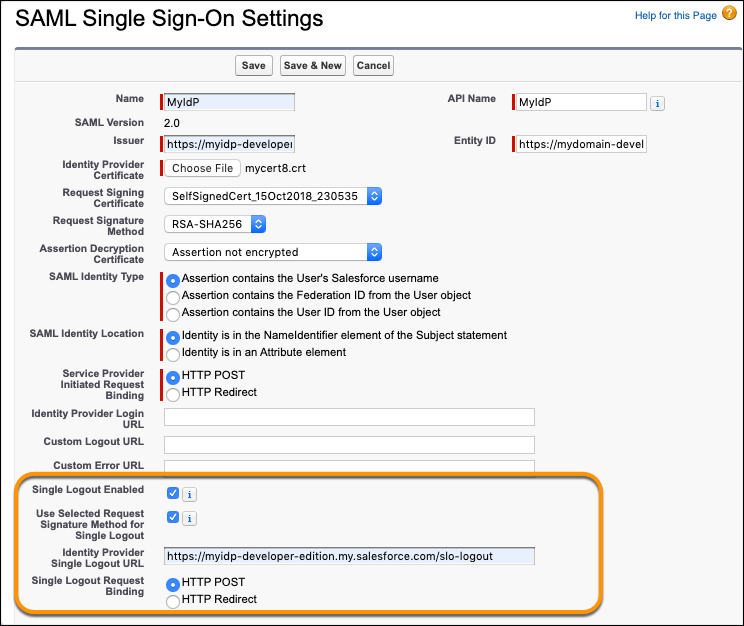
- On the SAML Single Sign-On Settings page, enter the SAML single sign-on (SSO) information, and select Single Logout Enabled.
-
To apply the selected Request Signature Method (RSM) during SLO, select Use
Selected Request Signature Method for Single Logout. This setting uses the
RSM that you selected during SSO to determine the RSM and digest algorithm for SLO. If you
don’t select this option, the default RSM (
RSA-SHA1) and digest algorithm (SHA1) are applied. Note For configurations created before Spring ’22, with which you can use a different RSM and digest algorithm for SSO, this SLO setting is independent of the SSO digest algorithm. Ultimately, only the RSM used for SSO determines which RSM and digest algorithm are used if you select Use Selected Request Signature Method for Single Logout. For more information, see Configure SSO with Salesforce as a SAML Service Provider.
 -
For Identity Provider Single Logout URL, enter the SAML SLO endpoint of the identity
provider.
- When Salesforce initiates the logout, it sends the logout request with the session index parameter to this SLO endpoint.
- When the identity provider initiates the logout request, Salesforce sends the logout response to this SLO endpoint.
- In addition to the identity provider SLO URL, you can define a custom URL. If Salesforce initiates the logout, the identity provider can post a logout response to redirect the user back to Salesforce. In this scenario, Salesforce sends the user to the custom URL upon logout.
-
Select the Single Logout Request Binding type to use for SLO when initiated by the
service provider. The binding type determines where to put the LogoutRequest or
LogoutResponse in the SAML request. The value is base64 encoded.
- For HTTP POST, put the LogoutRequest or LogoutResponse in the request body of the SAML request.
- For HTTP Redirect, put the deflated LogoutRequest or LogoutResponse in the query string of the SAML request.
-
Provide the service provider with the Salesforce identity provider SLO endpoint for
your Salesforce org. The service provider uses this endpoint to initiate SLO. The endpoint
has the format
https://MyDomainName.my.salesforce.com/services/auth/idp/saml2/logout
where MyDomainName is your Salesforce domain.
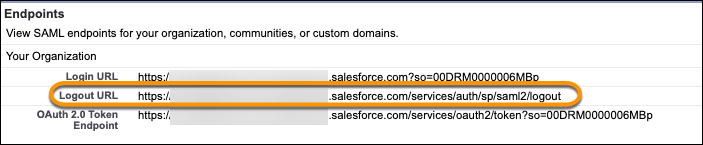
If the org is an Experience Cloud site, the logout URL for the site appears on the same page.