Configure Your Security Agent (Beta)
Configure Security Center with Agentforce to get the most out of agent capabilities for security triage, investigation, and response.
Required Editions
| Available in: Lightning Experience |
| Available in: Enterprise and Unlimited Editions with the Security Center add-on license. |
| Available for free in: Developer Edition |
| User Permissions Needed | |
|---|---|
| To run agent tools (Default): | Use Agentforce Default Agent |
| To view Security Center pages: | View Security Center |
| To create and edit security policies: | Manage Security Center |
| To access Setup with Agentforce capabilities: | Use Setup with Agentforce |
| To access Event Monitoring log data: | View Event Log Files and View Event Log Object Data |

Note Security Agent is a pilot or beta service that is subject to the Beta Services
Terms at Agreements - Salesforce.com or a written Unified Pilot Agreement if executed by
Customer, and applicable terms in the Product Terms Directory. Use of this pilot or beta service
is at the Customer's sole discretion.
To use the Security Agent, turn on the Setup Agent. See Configure Setup with Agentforce
For the Security Agent to complete tasks such as querying data to answer your questions or completing remediation steps, assign agent actions to your agent.
- From Setup, in the Quick Find box, enter Profiles, and select the profile to which you want to add the tab, for example, Salesforce admin and click Edit.
- Locate the Security Investigations tab and the Configuration tab. Change the settings for both tabs from Tab Hidden to Default On and save.
- In the App Manager, locate the Security Center Lightning app and click Edit.
-
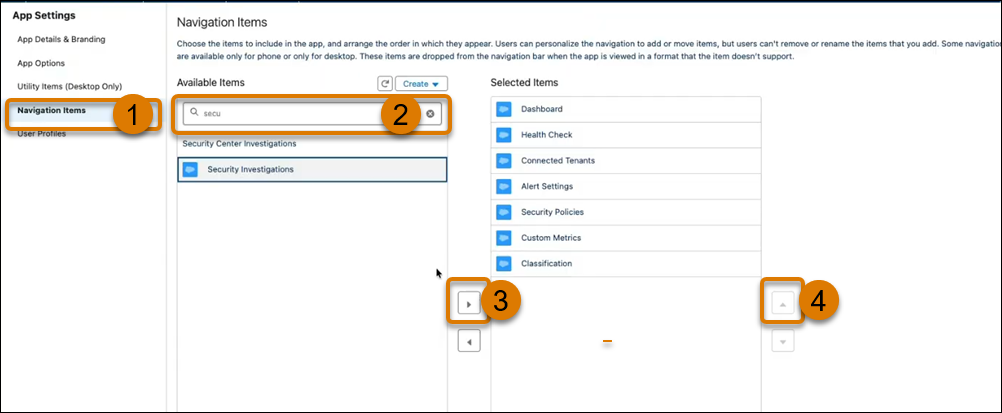
In Navigation Items (1) in Available Items, search for Security Investigations (2) then
click the right pointing arrow (3) to move it to Selected Items. Use the up-pointing arrow (4)
to order it as the second tab and save.
After you refresh, the Security Investigations tab appears in the Security Center app.
-
Open the Security Center app, and in the Configuration tab, in Agentforce for
Security:
- Turn on Agentforce for Security to allow agent-powered functions within Security Center.
- Turn on Background Activity to allow running security investigations in the background.
To leverage Agentforce for Security actions, in Agent Builder, create a new topic for Security Support or similar. Assign the relevant tool to the Topic and activate your Agent.
Security Agent Tools (Beta)
Use these agent tools to enable conversational security features:
- Classify Security Risks: Deliver clear, conversational risk identification and prioritized remediation plans, ensuring admins know both the 'what' and the 'how' of security responses
- Get Security Alerts: Cut through Salesforce notification overload by providing conversational, proactive security posture alerts.
- Get Security Metric Data: Translate your security posture into plain language with the Get Security Metric Data agent action. Ask questions, get answers, and spot threats before they strike.
- SaveInvestigationTimelineEntry: Enable the agent to analyze Event Monitoring logs and generate a visual timeline of activity before, during, and after an anomaly.
- Summarize User Activity: Easily identify potential suspicious activity. Ask simple questions to get insight into when a user logged in, what they viewed, and more.
Did this article solve your issue?
Let us know so we can improve!
