Create Your Own Custom Metrics
Monitor vital data and bolster your organization's security posture by creating your own custom metrics that you can monitor from your Security Center dashboard.
Required Editions
| Available in: Lightning Experience |
| Available in: Enterprise and Unlimited Editions with the Security Center add-on license. |
| Available for free in: Developer Edition |
| User Permissions Needed | |
|---|---|
| To view Security Center pages: | View Security Center |
| To create and edit custom metrics: | Manage Security Center |

Note This content relates to Security Center. Read
about Security Insights, Data Classification, and Who Sees What Explorer in Own from Salesforce.
- Create a custom object with custom fields.
- Ensure your custom object’s fields match the fields of the data source that you want to see represented in Security Center.
- Create a custom date/time field named RecordProductionDate with the
requiredattribute checked in order for Security Center to process the data.This field indicates the time when the record was created at the source. - Create a text field with a length of 15 named TenantId with the
requiredattribute checked.You can utilize this field on your custom object to track metric data across multiple tenants.Note Security Center will only process records which have this field set to either a Parent or Child tenant. - Add data to the custom object.
- Go to the Custom Metrics tab.
- Click New Custom Metrics.
- Enter the name for the new custom metric and pick the custom object from which you would
like to view data.
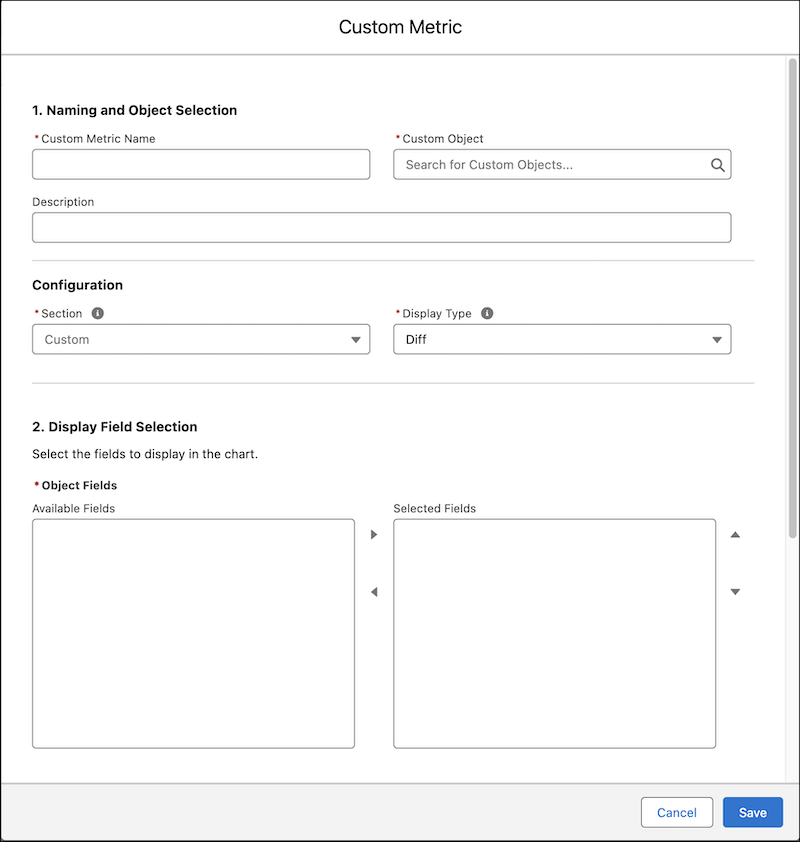
- Select the metric section you would like your custom metric to appear in. After the metric data is inserted into the custom object it can be viewed after 24 hours in your Security Center chart library just like other metrics.Note You can manually update the data from the custom metric detail page.
- Configure the fields from the custom object that will display on the metric detail page in Security Center. You can opt to have Security Center process changes for your metric by selecting the Diff display type.
- To view your custom metric, go to the Security Landscape menu on your Security Center dashboard page.
Maintain the custom object for your custom metric. Security Center processes the records every 24 hours.
Did this article solve your issue?
Let us know so we can improve!
