Define and Deploy Security Policies
You can define security-related policies and deploy them to the tenants that you choose. Use data gathered in Security Center to identify settings that matter most to you.
Required Editions
| Available in: Lightning Experience |
| Available in: Enterprise and Unlimited Editions with the Security Center add-on license. |
| Available for free in: Developer Edition |
| User Permissions Needed | |
|---|---|
| To view Security Center pages: | View Security Center |
| To create and edit security policies: | Manage Security Center |

To create a Security Policy:
- On the Security Center dashboard, click the Security Policies tab, and then click New Security Policy.
- Follow the prompts to define your policy, and then select the tenants that you want the policy to apply to.
- Save the Security Policy as a draft, or save and activate it.
- To view a policy’s details, on the Security Policies tab, click the name of the
policy.
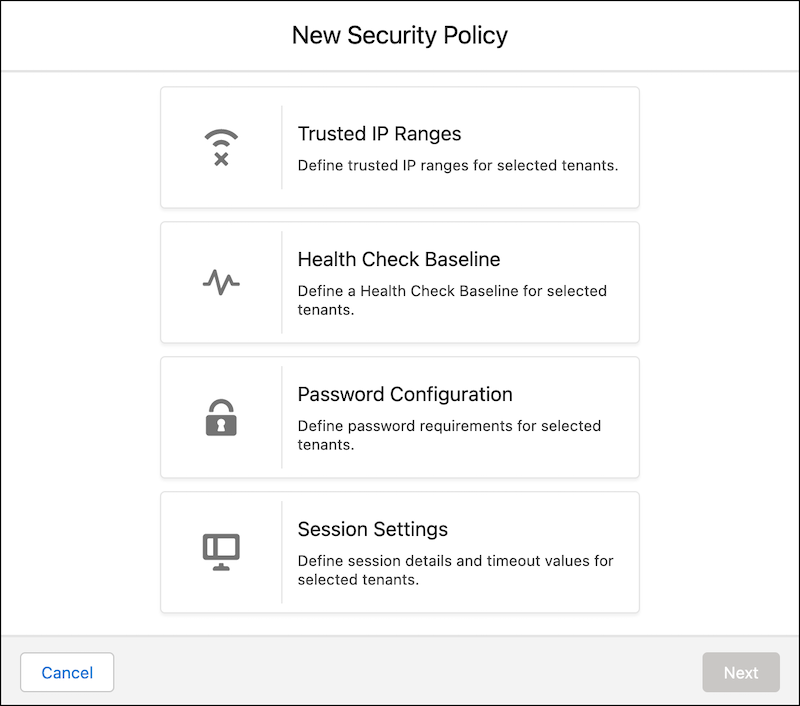 Note The only tenants displayed for the mobile app security policy type are the connected tenants that are licensed for mobile app security.

Your business handles highly sensitive customer data, so you want to establish a Health Check Baseline with a higher risk setting than the Salesforce Baseline Standard. Create and upload a baseline to the Security Center, and deploy it to the relevant tenants.
You then decide that the baseline setting is too strict, so you make a new version of the policy. The updated Health Check Baseline is then applied to the same tenants as the original baseline.
On the Security Policies page, use the dropdown menu to activate, deactivate, or edit a policy. When you edit a policy, it saves as a new version. You can still change the settings in a specific tenant after a Security Policy is deployed to it.
See Also
- Security Center Definitions
- Enable Security Center Permissions
- Designate a Parent Tenant in Security Center
- Security Center Data
- Create Alerts for Security Changes
- Disconnect a Child Tenant from a Parent Tenant
- Security Center Metrics
- Classify Fields in Security Center
- Unify Security Data with Security Mesh
- Enhance Your Security Posture by Using Security Center with Agentforce (Beta)
- Security Center Response Log
- Enable and Configure Mobile App Security Policies
