Loading
Prepare for Email to Become the Default Login ExperienceRead More
Intermittent freezing when using using certain browser versionsRead More
Set Up and Maintain Your Salesforce Organization
Review Threat Detection Events

Review Threat Detection Events

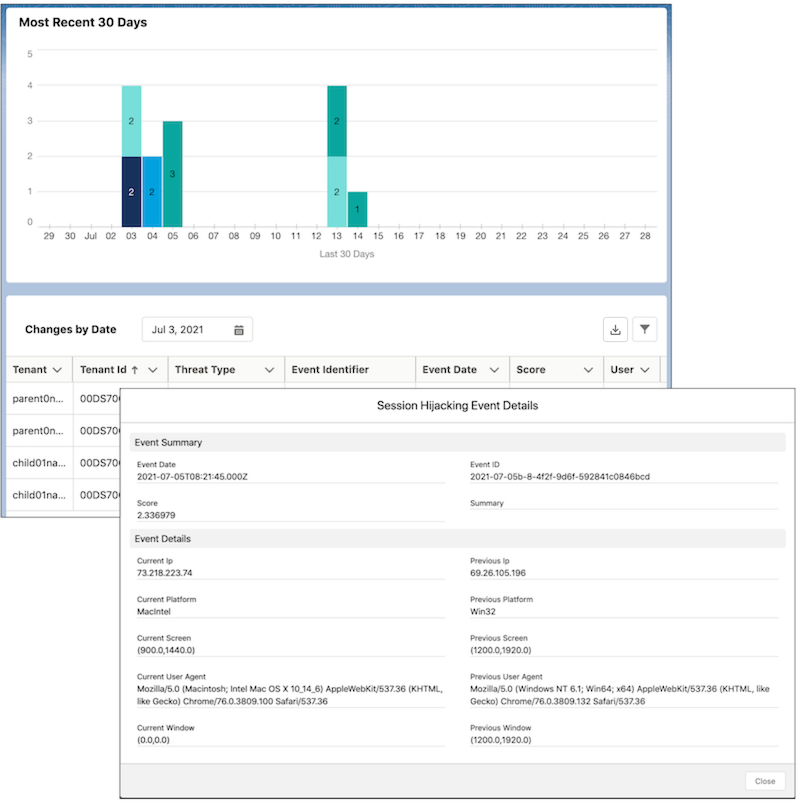
The Threat Detection app in Security Center saves you time by aggregating information on detected threats to all your tenants in one place. From a parent tenant, see information on four types of detected events throughout your org in real time. Threat Detection uses statistical and machine learning methods powered by Event Monitoring to detect threats to your tenants. Security Center stores Threat Detection event information for 6 months

Required Editions

Available in: Lightning Experience
Available in: Enterprise and Unlimited Editions with the Security Center add-on license.
Available for free in: Developer Edition
User Permissions Needed
To view Security Center pages: View Security Center
Note
Note This content relates to Security Center. Read about Security Insights, Data Classification, and Who Sees What Explorer in Own from Salesforce.

The Threat Detection app monitors your org for Credential Stuffing, API Anomaly, Session Hijacking, and Report Anomaly threat events. You can create an alert for any increases to the Threat Detection event count. For more information, see Create Alerts for Security Changes. For more information on threat events, see Threat Detection.

Note
Note A delay of up to 1 day can occur between the time a threat event is observed by the Threat Detection app and the actual time of the threat event.

To review Threat Detection events, first enable streaming for these Threat Detection events from Event Manager in Setup.

  • API Anomaly Event
  • Credential Stuffing Event
  • Report Anomaly Event
  • Session Hijacking Event
  • Guest User Anomaly Event
  • Login Anomaly Event
  1. On the Summary page in the Security Center app, select the Threat Detection tile. Or under the Monitoring category in the navigation bar, click Threat Detection.
  2. To see the detected events for a certain day, select a date in the Changes by Date field.
  3. Click the Event Identifier value of an event.
    See information on when and where the event occurred, a summary of the event, and more.
    Event details of a detected threat
Example
Example You have multiple tenants and want to see if they’ve been targeted by malicious activity. Instead of signing in to each tenant, you log in to your Security Center parent tenant and scan the Threat Detection page. You see that a few Credential Stuffing events occurred on a certain day. It’s possible that a user’s login credentials were stolen and used to gain unauthorized access. In this situation, you click the Event Identifier values and review the event information. Use this information to educate your users on how they can create and manage strong passwords.
 
Loading
Salesforce Help | Article
