You are here:
Upload a User Authentication Certificate
After enabling certificate-based authentication, you can upload PEM-encoded X.509 digital certificates to authenticate individual users to your org.
Required Editions
| Available in: both Salesforce Classic and Lightning Experience in All editions |
| User Permissions Needed | |
|---|---|
| To upload user certificates for authentication: | Manage Internal Users |
Before enabling certificate-based authentication, keep these requirements in mind.
- This feature is available only in orgs configured with the Let users authenticate with a certificate setting enabled on the Identity Verification page in Setup.
- Certificated-based authentication isn’t supported in Experience Cloud sites.
- If you use a user authentication certificate from a Public CA vendor, the certificate must chain to a valid Root CA for your instance. For a list of valid Public CA vendors, add /cacerts.jsp to your instance URL, such as https://MyCompany.my.salesforce.com/cacerts.jsp.
- User authentication certificates must contain the Client Authentication EKU (Extended
Key Usage) extension.
 Important With Google Chrome Root Program Policy v1.7, your user authentication (client) and server certificates can't originate from the same Public Root CA in the Chrome Trusted Root List. With this change, you can no longer use certificates that include EKUs for both user and server authentication. To prevent disruptions, transition to separate certificate hierarchies. The Google Chrome policy changes take effect on June 15, 2026, but you can experience issues with certificate renewal for some Public CA vendors before that date.
For more information, see Upcoming Mandatory Changes to Public Key Infrastructure (PKI).
- Uploaded user authentication certificates must be PEM-encoded X.509 digital certificates.
- An uploaded PEM file can contain a single certificate or up to 10 certificates in a certificate chain.
- An uploaded PEM file can be up to 1 MB.
- The user authentication certificate can’t be expired.
- The user authentication certificate must be unique to a single Salesforce org.
- A user can have multiple authentication certificates, but a certificate must be unique to a user.
- The user must be able to connect to port 8443. Certificate-based authentication operates off Salesforce port 8443.
- From Setup, use the Quick Find box to find and select User Authentication Certificates.
- Click Upload New Certificate.
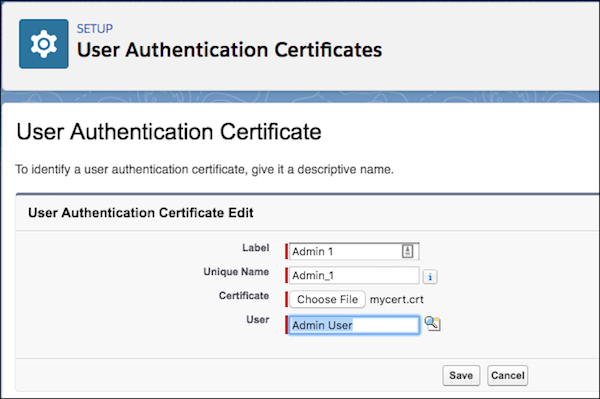
- For Label, give the certificate a descriptive name to make it easy to identify. The Unique Name field for the certificate auto-populates.
- Click Choose File, and go to the PEM-encoded X.509 digital certificate to upload for the user.
- Select the user to authenticate with the certificate.
- Click Save.
Did this article solve your issue?
Let us know so we can improve!
