You can import up to five custom baselines to compare your security settings with your
standards instead of the Salesforce recommended standards. For example, if you’re in financial
services, you can create a custom security baseline by using FINRA standards.
Required Editions
Available in: Professional, Enterprise, Performance,
Unlimited, and Developer Editions
User Permissions Needed
To view a custom baseline
View Health Check
OR
View Security Center
Or
Manage Security Center
To create a custom baseline
Manage Health Check
OR
View Security Center
Or
Manage Security
Center
To create a custom baseline, start with the Salesforce Baseline Standard.
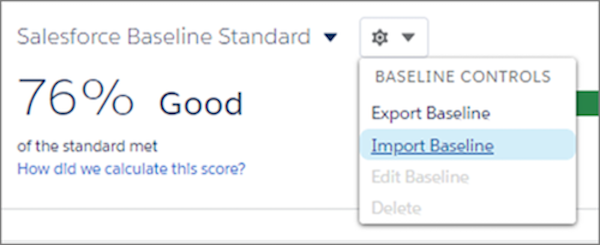
To export the Salesforce Baseline Standard file, from the Baseline Controls menu, select
Export Baseline.
Edit the XML file with a text editor and save your changes.
Adjust the risk categories to customize your scoring. The risk category affects your
Health Check score. A setting in a higher risk category is weighted as more important than a
lower one. Moving a setting to the Informational category removes it from the Health Check
score calculation.
To modify the setting values, follow the Custom Baseline File Requirements. You can’t
change some values, and some settings have restricted value options. Don’t add or delete risk
categories, setting names, or quotation marks. If you do, your import fails. In some security
settings, a low value can be low risk, but in others, it can be high risk. For example, the
lower your minimum password length value is, the riskier it is. But the lower your maximum
invalid login attempts value is, the safer it is.
To import a file, from the Baselines Controls menu, select Import
Baseline.
Name your custom baseline. Spaces and some special characters are allowed. If the name is
SFDC recommended or Salesforce Baseline Standard, the file fails to import.
Give your custom baseline a unique API name. You can use letters and numbers, but the
name must begin with a letter. It can’t contain spaces or special characters.
Optionally, make your custom baseline the default baseline in Security Health
Check.
Unexpected information in the baseline file or a new custom baseline upload without
all Health Check settings results in an import failure. If your import fails, you receive a
message to help resolve the problem. See Custom Baseline File Requirements in Salesforce Help
for troubleshooting assistance. You can change the baseline name, API name, and default
baseline using the Edit feature in the Baseline Controls menu.
To confirm that your file uploaded, click the baseline dropdown and select your baseline.
If you set your custom baseline as the default, it appears after import.
We use three kinds of cookies on our websites: required, functional, and advertising. You can choose whether functional and advertising cookies apply. Click on the different cookie categories to find out more about each category and to change the default settings.
Privacy Statement
Required Cookies
Always Active
Required cookies are necessary for basic website functionality. Some examples include: session cookies needed to transmit the website, authentication cookies, and security cookies.
Functional Cookies
Functional cookies enhance functions, performance, and services on the website. Some examples include: cookies used to analyze site traffic, cookies used for market research, and cookies used to display advertising that is not directed to a particular individual.
Advertising Cookies
Advertising cookies track activity across websites in order to understand a viewer’s interests, and direct them specific marketing. Some examples include: cookies used for remarketing, or interest-based advertising.