You are here:
Custom Baseline File Requirements
To import your Health Check custom baseline successfully, make sure that your file and settings meet the requirements.
Required Editions
| Available in: Professional, Enterprise, Performance, Unlimited, and Developer Editions |
XML File
Use a valid XML file that has English language characters. The file can’t be larger than 20 KB. Make sure that each value is surrounded in quotation marks.
Custom Baseline Security Setting Fields and Values
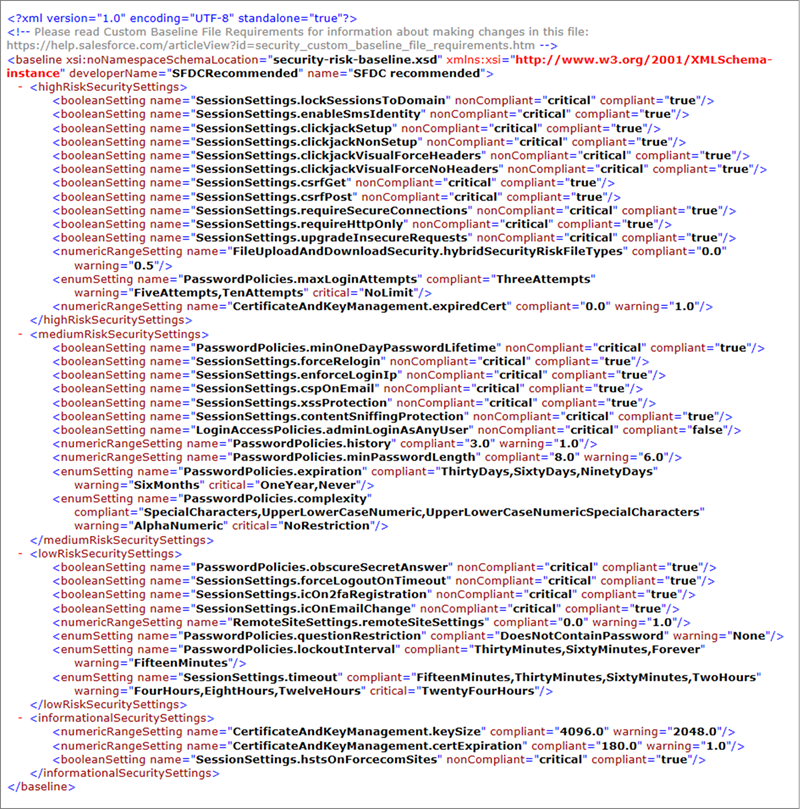
You can’t add or delete the Health Check settings from the file, but you can change their risks and values.
There are four risk categories: High-Risk, Medium-Risk, Low-Risk, and Informational. The risk categories affect your Health Check score, with High-Risk settings counting the most, Low-Risk settings counting the least, and Medium-Risk settings in the middle. You can move settings into any risk category. Settings in the Informational category don’t factor into your Health Check score, so move unnecessary settings to this category rather than deleting them.
Each security setting shows in Health Check as compliant, warning, or critical. These statuses guide you to increase security. Assign values to each status in the import file.
There are three setting types: boolean, numeric range, and enum. The values that you can assign to each setting depend on the setting type.
Boolean Security Settings
Boolean settings have two attributes: compliant and noncompliant. Compliant values correspond
to checkboxes in security settings. A Boolean value of “true”
indicates selecting the checkbox, and “false” represents
deselecting it. Noncompliant attributes can take either warning or critical values.

| Setting | Accepted Values |
|---|---|
| LoginAccessPolicies.adminLoginAsAnyUser |
|
| PasswordPolicies.minOneDayPasswordLifetime |
|
| PasswordPolicies.obscureSecretAnswer |
|
| SessionSettings.clickjackNonSetup |
|
| SessionSettings.clickjackSetup |
|
| SessionSettings.clickjackVisualForceHeaders |
|
| SessionSettings.clickjackVisualForceNoHeaders |
|
| SessionSettings.contentSniffingProtection |
|
| SessionSettings.cspOnEmail |
|
| SessionSettings.csrfGet |
|
| SessionSettings.csrfPost |
|
| SessionSettings.enableSmsIdentity |
|
| SessionSettings.enforceLoginIp |
|
| SessionSettings.forceLogoutOnTimeout |
|
| SessionSettings.forceRelogin |
|
| SessionSettings.icOn2faRegistration |
|
| SessionSettings.icOnEmailChange |
|
| SessionSettings.lockSessionsToDomain |
|
| SessionSettings.redirectionAllowUntrusted |
|
| SessionSettings.requireHttpOnly |
|
| SessionSettings.xssProtection |
|
| UserPIISettings.enforceNameVisibility |
|
Numeric range values are positive integers extended to one decimal place. You provide compliant and warning values only for numeric range settings. Critical values are assumed based on the other values in the settings. Each setting has specific validation rules, so enter only acceptable values.
| Setting | Compliant Value | Warning Value |
|---|---|---|
| CertificateAndKeyManagement.certExpiration | Number of days—any integer between “0.0” and “180.0” | Any integer between “0.0” and “180.0” that’s less than the compliant value. Any value less than the warning value shows as critical. |
| CertificateAndKeyManagement.expiredCert | Any integer “0.0” or greater | Any integer greater than the compliant value. Any value greater than the warning value shows as critical. |
| CertificateAndKeyManagement.keySize | “4096.0”, “3072.0”, or “2048.0” | “4096.0”, “3072.0” or “2048.0.” To not allow the 2048 or 3072 key sizes, enter a compliant value of “4096.0” and a warning value of any number between “3072.0” and “4096.0.” To not allow the 2048 key size only, enter a compliant value of “4096.0” and a warning value of any number between “2048.0” and “3072.0.” |
| FileUploadAndDownloadSecurity.hybridSecurityRiskFileTypes | Any integer “0.0” or greater | Any integer greater than the compliant value. Any value greater than the warning value shows as critical. |
| GuestUserAccess.guestEditAccess | Any integer “0.0” through “4.0” | Any integer “5.0” through “9.0”. Any value “10.0” or greater shows as critical. |
| GuestUserAccess.guestReadAccess | Any integer “0.0” through “4.0” | Any integer “5.0” through “9.0”. Any value “10.0” or greater shows as critical. |
| PasswordPolicies.history | Any integer between “0.0” and “24.0” | Any integer between “0.0” and “24.0” that’s less than the compliant value. Any value less than the warning value shows as critical. |
| PasswordPolicies.minPasswordLength | Any integer between “5.0” and “50.0” | Any integer between “5.0” and “50.0” that’s less than the compliant value. Any value less than the warning value shows as critical. |
| RemoteSiteSettings.remoteSiteSettings | Maximum number of remote site settings allowed—any integer greater than “0.0” | Any integer greater than the compliant value. Any value greater than the warning value shows as critical. |
| SharingSettings.orgWideDefaults | Any integer between "0.0" and "1.0" | Any integer between "0.0" and "1.0" that’s greater than the compliant value. |
Enum values allow you to choose from provided string texts. Use all the possible values, and decide whether they’re compliant, warning, or critical status. Enum values are case sensitive. You can assign multiple enum names to one status by separating them with commas. For example, compliant="FifteenMinutes,ThirtyMinutes,SixtyMinutes,TwoHours".
To leave a status empty, use all values. For example, divide the values between compliant and
critical and leave warning empty: warning=“”. Don't leave the
compliant status empty.
| Setting | Accepted Values |
|---|---|
| PasswordPolicies.complexity |
|
| PasswordPolicies.expiration |
|
| PasswordPolicies.lockoutInterval |
|
| PasswordPolicies.maxLoginAttempts |
|
| PasswordPolicies.questionRestriction |
|
| SessionSettings.timeout |
|