You are here:
Limit the Number of Concurrent Sessions with Login Flows
You can use a login flow to restrict the number of simultaneous Salesforce sessions per user.
Install the Concurrent-Sessions Package
The concurrent-sessions unmanaged package includes the elements and sources of a login flow solution. The package includes a plug-in that retrieves the number of concurrent sessions for a user. If the pending login exceeds the concurrent session limit, the flow blocks it.
You can customize the package, for example, by changing the session limit. By default, the package uses a session limit of 1.
- To install the concurrent-sessions package, go to https://login.salesforce.com/packaging/installPackage.apexp?p0=04to0000000WR73.
- After you install the package, you can connect the login flow to user profiles. Assign the flow to profiles for which you want to limit concurrent sessions.
Creating the Package Components
Let’s take a closer look at the components in the concurrent-sessions package. If the package didn’t exist, here’s how you can create the plug-in and the login flow.
SessionPlugin is an Apex class that retrieves the number of concurrent sessions. The class queries the AuthSession table and sums the number of sessions, excluding temporary sessions.
- From Setup, in the Quick Find box, enter Apex Classes, and then select Apex Classes.
- To create a class, click New.
- Copy and paste this code as the Apex class
content.
global class SessionPlugin implements Process.Plugin
{
   global Process.PluginDescribeResult describe()
   {
      Process.PluginDescribeResult result = new Process.PluginDescribeResult();
      result.description='This plug-in returns the no of concurrent sessions for the current user';
      result.tag='Identity';

      result.inputParameters = new List<Process.PluginDescribeResult.InputParameter> {
      };

      result.outputParameters = new List<Process.PluginDescribeResult.OutputParameter> {
           new Process.PluginDescribeResult.OutputParameter('CONCURRENT_NO',
               Process.PluginDescribeResult.ParameterType.INTEGER)
      };

       return result;
   }

   global Process.PluginResult invoke(Process.PluginRequest request)
   {
       Map<String, Object> result = new Map<String, Object>();
       List<AuthSession> sessions;
       Integer no = 0;

       String userid   = UserInfo.getUserId();

       sessions = [Select Id, ParentId, SessionType from AuthSession where UsersId=:userid];
       for (AuthSession s : sessions)
       {
           // Count only parent and non-temp and non-internal sessions
           if(s.ParentId == null && s.SessionType != 'TempUIFrontdoor' && s.SessionType != 'InternalServiceCall' )
           {
                   no++;
           }
       }

       result.put('CONCURRENT_NO', no);

       return new Process.PluginResult(result);
   }
}
Creating the Login Flow
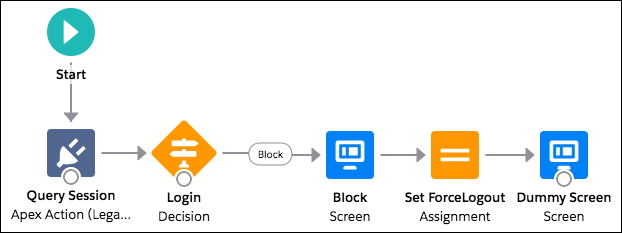
The package’s login flow includes these elements.
- SessionPlugin—The Apex plug-in that queries the number of concurrent sessions.
- Decision—Verifies whether the number of concurrent sessions exceeds the limit. The outcome determines whether the login is blocked or allowed.
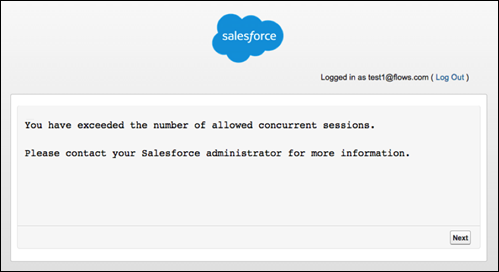
- Block Screen—If the login exceeds the limit, the flow displays the block screen element.
- Assignment—If the login exceeds the limit, this element assigns the
LoginFlow_ForceLogout variable to
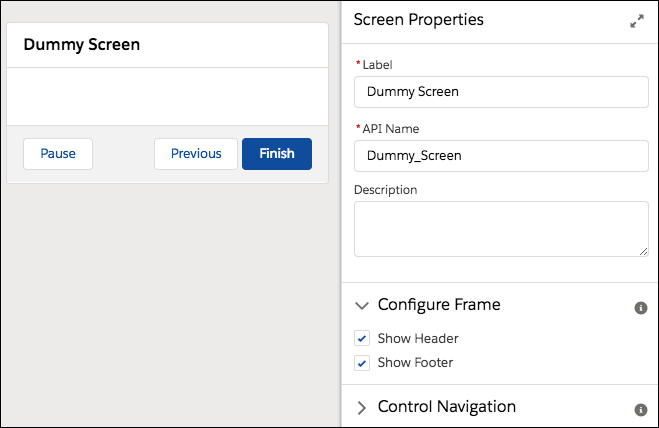
trueand prevents the login. - Dummy Screen—This element is a placeholder. A flow requires a UI element to follow an output variable.
- From Setup, in the Quick Find box, Flows select Flows, and then click New Flow.
- Select Screen Flow, and click Create.
- From the toolbox, on the Manager tab, click New Resource. Create
a LoginFlow_ForceLogout output boolean variable. When set to
true, this variable blocks the login attempt.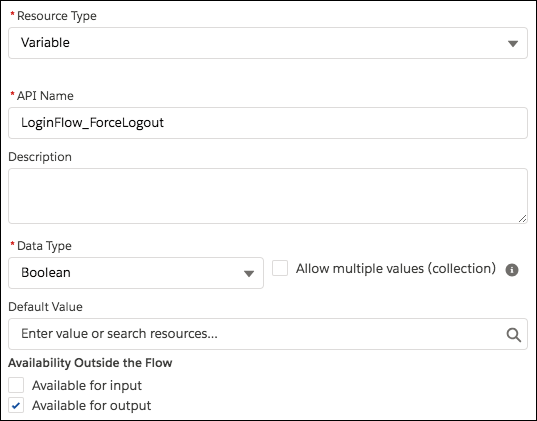
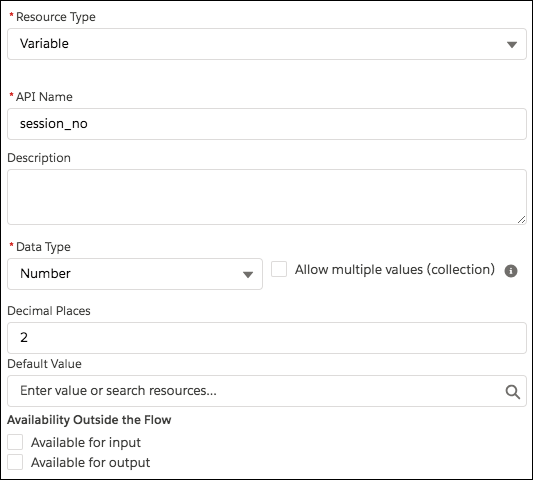
- Create a numeric variable to store the allowed number of concurrent sessions for the
user.
 Note If the concurrent user limit is 1, and you end a user’s session or the session times out, then instruct the user to wait a few minutes before attempting to log in again. The system needs time to periodically clear obsolete session records from memory.
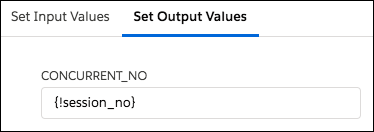
 - From the toolbox, open the Elements tab. Drag an Apex Action (Legacy) element onto the
canvas, and select the SessionPlugin legacy Apex action. Store the action’s
CONCURRENT_NO parameter in the session_no flow
variable.
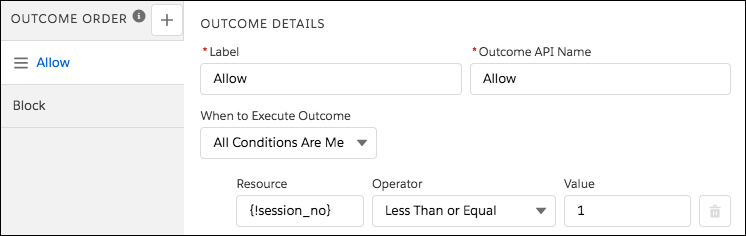
- Add a Decision element that has two outcomes. If the login exceeds the limit, the
outcome is Block, which is the default. Otherwise, the outcome is
Allow.
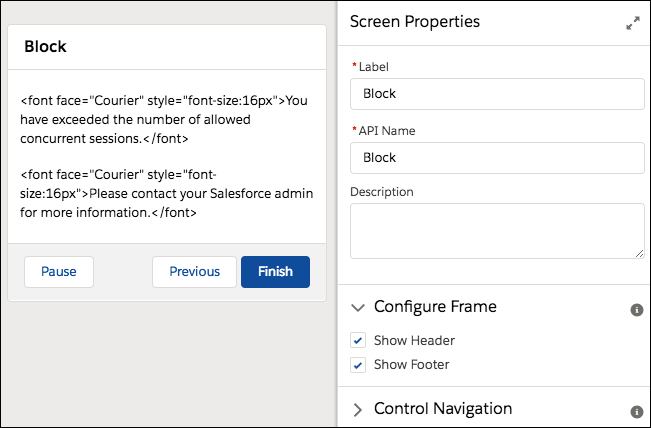
- Add a Screen element that tells the user that they exceeded the allowed number of
concurrent sessions.
- Add an Assignment element that sets the LoginFlow_ForceLogout
output variable to
true.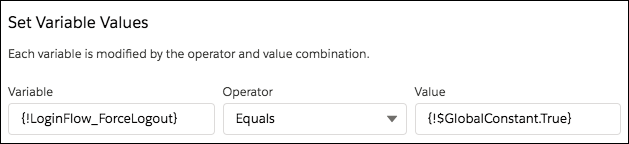
- Add a screen with no contents.
- Connect the elements together. When you connect the decision to the first screen, choose
the Block outcome.
- Save the flow.
- Activate the flow.
- Connect the login flow to a user profile. Best practice is to create a dedicated test user with a test profile.
- Log out, and then log in as the test user and test the flow.
When you assign the profile to users, Salesforce redirects them at login through the flow. When a login attempt exceeds the limit, the user sees the block screen and can’t log in. Here’s an example of the block screen in Lightning Experience.