Configure Your Cache-Only Key Callout Connection
Use a named credential to specify the endpoint for your callout, and identify the key that you want to fetch from your endpoint.
Required Editions
| Available in both Salesforce Classic (not available in all orgs) and Lightning Experience. |
| Available in: Enterprise, Performance, Unlimited, and Developer Editions. Requires purchasing Salesforce Shield or Shield Platform Encryption, and the External Key Management Service. |
| User Permissions Needed | |
|---|---|
| To create, edit, and delete named credentials: | Customize Application |
| To allow cache-only keys with BYOK: | Customize Application AND Manage Encryption Keys |
| To generate, destroy, export, import, upload, and configure tenant secrets and customer-supplied key material: | Manage Encryption Keys |

-
Make sure that your org has an active Fields and Files (Probabilistic) key, either
Salesforce-generated or customer-supplied.
- From Setup, in the Quick Find box, enter Encryption Settings, and then select Encryption Settings. Turn on Generate Initial Probabilistic Tenant Secret.
- From Setup, in the Quick Find box, enter Key Management, and then select Key Management. Select the Fields and Files (Probabilistic)tab, and then click Generate Tenant Secret.
-
From Setup, in the Quick Find box, enter Named Credential, and then
select Named Credential.
 Tip A named credential provides an authenticated callout mechanism through which Salesforce can fetch your key material. Because named credentials are allowlisted, they’re a secure and convenient channel for key material stored outside of Salesforce.
Learn more about named credentials, how to define a named credential, and how to grant access to authentication settings for named credentials in Salesforce Help.
- Create a named credential. Specify an HTTPS endpoint from which Salesforce can fetch your key material.
- From Setup, in the Quick Find box, enter Encryption Settings, and then select Encryption Settings.
-
In the Advanced Encryption Settings section, turn on Allow Cache-Only
Keys.
You can also enable the Cache-Only Key Service programmatically. For more information, see EncryptionKeySettings in the Metadata API Developer Guide.Note If you turn off Allow Cache-Only Keys, data that’s encrypted with cache-only key material remains encrypted and Salesforce continues to invoke secured callouts. However, you can’t modify your cache-only key configuration or add new ones. If you don’t want to use cache-only keys, rotate your key material to use customer-supplied (BYOK) key material. Then synchronize all your data, and turn off Allow Cache-Only Keys.
- From Setup, in the Quick Find box, enter Platform Encryption, and then select Key Management.
- In the Key Management Table, select a key type.
- Click Bring Your Own Key.
- Select a BYOK-compatible certificate from the Choose Certificate dropdown.
- Select Use a Cache-Only Key.
- For Unique Key Identifier, enter your KID—the unique key identifier for your data encryption key. Your identifier can be a number, a string (2018_data_key), or a UUID (982c375b-f46b-4423-8c2d-4d1a69152a0b).
-
In the Named Credential dropdown, select the named credential associated with your key. You
can have multiple keys associated with each named credential.
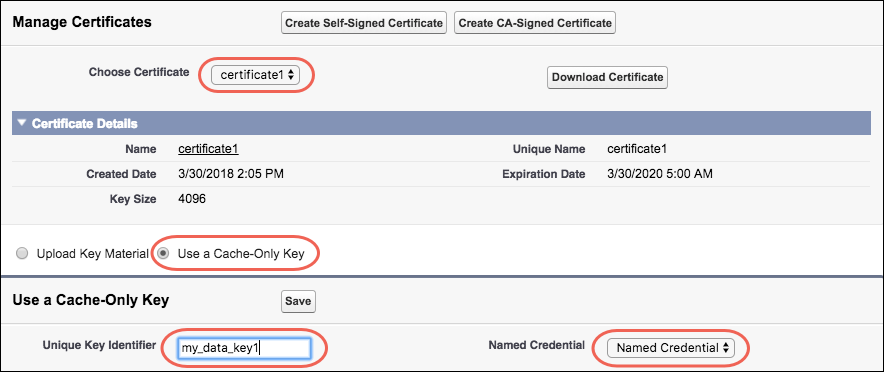
Salesforce checks the connection to the endpoint specified by the named credential. If Salesforce can reach the endpoint, the key specified for the Unique Key Identifier becomes the active key. All data marked for encryption by your encryption policy is encrypted with your cache-only key.
If Salesforce can’t reach the specified endpoint, an error displays to help you troubleshoot the connection.
Cache-only key status is recorded as Fetched on the Key Management page. In Enterprise API, the TenantSecret Source value is listed as Remote.
